GitLab Integration
Connect a GitLab project to a Testkube environment to run Test Workflows on merge requests. Testkube posts commit statuses and updates a merge request comment with results, links to executions, and an optional AI summary.
To call Testkube from a GitLab CI job, see Testkube GitLab CI.
Before you start
- A Testkube environment with a connected Runner.
- A Testkube organization Admin or Owner to set up the GitLab connection, and an environment Admin to manage the repository integration.
- For self-hosted Testkube, set
global.features.gitIntegration: truein your Control Plane Helm values. The default Helm values hide GitLab Repositories in the dashboard. - The Maintainer or Owner role in GitLab to create a project webhook. Group webhooks require the group Owner role. See GitLab webhook prerequisites.
Generated workflows and workflows using authType: gitlab require a Control Plane that supports GitLab checkout and Runner 2.16.0-rc.1 or later. Runner 2.15.3 lacks support for this checkout method.
Connect GitLab
Open Organization Management > Git integrations > GitLab and select Connect GitLab.
- Choose OAuth, enter your GitLab instance URL, select Enable Testkube, and copy the Callback URL.
- In GitLab, create a confidential OAuth application with that redirect URI and the
api,read_api, andwrite_repositoryscopes. - Enter the Application ID and Client secret in Testkube. Select Connect with OAuth and authorize the application.
- Under Repositories, turn on Repository access for your project.
For an existing OAuth connection, add the api scope to its GitLab application and select Upgrade GitLab access in Testkube. You can also connect with a GitLab access token that has the api scope and access to the project. GitLab grants the api scope across the projects and groups accessible to the authorizing account. Testkube uses the repositories you enable.
Connect a repository
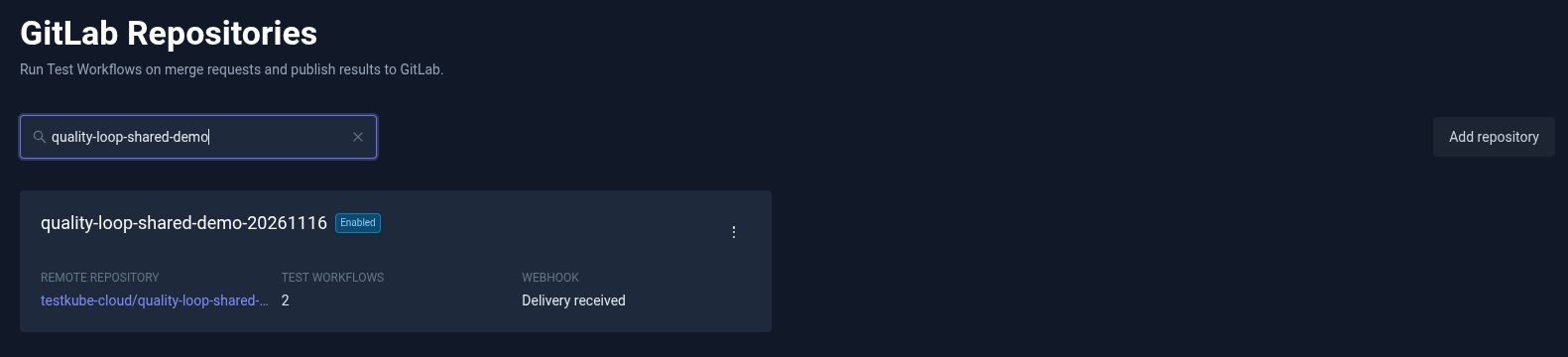
In your environment, open Manage > Events & Triggers > GitLab Repositories and select Add repository. Pick the connection and project, then choose one of these options and select Connect.
- Select an existing Test Workflow to run it with its own checkout settings.
- Scan my repository for tests and create the right workflows to generate workflows from tests detected on the default branch. Review the generated commands and Runner selection before using them.
To add another workflow later, use Connected Workflows > Add workflow, as shown below.
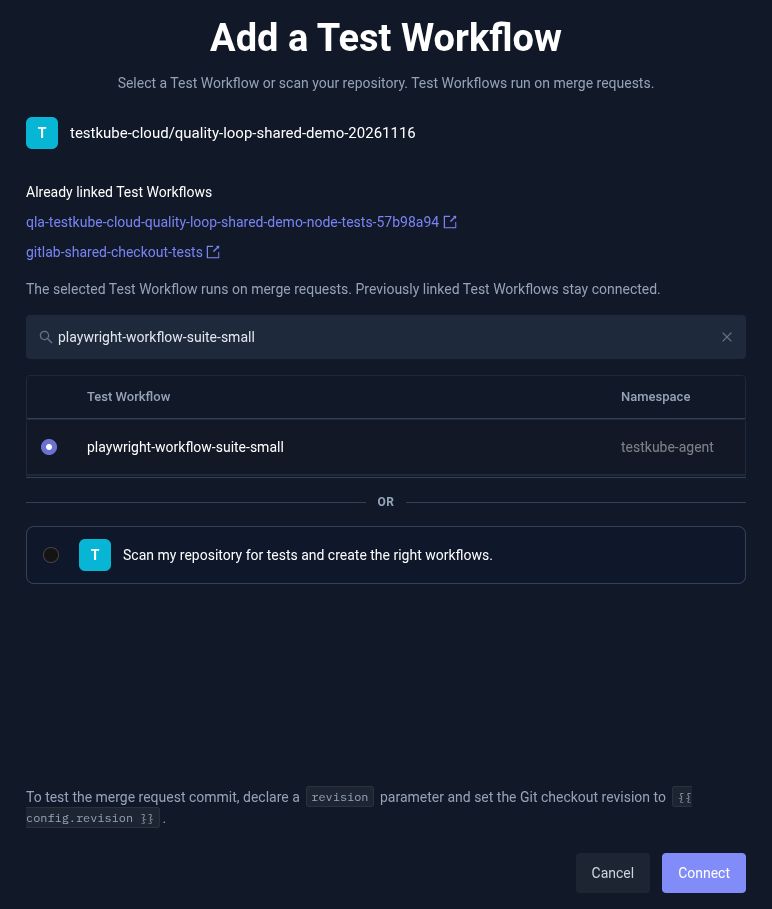
To run an existing workflow against the merge request's head commit, declare a string revision parameter under spec.config and set spec.content.git.revision to {{ config.revision }}. Testkube supplies the commit SHA. Use authType: gitlab to let Testkube provide checkout credentials for the connected project.
Configure the webhook
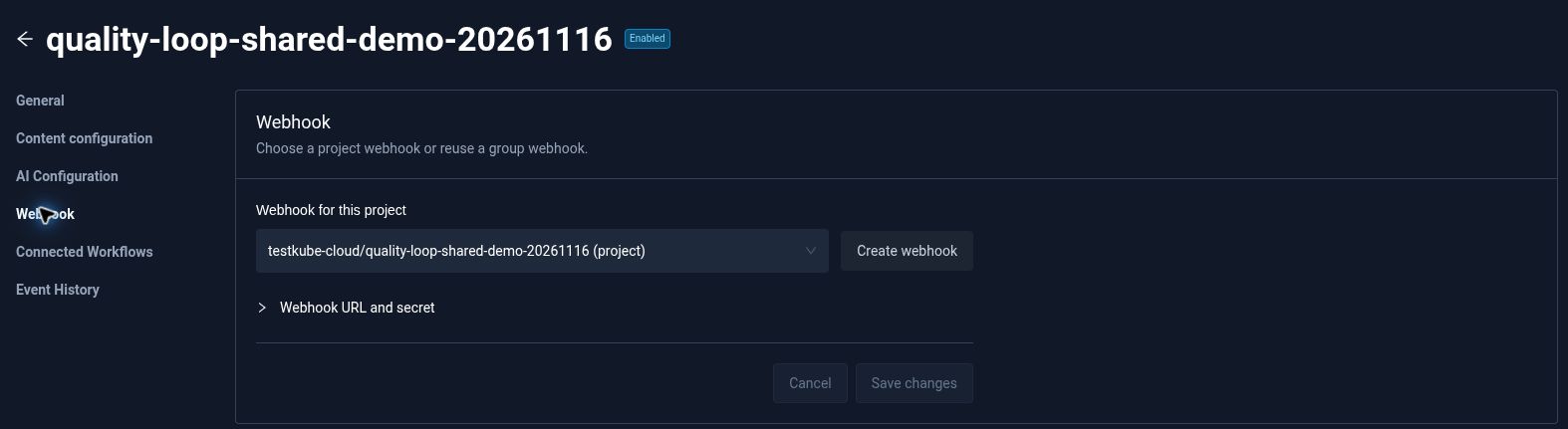
- In the repository's Webhook tab, select Create webhook. Choose Project webhook, or use a Group webhook for multiple projects on the same GitLab connection and Testkube environment.
- Choose it under Webhook for this project and select Save changes. Expand Webhook URL and secret.
- In GitLab, go to Settings > Webhooks and paste the Testkube URL and secret token. To use a GitLab signing token, provide that token under Use an existing secret or signing token when creating the webhook in Testkube.
- Enable Merge request events and Comments in GitLab, leave SSL verification enabled, and save.
Once Testkube receives a delivery, the repository list shows Delivery received.
What triggers a run
| Event | When Testkube runs the connected workflows |
|---|---|
| Merge request | You open or reopen a non-draft merge request, mark a draft ready for review, or push a new commit to an open non-draft merge request. |
| Comment | An active project member with Developer access or higher posts a new @testkube comment on an open, non-draft merge request. Post a new comment to rerun the current commit. |
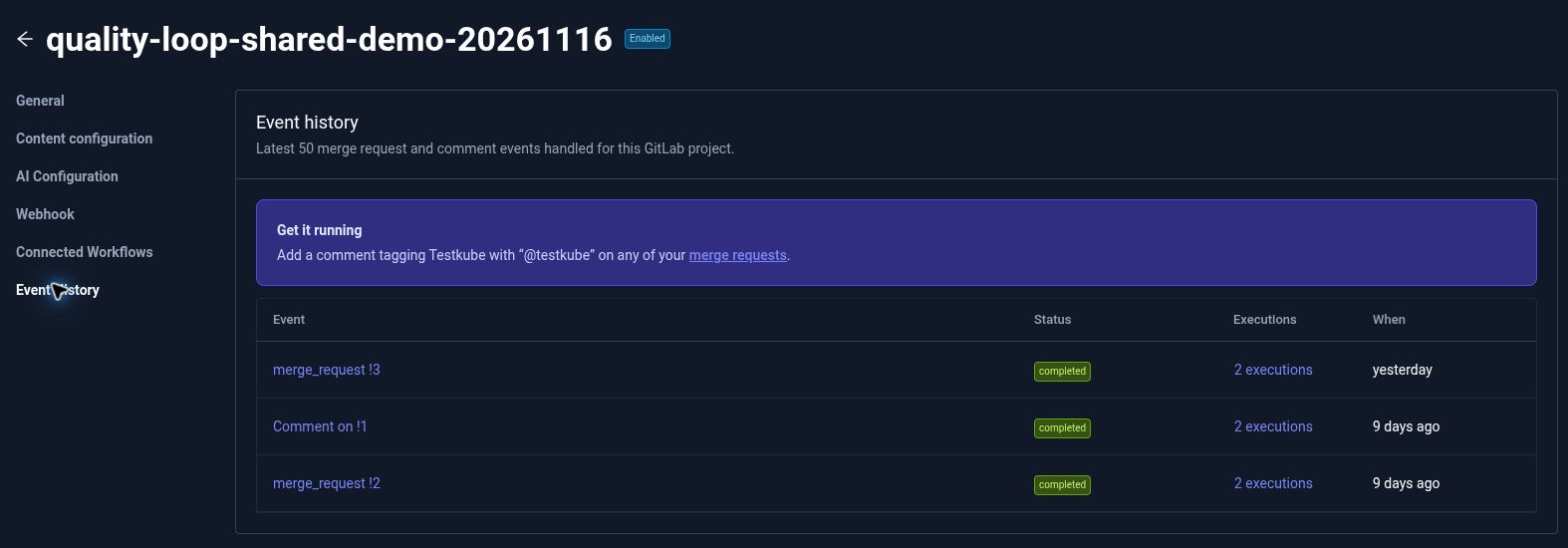
Merge requests from forks and edits to existing comments do not trigger runs. Open Event History and select an execution count to inspect the runs for that event.
Results on GitLab
Testkube posts a commit status and updates the merge request comment as workflows run. From the comment, open a workflow result to see its logs in Testkube. When AI analysis is available, use Continue analysis in Testkube to open the conversation.
Configuration
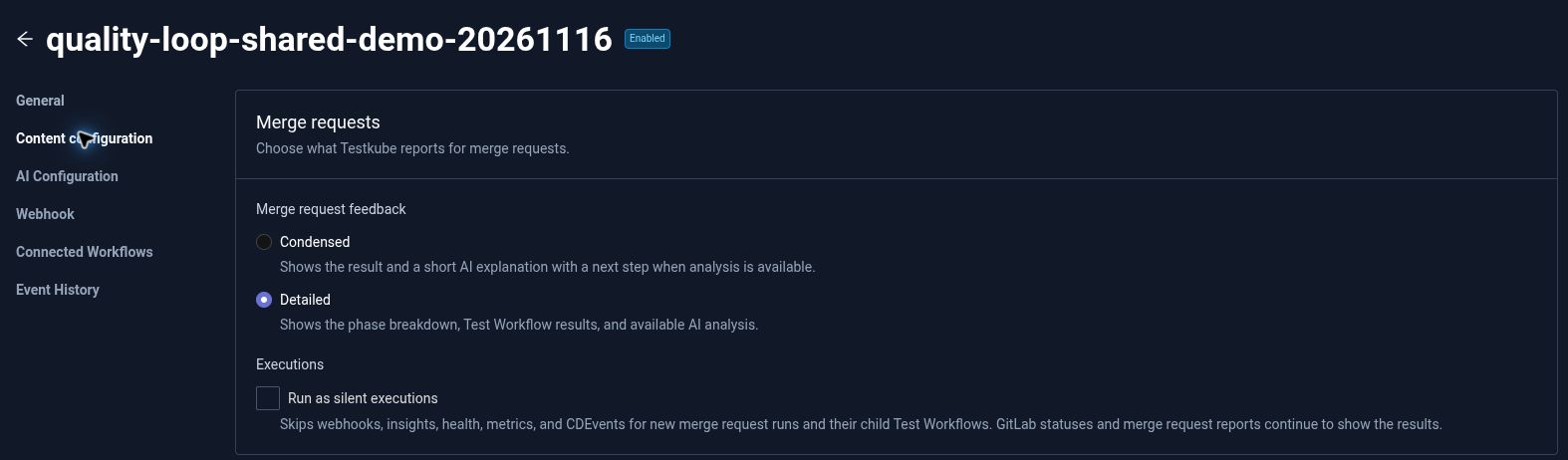
Merge request feedback
Under Content configuration, choose Condensed for a short result with collapsible workflow details or Detailed for the phase breakdown, workflow timings, and full AI summary. Detailed is the default.
Run as silent executions skips Testkube execution webhooks, insights, health, metrics, and CDEvents. GitLab still receives statuses and comments.
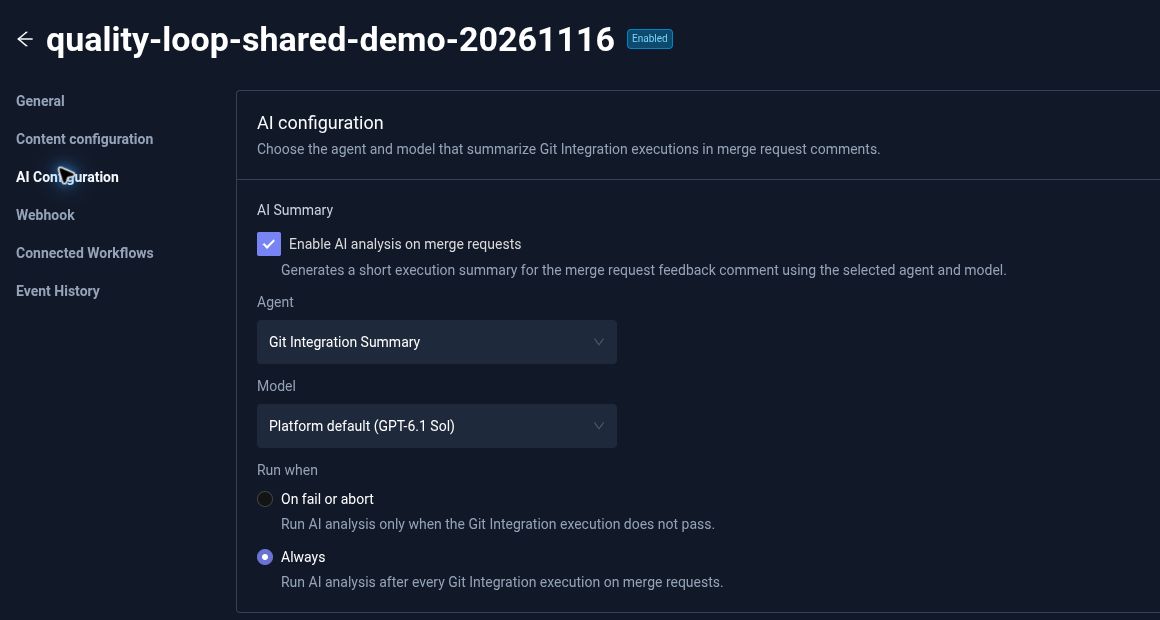
AI summary
Under AI Configuration, enable AI analysis and select an agent and model. Choose On fail or abort to analyze unsuccessful runs or Always to include successful runs.
Enable or disable the GitLab integration
Use General to disable the GitLab integration. This stops new runs and cancels active ones. You can enable it again when at least one workflow is connected.
Generated workflows
Open Connected Workflows to see linked and generated workflows. To scan again, choose Add workflow and select the scan option.
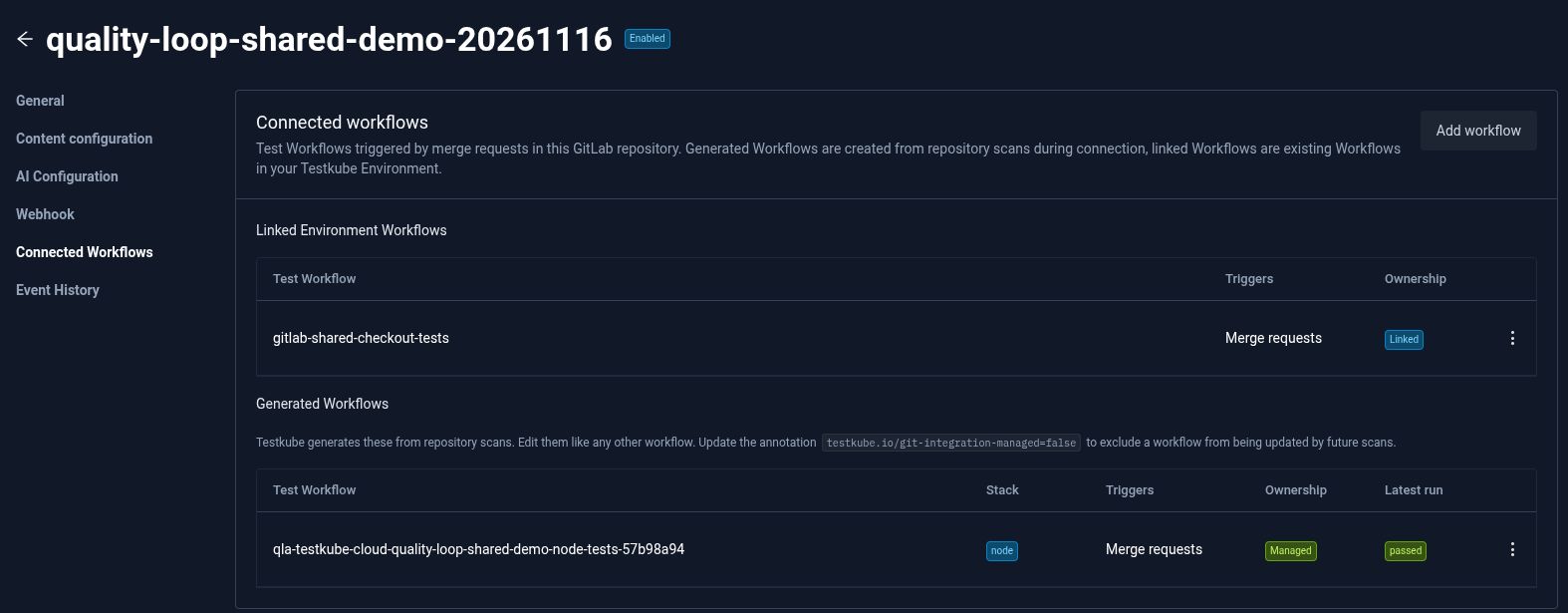
Rescanning replaces managed workflow definitions, including custom Runner targeting. Set the workflow annotation testkube.io/git-integration-managed: "false" to preserve your edits on future scans.
Troubleshooting
- The project is missing from the picker. Check that the GitLab connection has API write access and that the project is enabled under Repositories.
- The repository is awaiting a webhook. Check the URL, token, and enabled events in GitLab's Recent events. Check Event History in Testkube for the resulting run.
- The checkout fails or uses the wrong commit. Verify the Runner supports GitLab checkout and that the workflow uses
{{ config.revision }}. Testkube supplies GitLab checkout credentials during integration runs.