Testkube Credentials
What Are Credentials?
Credentials in Testkube help you securely store and use sensitive and non-sensitive information like passwords, API keys, and configuration values in your tests. Instead of putting secrets and common configuration params directly in your test code, you store them safely and reference them when needed.
There are three types of credentials:
Secret (For sensitive data)
Use for: Passwords, API keys, tokens, private keys
Benefits:
- Values are encrypted and hidden in the UI
- Safe to store sensitive information
- Only visible during test execution
Example: GitHub personal access token, database password, AWS secret key
Variable (For configuration data)
Use for: URLs, settings, non-sensitive configuration
Benefits:
- Values are visible in the UI for easy editing
- Good for configuration that needs to be readable
- Can be shared and reviewed by team members
Example: API base URL, test database name, environment-specific settings
Vault (For enterprise secret management)
Use for: Secrets that must live in HashiCorp Vault
Benefits:
- Secrets stay in your existing Vault infrastructure — no duplication
- Centralized audit trail and rotation through Vault
- Testkube reads secrets from Vault at execution time
- Compliant with enterprise security policies that require centralized secret management
Example: Production API keys managed by your security team, rotating database credentials, certificates
Vault credentials are only available for on-prem (Enterprise) installations with a Vault backend configured. See Vault Backend Setup below for setup instructions.
For on-prem installations, a master password must be configured on the Control Plane. It is used to encrypt Secret credentials stored in the database and to sign the tokens that allow runners to retrieve secrets during workflow execution.
Without a master password, only Variable (plaintext) credentials can be stored, and workflow executions that require credentials will fail.
For setup details, runtime behavior, and recovery notes, see Credentials Encryption in the installation guide.
Testkube Cloud users do not need to configure this — it is enabled by default.
On-prem users who manage secrets externally (e.g. HashiCorp Vault) can disable credentials entirely or turn off just the encrypted backend. See Disabling Credentials for details.
Scopes
Credentials can be scoped on different levels:
- Organization-scoped: Can be referenced by Workflows across the entire Organization
- Environment-scoped: Can be referenced by Workflows in a specific Environment
- Resource-group-scoped: Can be referenced by Workflows in a specific Resource Group
- Workflow-scoped: Can be referenced only within the Workflow where the credentials were created
If a credential with the same name is defined at multiple scopes, the most specific scope wins: workflow > resource group > environment > organization.
Usage
Credentials can be referenced by adding the expression {{credential("<NAME>")}} in your Workflow,
in the place where the credential value should be injected.
Make sure the credential name is quoted inside the
credential()function!
Example
Organization-scoped
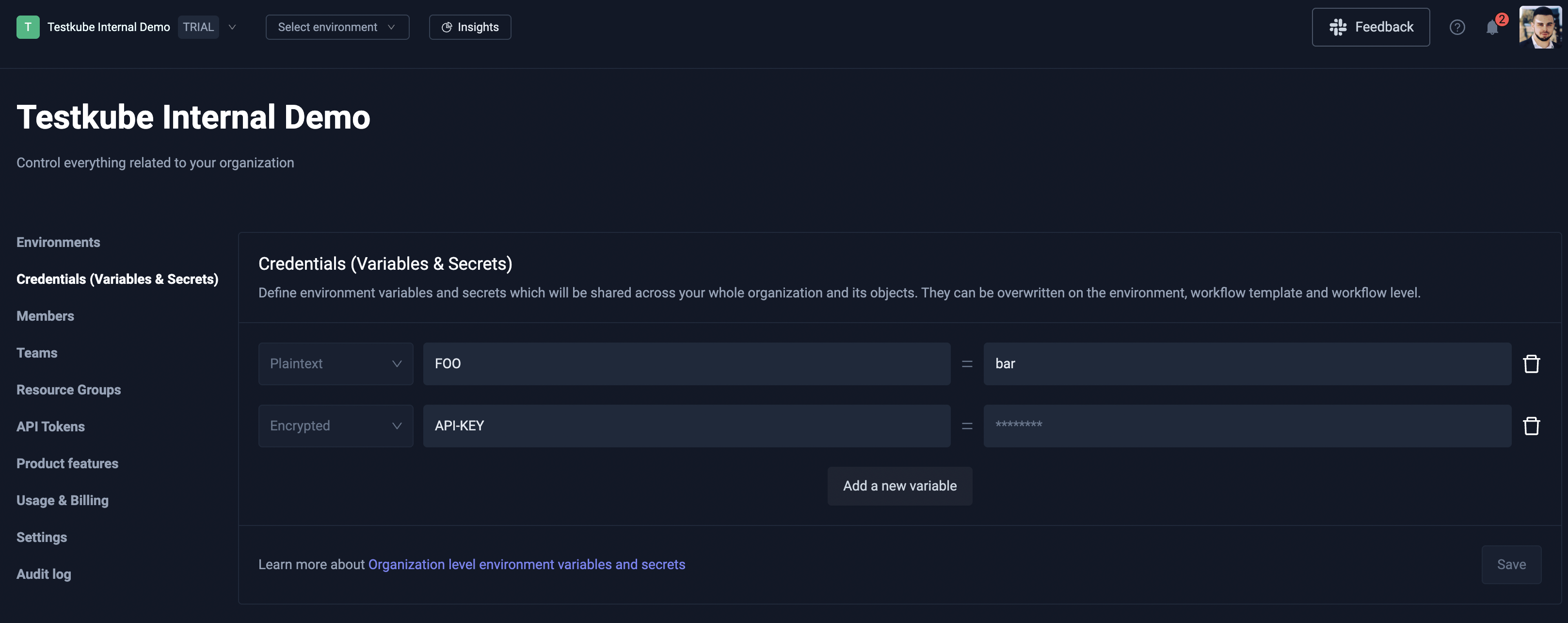
Follow these steps to create an Organization-scoped credential:
- Click the Organization dropdown menu and select the Organization Management page.
- Select Credentials (Variables & Secrets) from the left sidenav menu.
- Click Add new variable and create a credential with either Plaintext, Encrypted, or Vault type.
- After you have added all of your credentials, make sure to click the Save button!
Environment-scoped
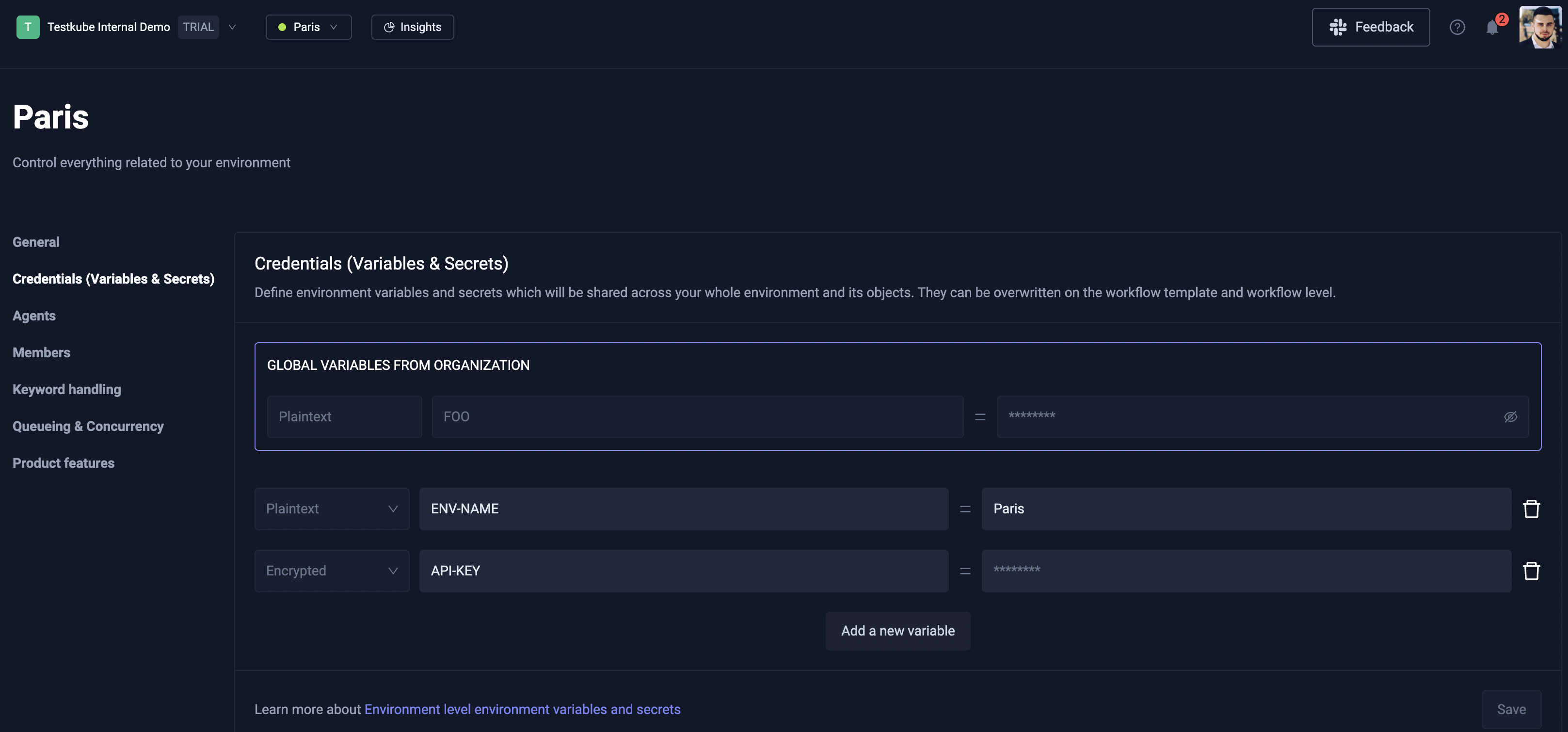
Follow these steps to create an Environment-scoped credential:
- Click the Environment dropdown menu and select the Environment settings page.
- Select Credentials (Variables & Secrets) from the left sidenav menu.
- Click Add new variable and create a credential with either Plaintext, Encrypted, or Vault type.
- After you have added all of your credentials, make sure to click the Save button!
Resource group-scoped
Follow these steps to create a Resource group-scoped credential:
- Open your Resource Group settings.
- Select the Credentials tab.
- Click Add new variable and create a credential with either Plaintext or Encrypted type.
- After you have added all of your credentials, make sure to click the Save button.
Workflow-scoped
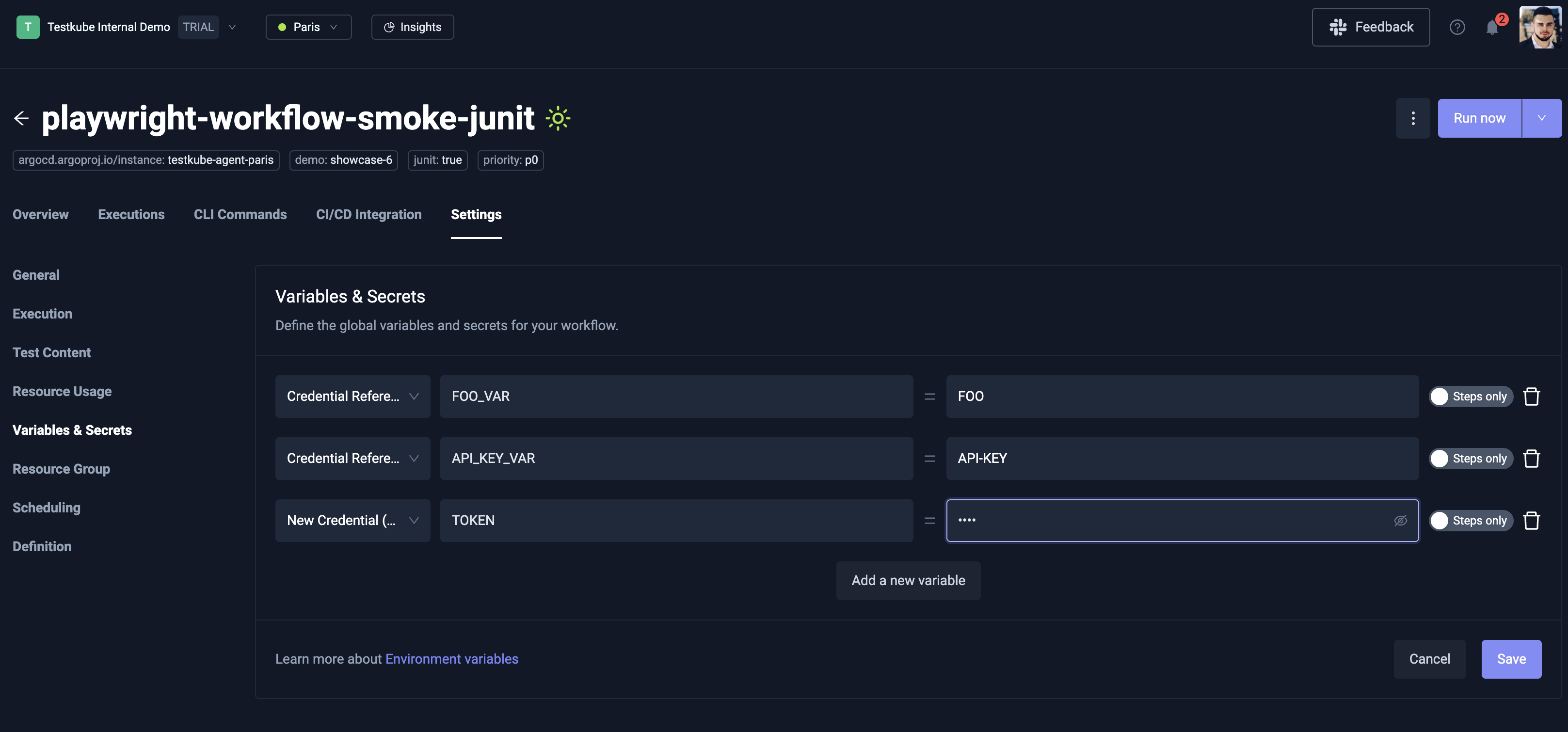
For a specific Workflow, you can either create Workflow-scoped credentials or reference existing Organization-, Environment-, Resource group-, or Workflow-scoped credentials.
This can be done by opening Workflow Settings page and selecting the Variables & Secrets page from the left sidenav.
If you want to create a new Workflow-scoped credential, click the Add a new variable button and
select New credential (encrypted) as the credential type.
The name of the credential is actually the name of the global environment variable which will be accessible by all steps,
and the value will get encrypted and the expression credential("<NAME>") will be injected:
spec:
  container:
    env:
      - name: SOME_SECRET
        value: '{{credential("tw-playwright-test-rg69tr1")}}'
If you want to reference an existing credential, go to the same page, and select Credential Reference as the credential type.
You will see a dropdown when you select the value field which contains a list of credentials you have access to.
Vault Backend Setup
This section covers using Vault as a credentials backend — where Testkube reads and writes workflow secrets to Vault's KV v2 engine.
If you're looking to inject infrastructure secrets (license keys, Minio credentials, CA certificates) into Testkube's own pods using Vault's sidecar injector, see Installation Using Vault instead.
When you create a credential with type Vault, Testkube:
- Writes the secret value to Vault's KV v2 engine at a deterministic path under your configured mount
- Stores a reference to that Vault path in its database (the actual secret value is never stored in Testkube)
- At workflow execution time, the Control Plane reads the secret from Vault and passes it to the runner
All Vault access goes through the Control Plane. Runners and runners never talk to Vault directly.
Prerequisites
- An on-prem (Enterprise) Testkube installation
- A running HashiCorp Vault instance (OSS or Enterprise) accessible from the Control Plane
- A KV v2 secrets engine enabled in Vault (typically mounted at
secret/)
1. Create a Vault Policy
The Control Plane needs read and write access to the KV v2 path where credentials will be stored.
path "secret/data/testkube/*" {
  capabilities = ["create", "read", "update", "delete", "list"]
}

path "secret/metadata/testkube/*" {
  capabilities = ["list", "read", "delete"]
}
Save this as testkube-cp.hcl and write it to Vault:
vault policy write testkube-cp testkube-cp.hcl
2. Configure Authentication
Testkube supports two authentication methods: Kubernetes auth (recommended for production) and static token (for dev/testing).
Kubernetes Auth (Recommended)
This method uses the Control Plane pod's ServiceAccount token to authenticate with Vault. No static secrets to manage — the token is automatically rotated by Kubernetes and renewed by Testkube.
Enable the Kubernetes auth method in Vault (if not already enabled):
vault auth enable kubernetes

vault write auth/kubernetes/config \
  kubernetes_host="https://kubernetes.default.svc.cluster.local:443"
Create a role bound to the Control Plane's ServiceAccount:
vault write auth/kubernetes/role/testkube-cp \
  bound_service_account_names=<service-account-name> \
  bound_service_account_namespaces=<your-namespace> \
  policies=testkube-cp \
  ttl=1h
Replace <your-namespace> with the namespace where Testkube is installed and <service-account-name> with the Control Plane's ServiceAccount name.
The ServiceAccount name is derived from your Helm release name. You can find it with:
kubectl get sa -n <namespace> | grep enterprise-api
Or check the serviceAccount.name override in your Helm values.
Static Token (Dev/Testing Only)
For quick testing, you can use a static Vault token. This is not recommended for production because the token doesn't rotate and must be manually replaced if it expires.
vault token create -policy=testkube-cp -period=24h
3. Configure the Helm Chart
Add the vault backend configuration to your testkube-enterprise Helm values:
With Kubernetes Auth
testkube-cloud-api:
  credentials:
    backends:
      vault:
        enabled: true
        addr: "http://vault.vault.svc.cluster.local:8200"
        mountPath: "secret"
        pathPrefix: "testkube"
        authMethod: "kubernetes"
        role: "testkube-cp"
With Static Token
For production, reference a Kubernetes Secret containing the token:
testkube-cloud-api:
  credentials:
    backends:
      vault:
        enabled: true
        addr: "http://vault.vault.svc.cluster.local:8200"
        mountPath: "secret"
        pathPrefix: "testkube"
        authMethod: "token"
        tokenSecretRef:
          name: "vault-token-secret"
          key: "token"
For quick testing, you can set the token field directly instead of tokenSecretRef (not recommended for production).
Vault Enterprise Namespace
If you're using Vault Enterprise with namespaces, add the namespace field:
testkube-cloud-api:
  credentials:
    backends:
      vault:
        enabled: true
        addr: "https://vault.example.com:8200"
        mountPath: "secret"
        pathPrefix: "testkube"
        authMethod: "kubernetes"
        role: "testkube-cp"
        namespace: "my-team"
4. Verify
After upgrading, check the Control Plane API logs for successful Vault initialization.
If Vault initialization fails, you'll see a warning like Failed to initialize vault backend — the Control Plane
continues running but vault credentials won't be available. Check the error message for details
(usually a connectivity or authentication issue).
5. Create and Use Vault Credentials
Once the backend is configured, Vault credentials work the same way as any other credential type. You can create them through the Dashboard at any scope (Organization, Environment, Resource Group) by selecting the Vault type — or through the API.
In your workflow, reference them with the same credential() expression you'd use for any other type:
spec:
  container:
    env:
      - name: API_KEY
        value: '{{credential("my-api-key")}}'
Testkube resolves the credential at execution time by reading the secret from Vault and injecting it
into the workflow step. The workflow doesn't need to know whether the credential is stored in Vault or
in Testkube's database — the credential() expression works the same either way.
Vault Path Structure
Testkube organizes secrets in Vault by scope. Given the default mountPath: "secret" and pathPrefix: "testkube",
the paths look like this:
| Scope | Vault Path |
|---|---|
| Organization | secret/data/testkube/o/<orgID>/<credentialName> |
| Environment | secret/data/testkube/e/<orgID>/<envID>/<credentialName> |
| Resource Group | secret/data/testkube/rg/<orgID>/<rgID>/<credentialName> |
| Workflow | secret/data/testkube/w/<orgID>/<envID>/<workflowName>/<credentialName> |
This structure lets you use Vault's ACL policies to restrict access by scope if needed.
Token Renewal
When using Kubernetes auth, Testkube automatically renews the Vault token before it expires. If renewal fails (e.g. Vault is temporarily unreachable), Testkube re-authenticates using the pod's ServiceAccount token with exponential backoff. No manual intervention or pod restart is needed.
For static token auth, token lifecycle is your responsibility. If the token expires, credential operations will fail until a valid token is provided (either by updating the Secret or restarting the pod with a new token).