AI usage, seats, and limits
Some plans meter AI. The dashboard is where you see the allowance, how much of it is used, and the switches that grant or remove a test creation seat. This page explains what those meters mean.
Allowances are part of the plan. They are not listed here, and they can differ from one plan to another. The usage page in your organization is the number that applies to you. Organizations that share a plan also share these allowances. When an allowance is unlimited, the page says so and that meter does not stop you. To change an allowance, contact us.
These seats are not the full and read-only member seats. A person can be a member and still not have a test creation seat.
Where to look
| What you want | Where it is |
|---|---|
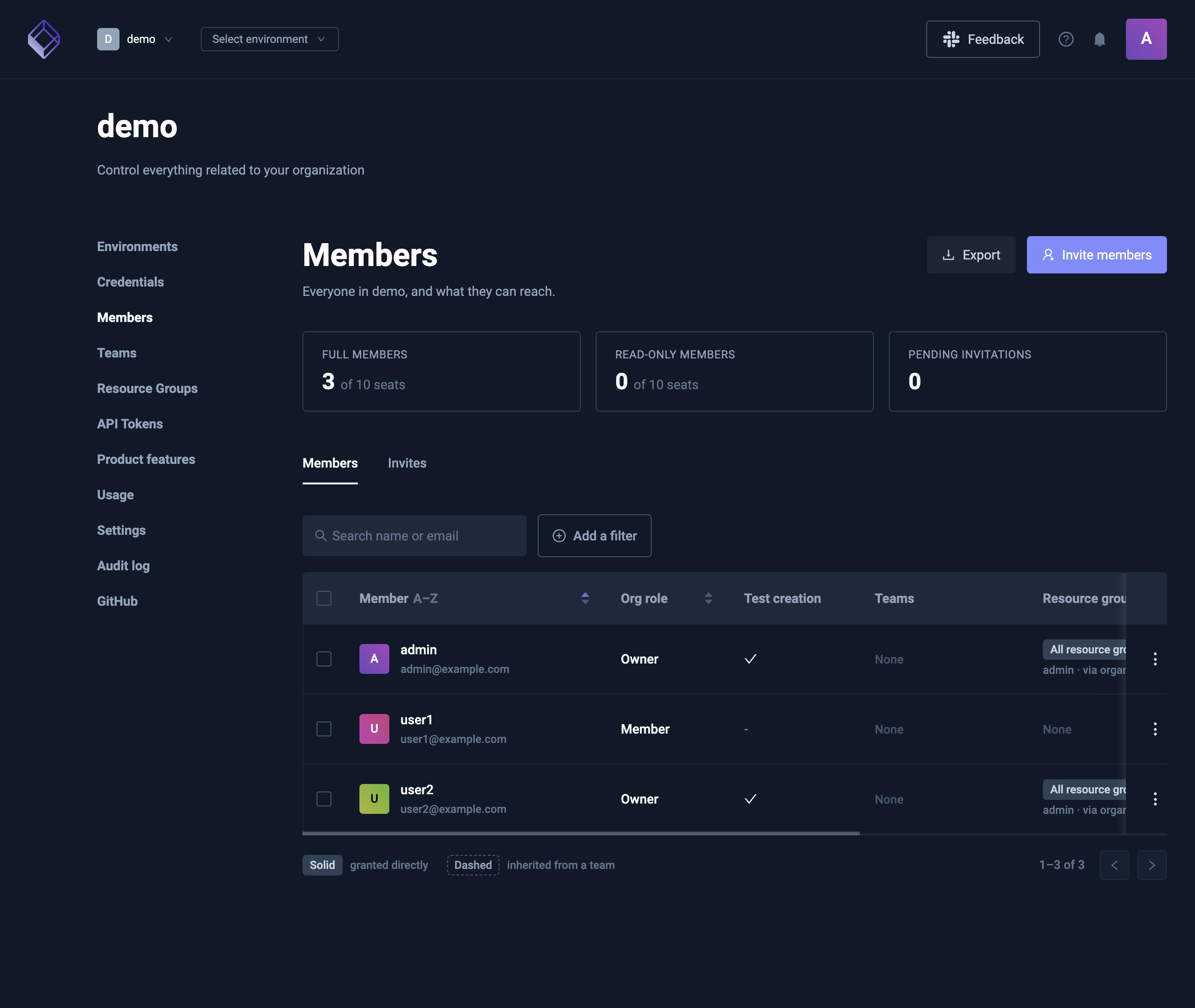
| Who has a test creation seat | Organization Management → Members. The Test creation column is a check or a dash |
| Grant or remove one person's seat | Open that member. Test creation is a switch |
| Grant or remove seats for the whole organization | Environment → AI Settings → Test Creation Seats. Only people who can manage members see this tab |
| How many sessions the chat you have open has used | The ring next to the chat input. Hover it for the period total |
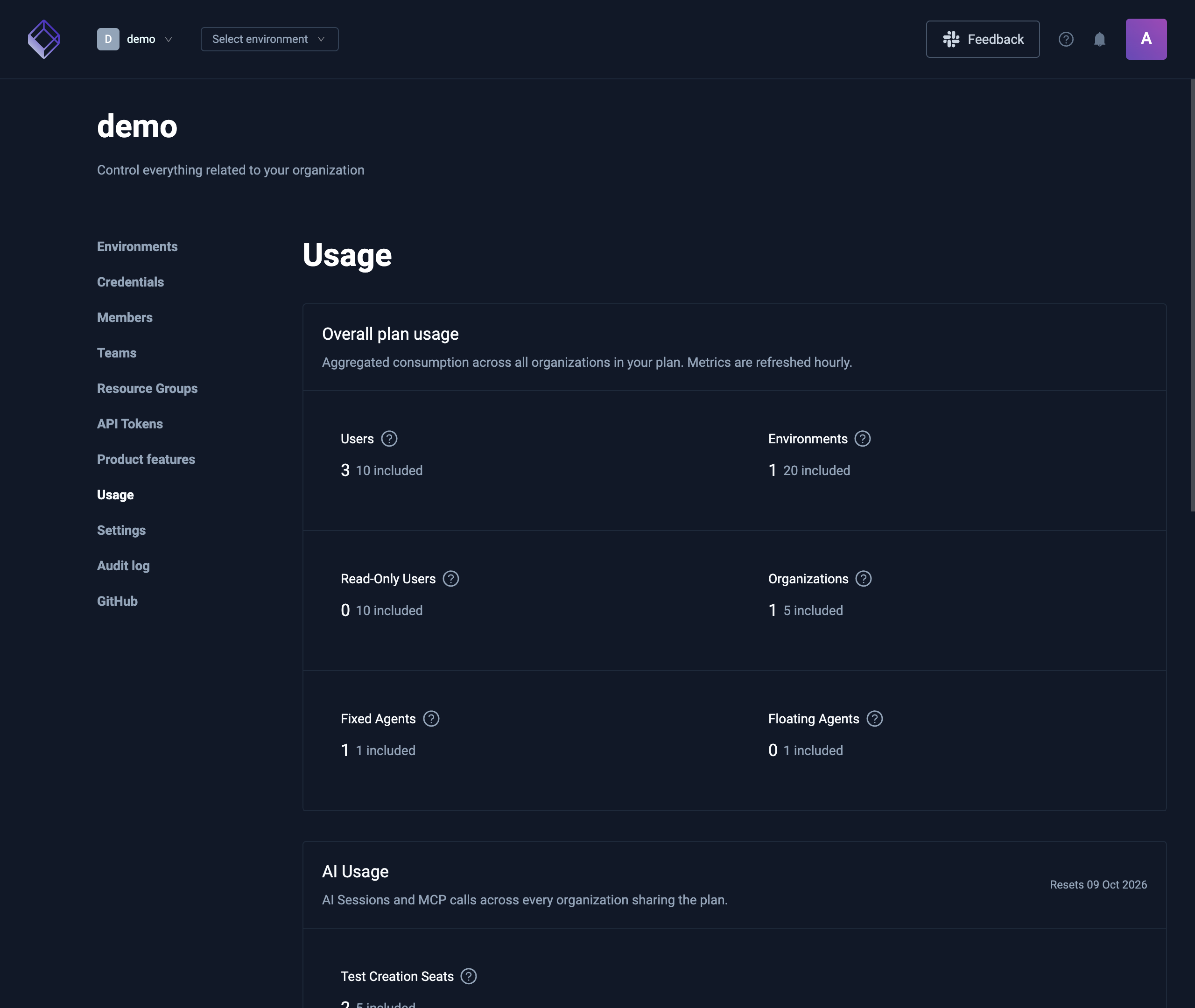
| Sessions, MCP calls, and seat count for the plan | Organization Management → Usage & Billing (labeled Usage on a self-hosted control plane) |
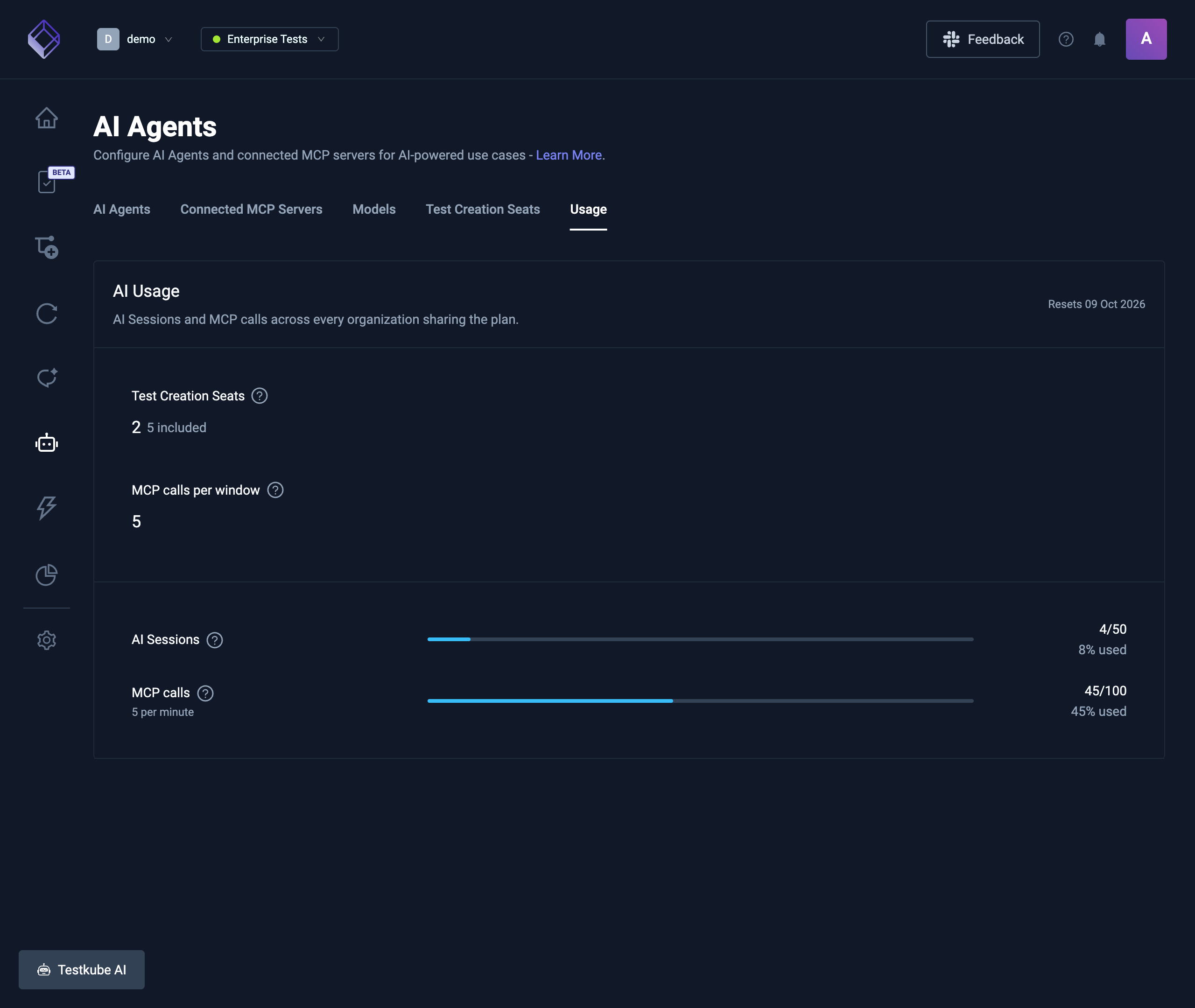
| The same meters, next to agents and models | Environment → AI Settings → Usage. It shows AI token usage, plus the plan meters when the plan includes the AI add-on |
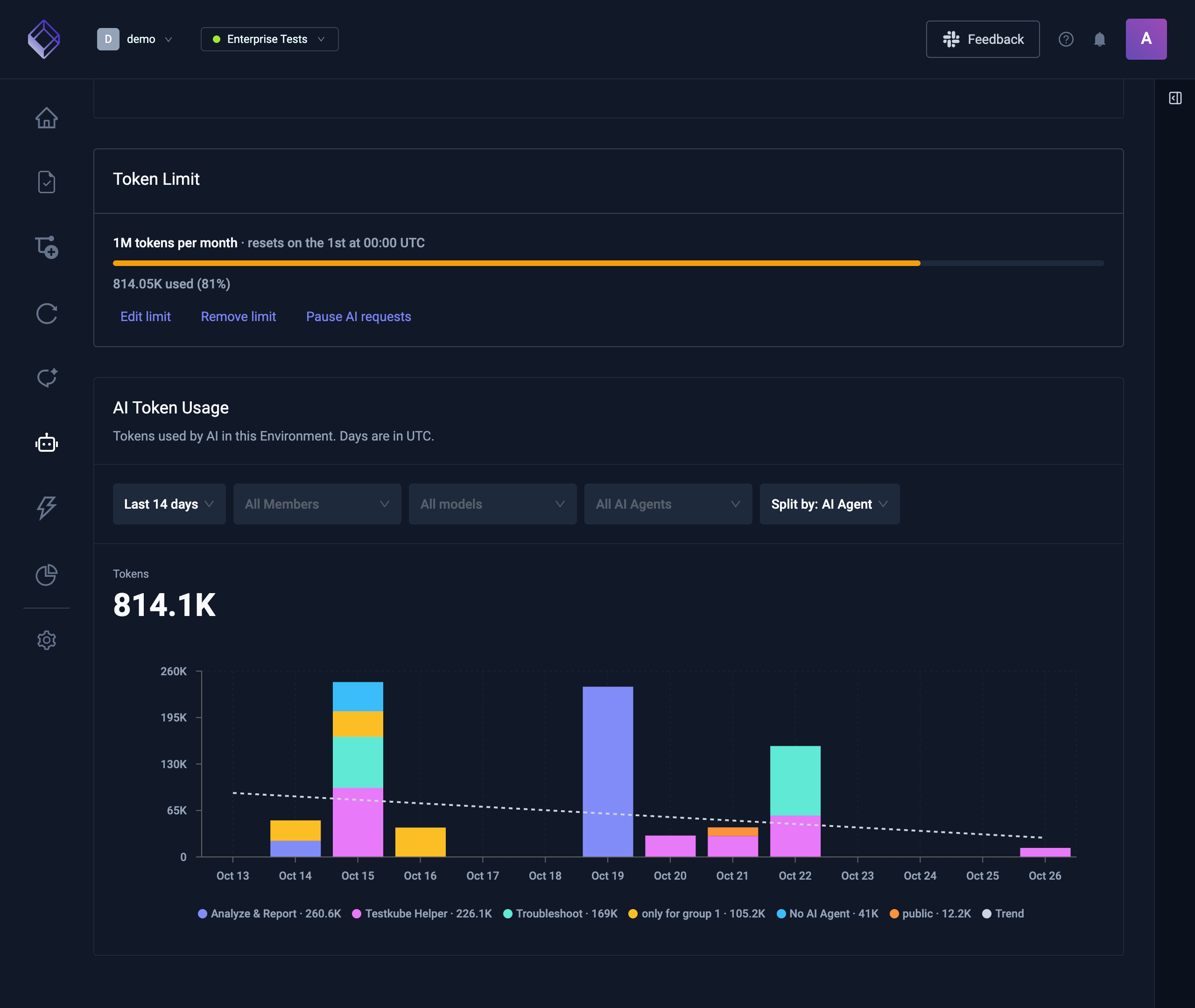
| AI tokens used, by AI Agent, Member or model | The AI Token Usage chart on Usage & Billing, or on AI Settings → Usage for one Environment |
| How close a chat is to a token limit | The ring next to the chat input. Hover it for the chat's tokens and the limit hit first |
The plan totals, including the AI usage block, are on Usage & Billing:
The same AI usage block is on AI Settings → Usage:
Test creation seats
A test creation seat lets that person author tests: create and change tests in the Test Catalog, and use the authoring workspace that writes them. It does not change their organization role, and it does not by itself grant the AI assistant, workflow runs, or MCP access.
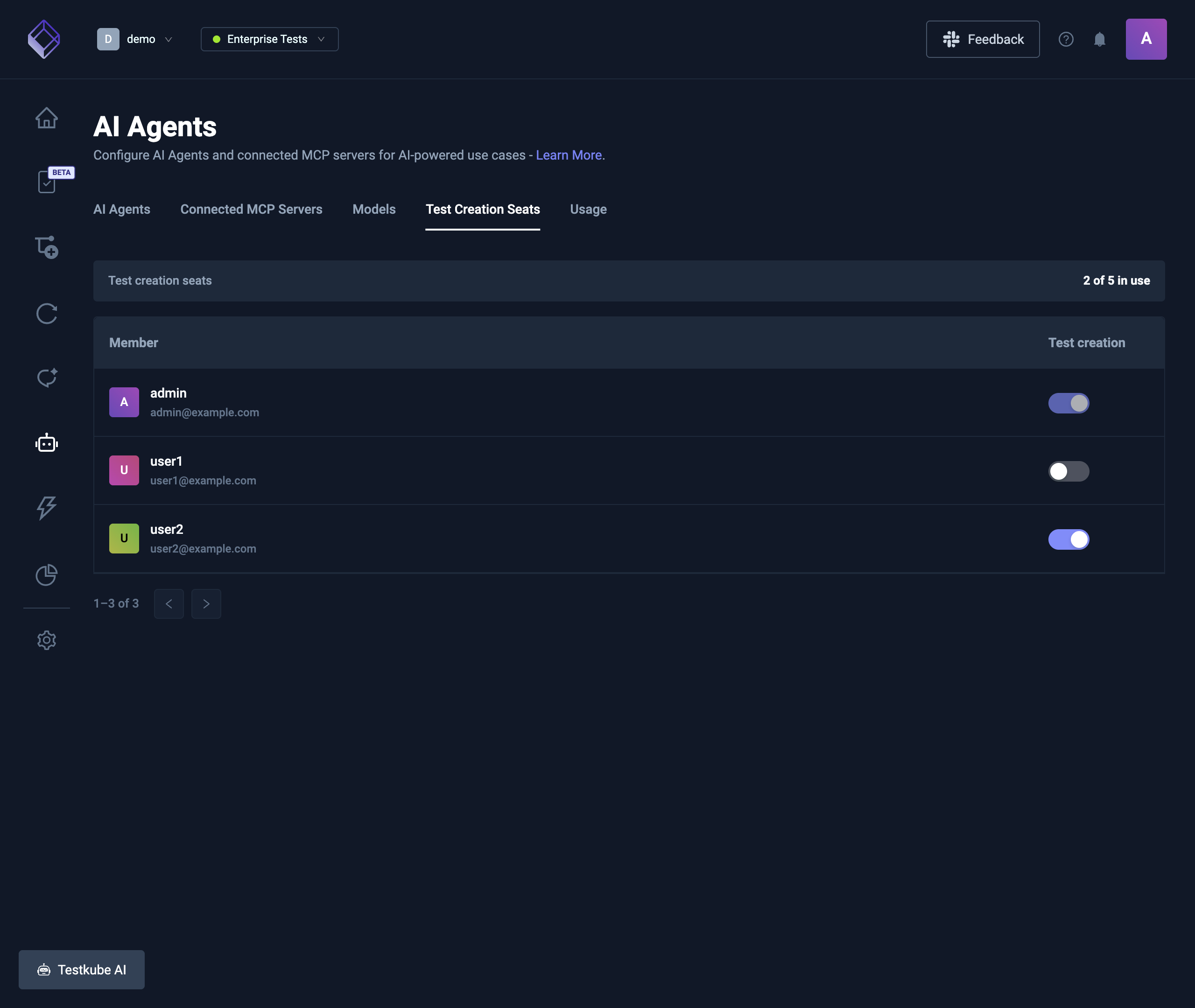
The catalog can be visible without a seat. Starting authoring without one asks for a seat. A member without a seat is told to request one from an organization admin. Someone who can manage members can grant a free seat from Members, or contact us when every seat is taken.
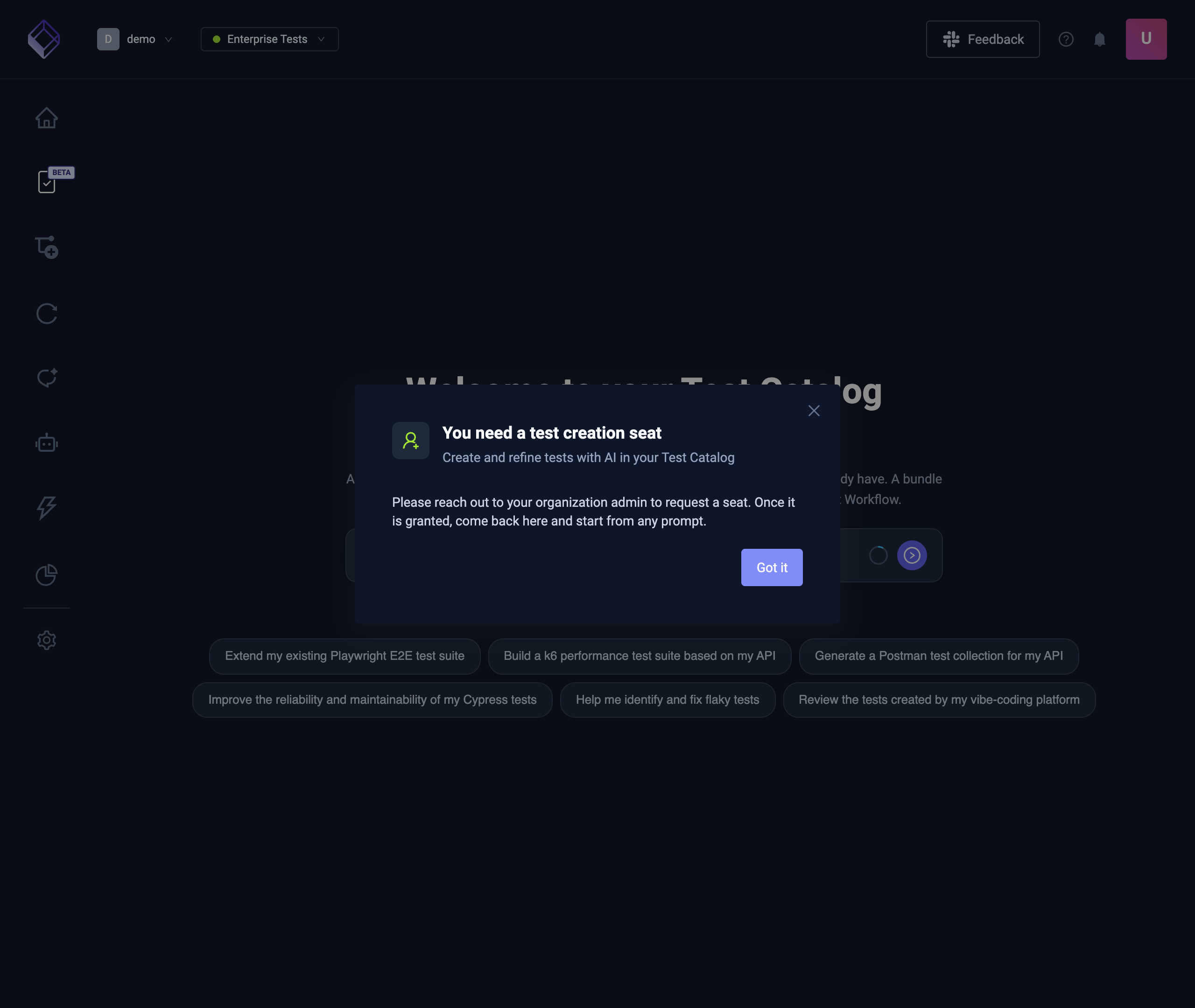
One person holds one seat. The pool is shared by every organization on the plan. A check in the members table means the seat is on. A dash means it is off.
Who can change a seat
- People who can manage members can change someone else's seat.
- An owner can change their own seat. An admin cannot.
- When the organization is managed by an identity provider through SCIM, the switch stays disabled. The identity provider owns the change.
- The Test Creation Seats tab is hidden from people who cannot manage members.
Cooldown
Granting a seat is immediate. Taking it away is not. After a seat is granted, it stays on until a short hold ends. The switch tells you how long is left (for example, that it can be removed in a few minutes). Until then it cannot be revoked. The usual hold is one hour; the switch is the time that applies.
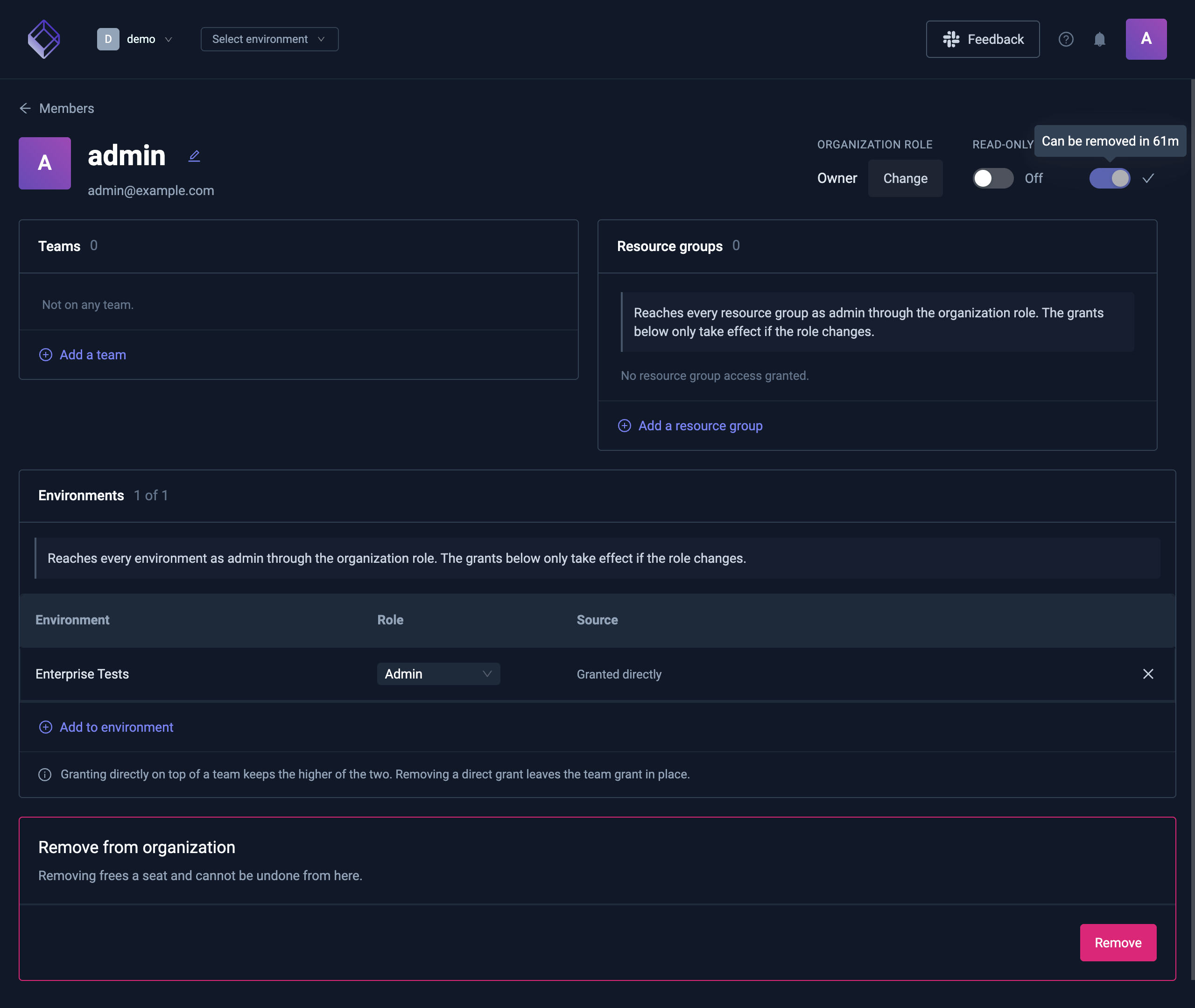
A full pool blocks new grants. It does not block removing a seat whose hold has already ended. After that revoke, the usage count updates and the freed seat can be given to someone else.
AI sessions
An AI session is 15 minutes of continued use of one chat, not the chat itself.
- The first message in a chat opens a session.
- Further messages inside those 15 minutes do not open another.
- A message at or after 15 minutes from when the current window started opens a new session and counts again.
- A new chat always starts a new session.
- A long chat can therefore count as several sessions. Leaving a chat idle does not, by itself, open another one. The next message does, once the 15 minutes have passed.
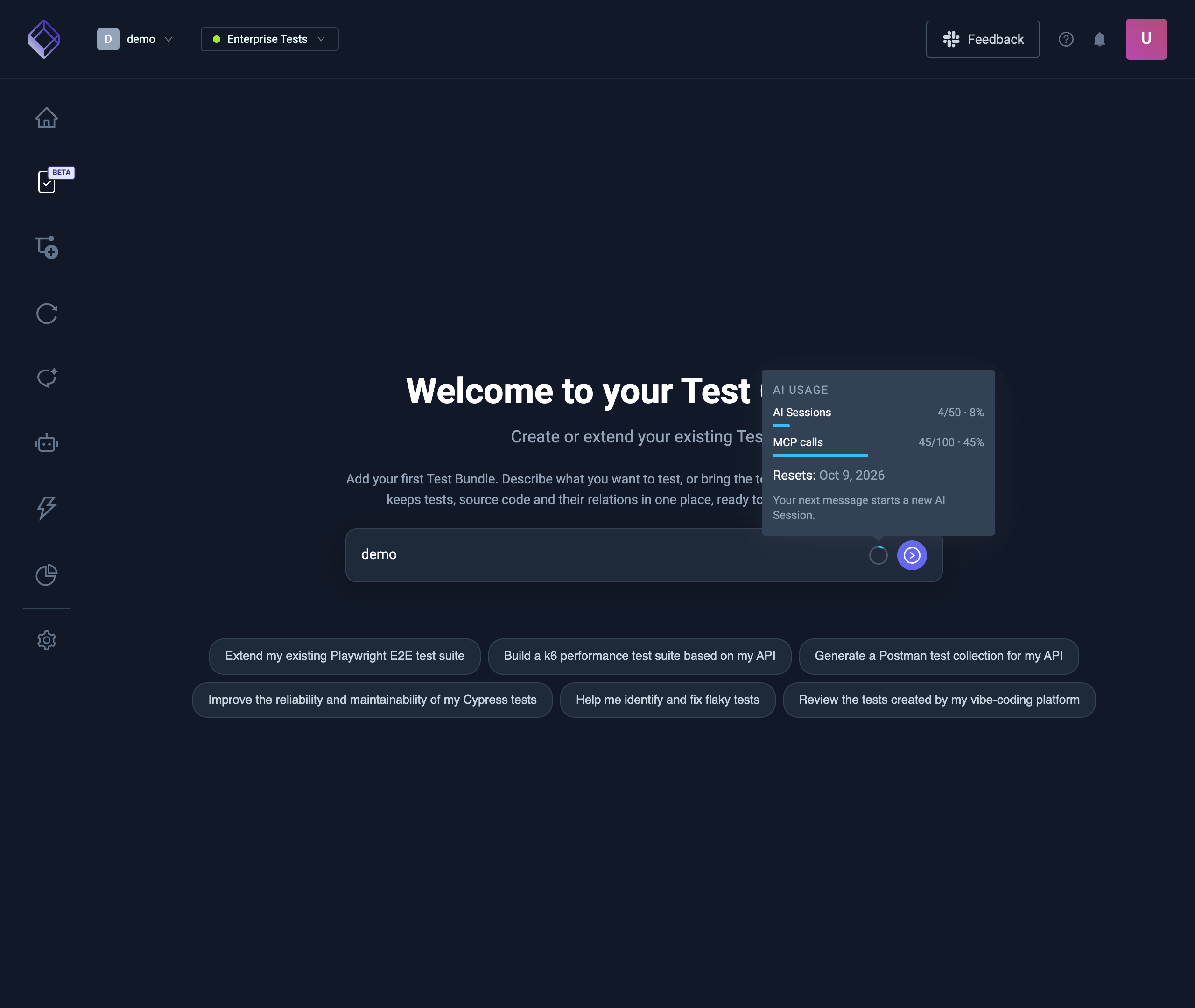
The ring next to the chat input is that chat's sessions. The usage page is the total for the plan during the current period, across every organization that shares the plan. Both show the date the period resets. When the allowance is used up, a new session is refused until the period resets or the allowance is raised. Messages that stay inside an already open window are not a new session.
MCP calls
An MCP call is one tool call through the hosted Testkube MCP endpoint. Connecting a client, listing tools, or chatting in the dashboard does not count. Tool use inside a dashboard chat counts as an AI session, not as an MCP call.
There are two caps, and either one can stop a call:
- This period. How many tool calls the plan allows until the reset date on the usage page.
- The rolling rate. How many tool calls are allowed in a short window. The usage page states the window under MCP calls (for example, per minute). A burst can be refused while the period allowance still has room. The next call is allowed when that window has moved on.
A refused call does not consume a unit. The same counters cover every organization on the plan. On the usage block above, the rate is the line under MCP calls.
AI token usage
The AI Token Usage chart shows how many AI tokens were used per day, or per week starting on Monday for ranges longer than 92 days. Days are in UTC. A token count is input plus output: cached input counts as input, and reasoning counts as output. It's on Usage & Billing for the whole organization, for people who can see the plan's usage.
- Date range. Last 7, 14, 30 or 90 days, or a custom range of up to 104 weeks. Last 14 days is the default.
- Split by. Stack each day by AI Agent, Member, Model or Environment, or choose None for one total. Split by AI Agent, usage that didn't go through an AI Agent shows as No AI Agent. AI Agent is the default. The chart shows up to 10 series and folds the rest into Other. Deleted AI Agents and Members show under their ID. A trend line follows the total.
- Filters. Narrow the chart to an Environment, a Member, a Model or an AI Agent. The Member filter lists API tokens separately from people.
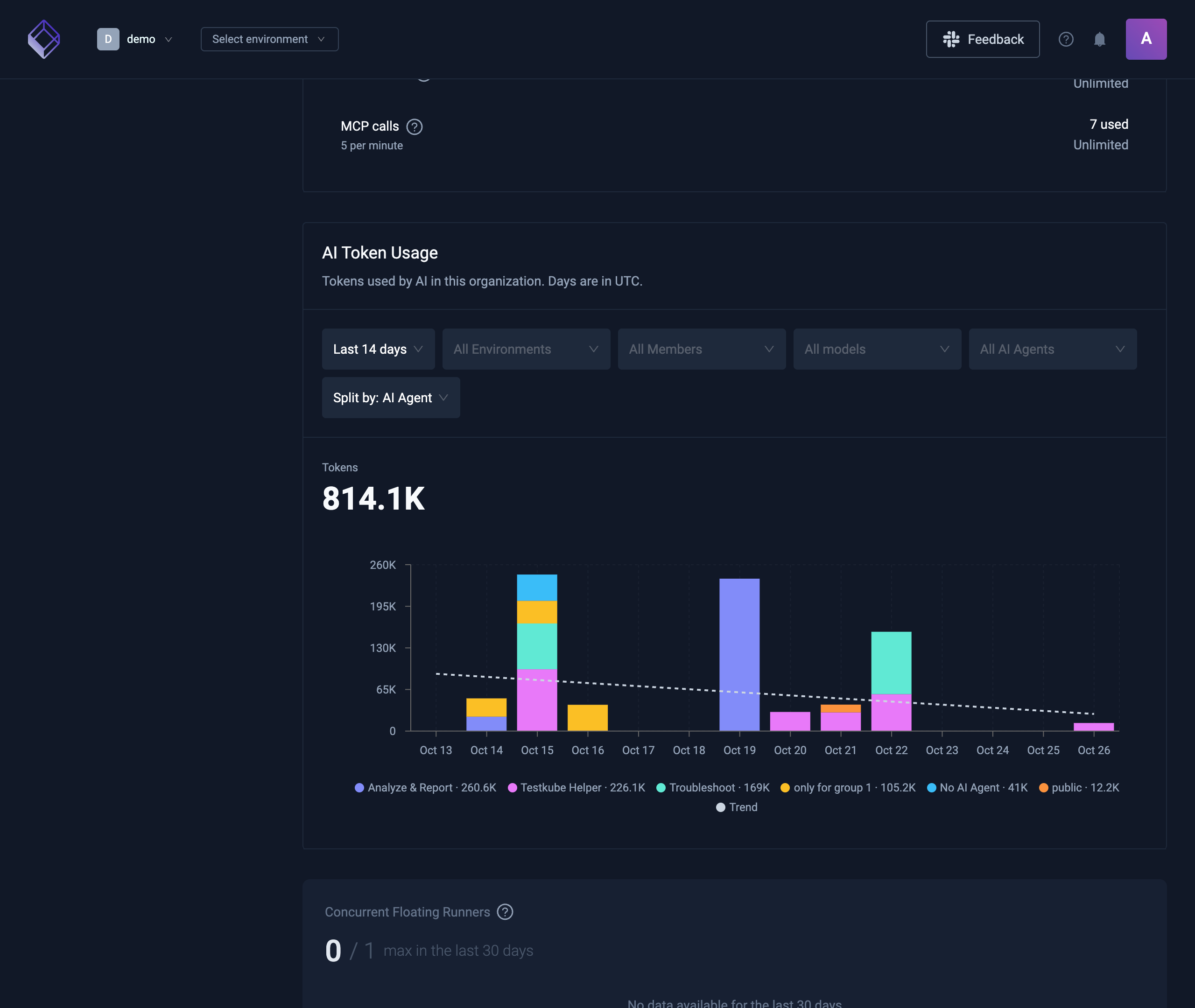
Tokens count from every chat, AI Trigger run and GitHub PR analysis. Some AI work isn't counted, such as chat titles and context compaction.
One Environment
Environment → AI Settings → Usage shows the same chart for that Environment only, under the Environment's token limit. The Environment filter and the Environment split aren't there. Anyone with a role in that Environment, including Read, sees everyone's usage there. People without a role see a message asking them to request one from an Environment admin.
The usage ring and token limits
When token limits apply to a chat, the ring next to the chat input shows how close the chat is to the limit it will hit first. On metered plans, it shows whichever is closer to its cap: AI sessions or that token limit.
- Which limit. A paused level counts first, then a limit that's already reached, then the limit with the fewest tokens left. That can be your own limit, the AI Agent's, the Environment's or the organization's.
- Colors. The ring turns amber from 80% of that limit and red when it's reached or AI is paused.
Hover the ring for the details:
- Current chat. The tokens this chat has used, and on metered plans its AI session window.
- Plan usage. AI sessions and MCP calls on metered plans, with the reset date.
- Token limits. The limit hit first, with tokens used, the limit, the percentage and when it resets, or Limit reached or Paused. Show N more limits lists the other limits that apply, and Show less hides them.
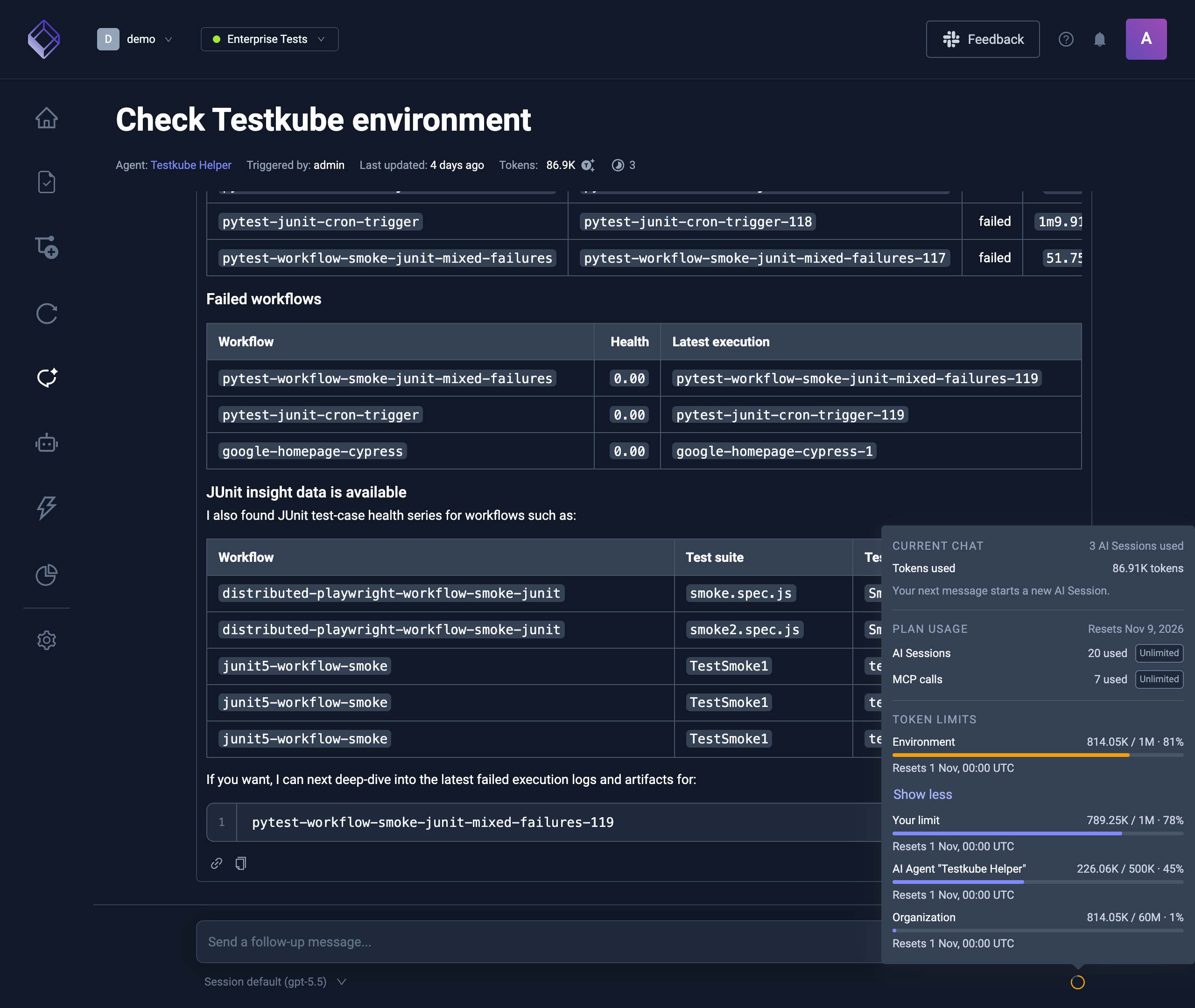
AI sessions and token limits are separate. AI sessions are the plan's allowance and Testkube sets them. Token limits are set by your organization's admins. Either one can stop a chat.
Token limits
Separately from the plan, Organization and Environment admins can cap the AI tokens a Member, an AI Agent, an Environment or the Organization uses, and pause AI at any of those levels. Read more in AI token limits and pauses.
Prices
What you pay, and how large each allowance is, lives on the plan. This page does not quote either. Read the allowance on Usage & Billing. When it says Unlimited, there is no cap on that meter. When it shows a count, that count is the cap until the reset date. Raising a cap, adding seats, or moving to a different plan is a conversation with Testkube, not a control in the dashboard.