AI token limits and pauses
A token limit caps how many AI tokens can be used in a window, such as a month. You can set one for a Member, an AI Agent, an Environment or the whole Organization. You can also pause AI at any of those levels, which stops it until someone resumes it.
Token limits are yours to set. They are separate from the AI sessions and MCP calls of your plan, which Testkube sets.
Token limits and pauses are part of AI governance. They don't need RBAC in your license.
On a self-hosted control plane, AI governance needs PostgreSQL.
How token limits work
Each level counts different usage:
| Level | What its limit counts |
|---|---|
| Member | Chats the Member starts or sends messages in. It also applies when an API token continues one of their chats, but tokens used by API tokens and AI Triggers don't count toward any Member. |
| AI Agent | Everyone's use of that AI Agent. |
| Environment | All AI use in that Environment. |
| Organization | All AI use in the Organization. |
Every limit that applies to a request is checked, and the first one that's reached blocks it. For example, a Member with room left is still blocked when the AI Agent they chat with has reached its limit. Chats an API token starts itself, such as AI Triggers, have no Member limit: only the AI Agent, Environment and Organization limits apply.
Sandbox specialist runs count toward limits like chats do.
A limit has three settings:
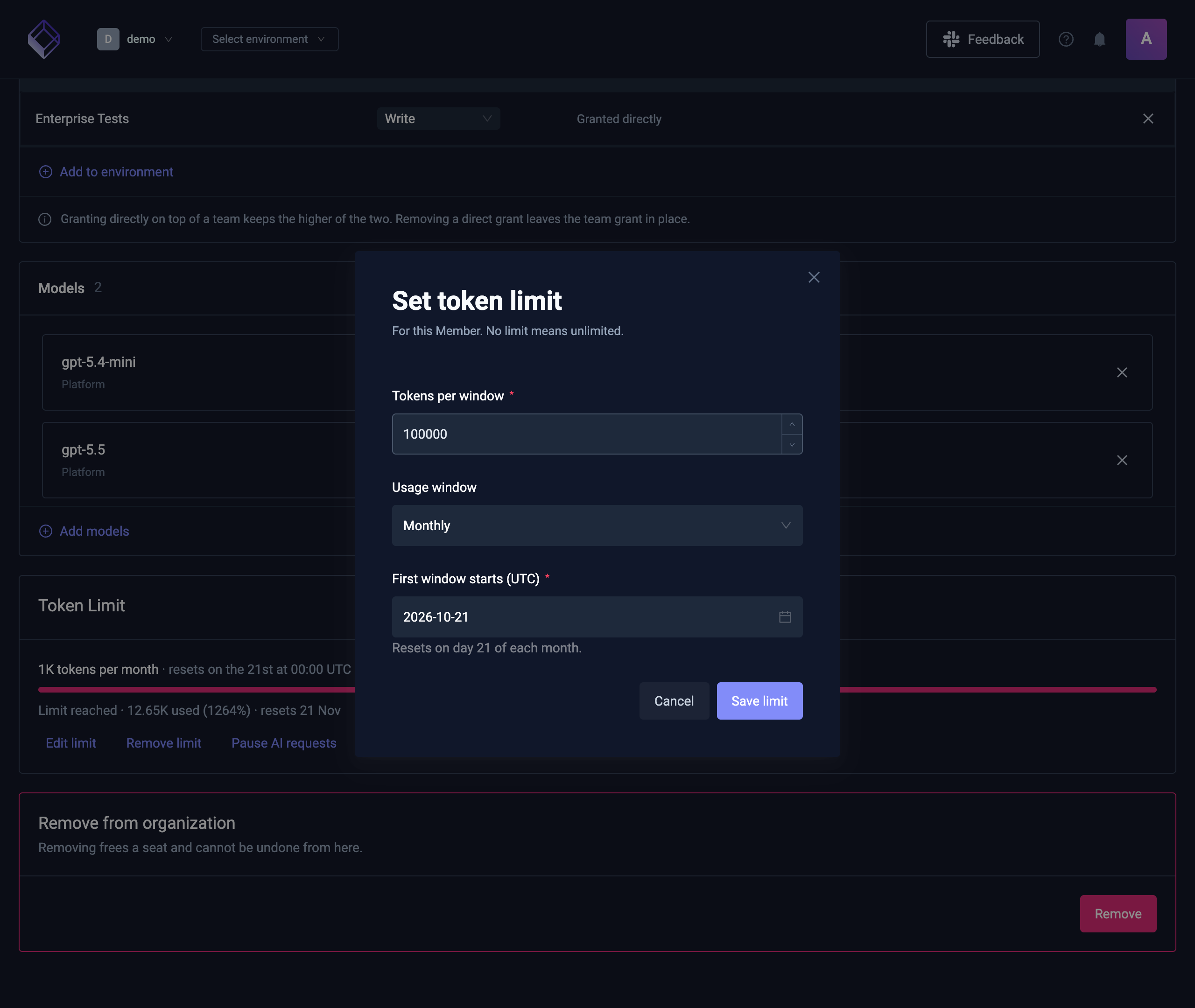
- Tokens per window. Input and output tokens of the model calls, added up.
- Usage window. Monthly, Weekly or Hourly. Usage goes back to zero when a new window starts.
- First window starts (UTC). The windows repeat from that moment. A weekly limit that starts on a Wednesday resets every Wednesday at 00:00 UTC. A start date in the future means no limit applies until that day, and the card says so.
A limit is near once 80% of it is used.
Pause AI
Pausing stops all AI requests at that level until it's resumed, whatever its limit says. Pausing a Member stops their chats and Sandboxes, and they can't generate AI Agents; pausing an AI Agent stops it for everyone; pausing an Environment or the Organization stops all AI there.
Use Pause AI requests on a Token Limit card or a limit's ⋮ menu. To undo it, select Resume on the card, or Resume AI requests in the ⋮ menu. Saving a limit or removing it doesn't resume a pause.
What people see
| Where | When a limit is reached or AI is paused |
|---|---|
| A new chat message | The message isn't answered. The chat shows AI token limit reached or AI is paused, whose limit it is and when it resets, and to ask an admin. |
| A long answer | The answer stops with a message saying the limit was reached. A running answer checks again about every 30 seconds, so a pause or a limit reached by someone else stops it too. |
| An AI Trigger | The run doesn't start. The trigger's chats show a failed chat with the reason. |
| A GitHub PR analysis | The AI Analysis row says "Skipped: an AI token limit is reached or AI is paused. Ask an Organization admin." |
| Generating an AI Agent | The generation is refused with a message saying why. |
| Test Authoring Sandboxes | A Sandbox doesn't start. |
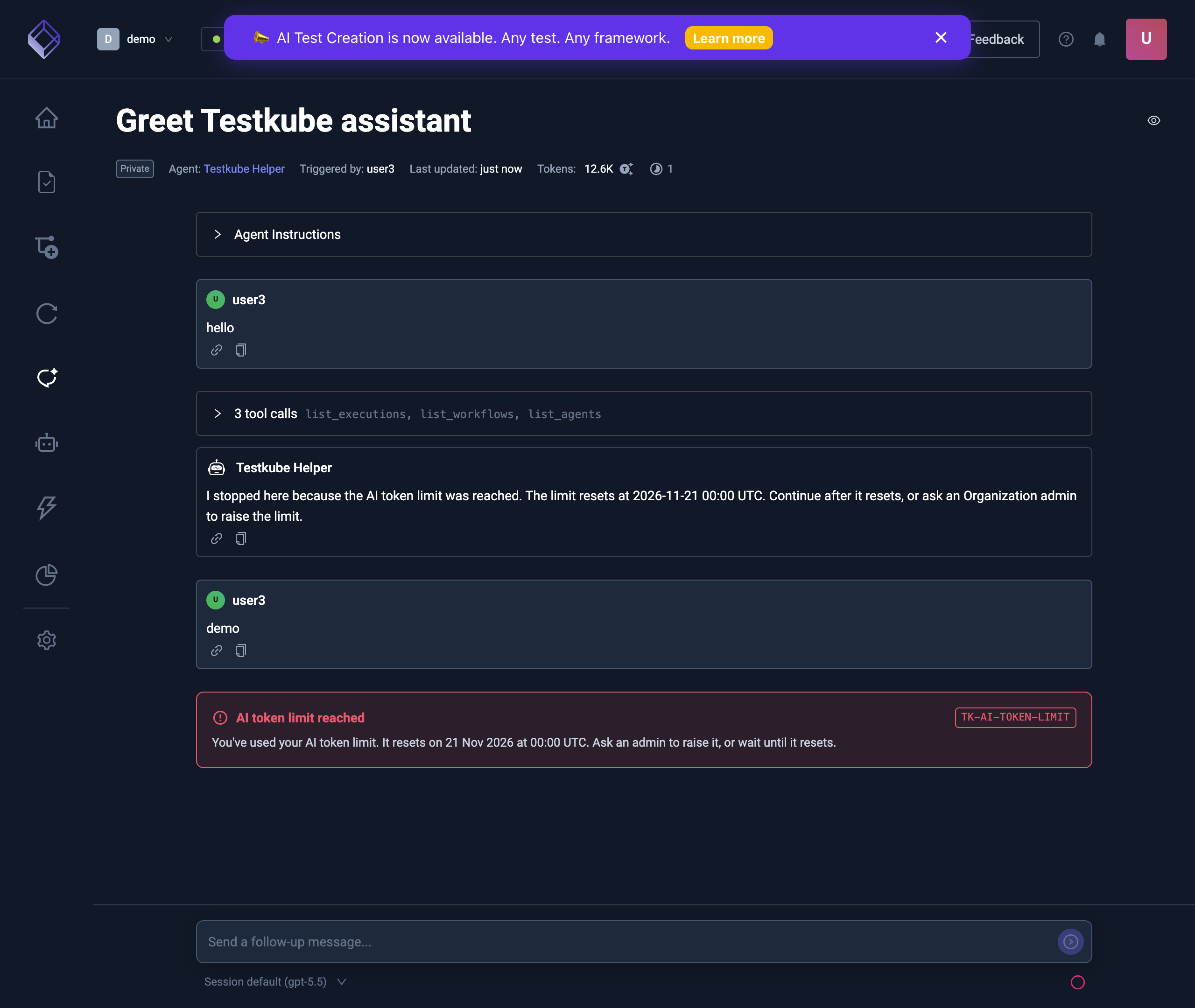
The usage ring next to the chat input also shows how close the tightest limit is.
Set a limit
Limits are set on the thing they limit:
| Level | Where |
|---|---|
| Member | Organization Management → Members → the Member → Token Limit card |
| AI Agent | The Environment → AI Settings → AI Agents → the AI Agent → Token Limit card |
| Environment | The Environment → AI Settings → Usage → Token Limit card |
| Organization | Organization Management → AI Governance → Limits |
On a Token Limit card:
- Select Set limit, or Edit limit if there is one.
- Enter the Tokens per window, pick the Usage window, and choose when the First window starts (UTC).
- Select Save limit.
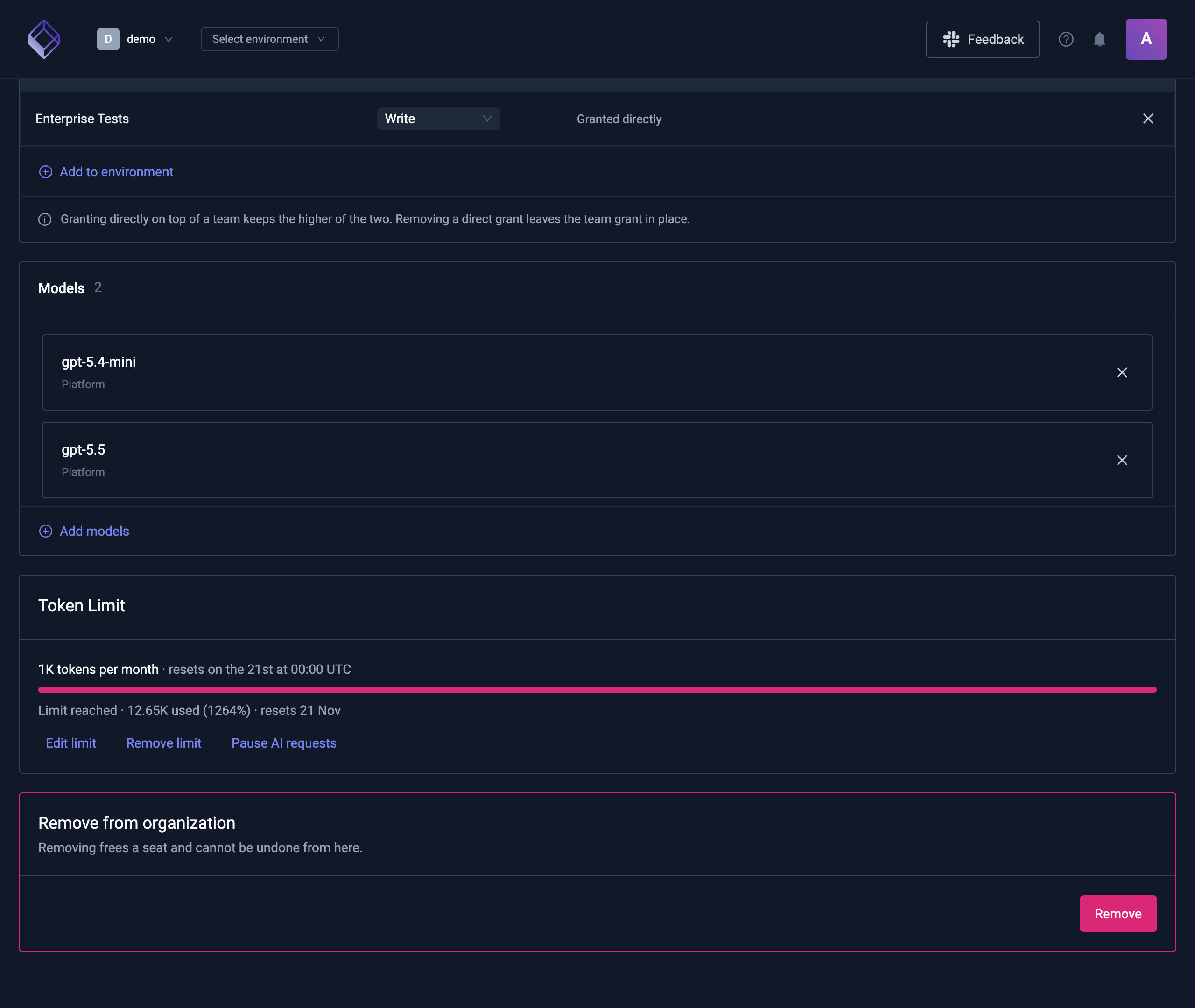
The card shows how much of the current window is used and when it resets. Remove limit takes the limit away.
Review all limits
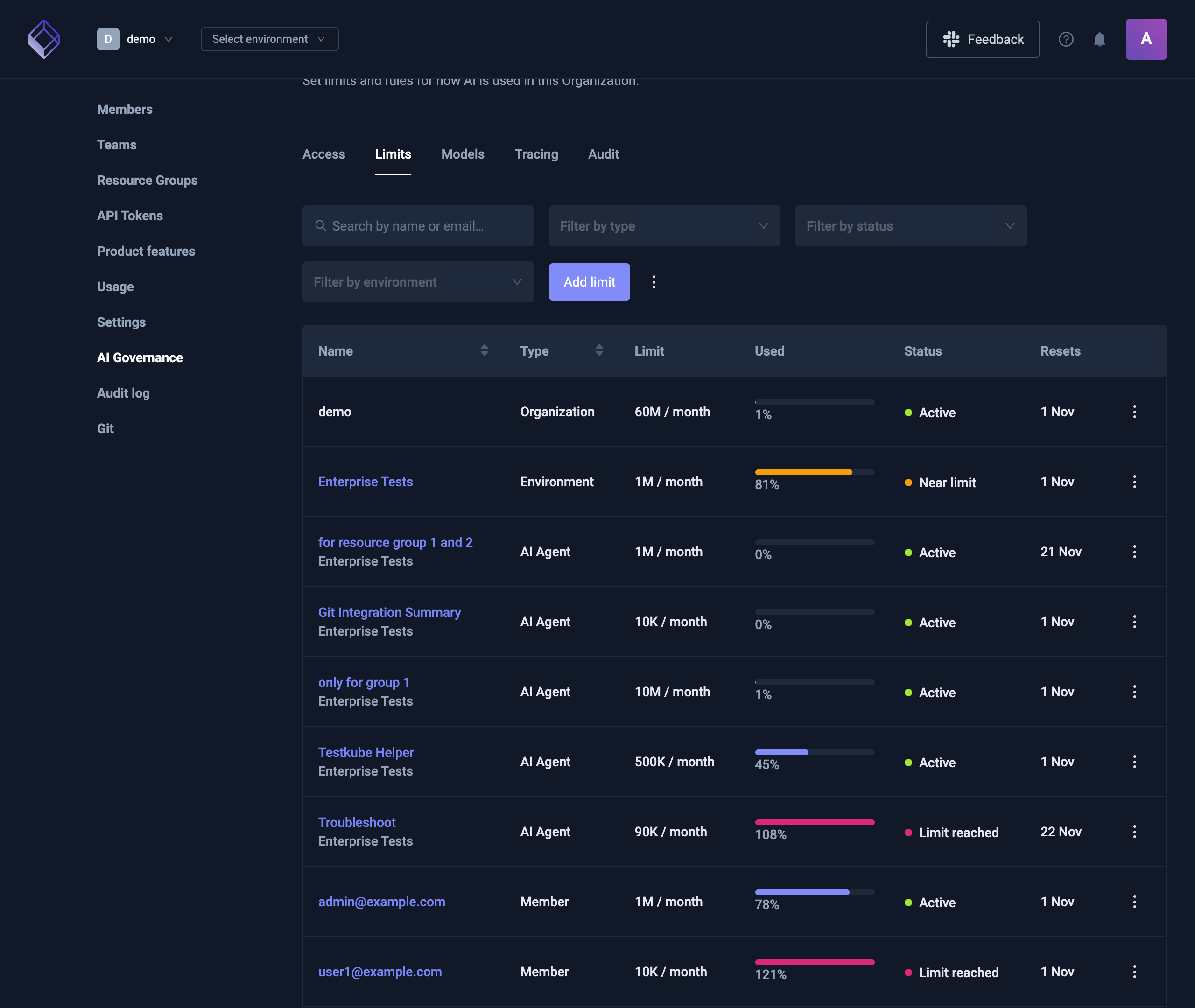
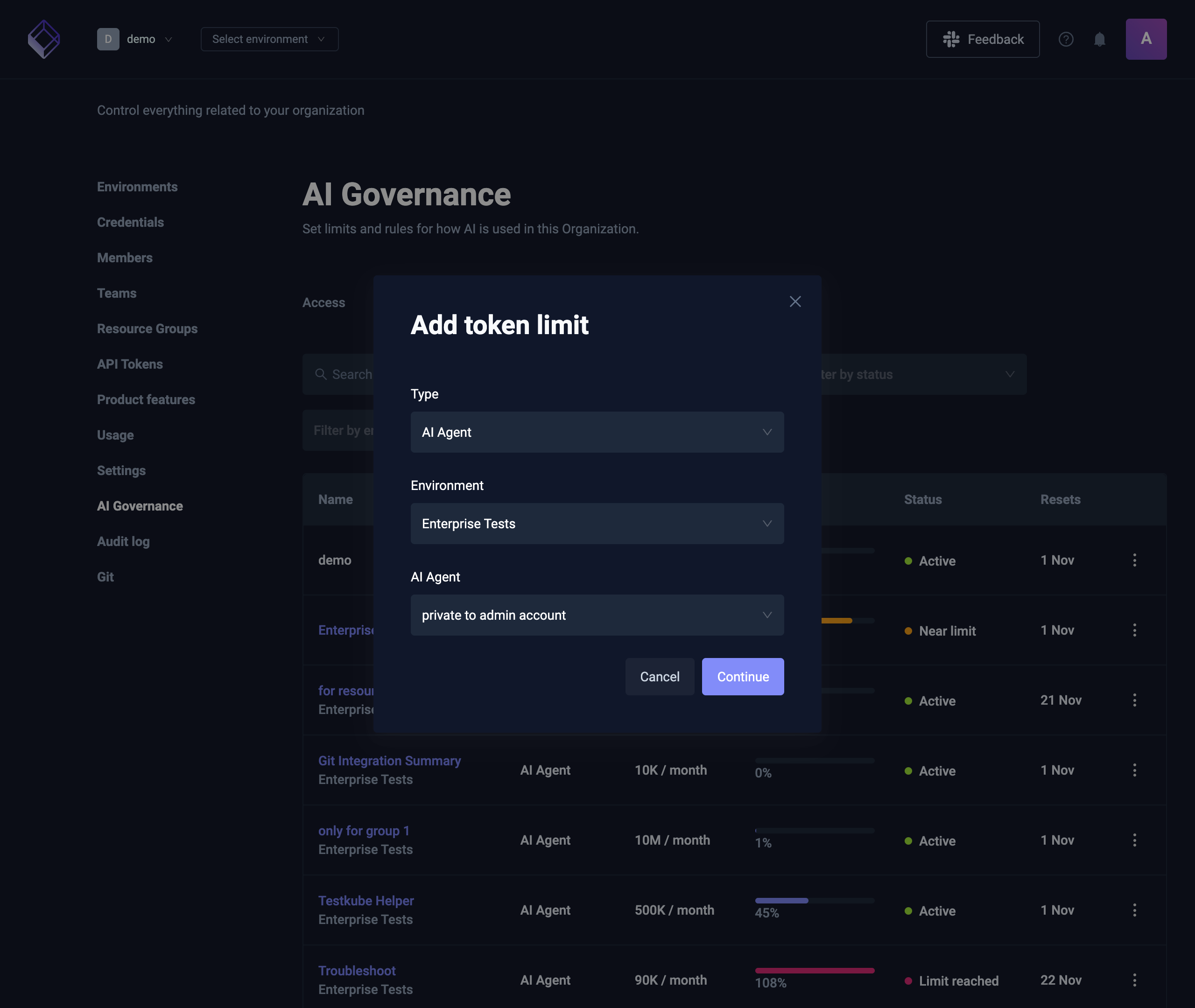
Organization Management → AI Governance → Limits lists every limit and pause in the Organization. It's for Organization admins and owners.
- Each row shows the name, type, limit, tokens used, status and when it resets.
- Search by name or email, Filter by type, Filter by status (Active, Near limit, Limit reached, Paused) and Filter by environment narrow the list.
- Add limit sets a limit for any type: pick the Type, then the Environment, AI Agent or Member, select Continue, and set the limit.
- Each row's ⋮ menu has Edit limit (or Add limit when the row has no limit), Pause AI requests or Resume AI requests, and Remove limit when there is a limit.
- The ⋮ next to Add limit pauses or resumes AI in the whole Organization.
Who can change limits
- Organization admins and owners can set limits and pauses at every level.
- Environment admins can set them for their Environment and its AI Agents.
Limitations
- Limits that can't be checked. If limits can't be checked, for example because the control plane is unreachable or can't read usage, AI keeps working and a limit can be exceeded.
- The call that crosses the limit. Limits are checked before each model call, so an answer can go over by the call that reaches the limit.
- Chats running at once. Usage is counted when a turn ends, so several chats running at the same time can each spend the tokens that are left and go over the limit together.
- Usage that isn't counted. Context compaction, chat titles, documentation and example search, moderation, AI briefs and the AI Agent configuration generator use tokens that no limit counts.