Managing Testkube AI Agents
Testkube AI Agents are created and managed at the Environment level in the Environment Settings Panel:
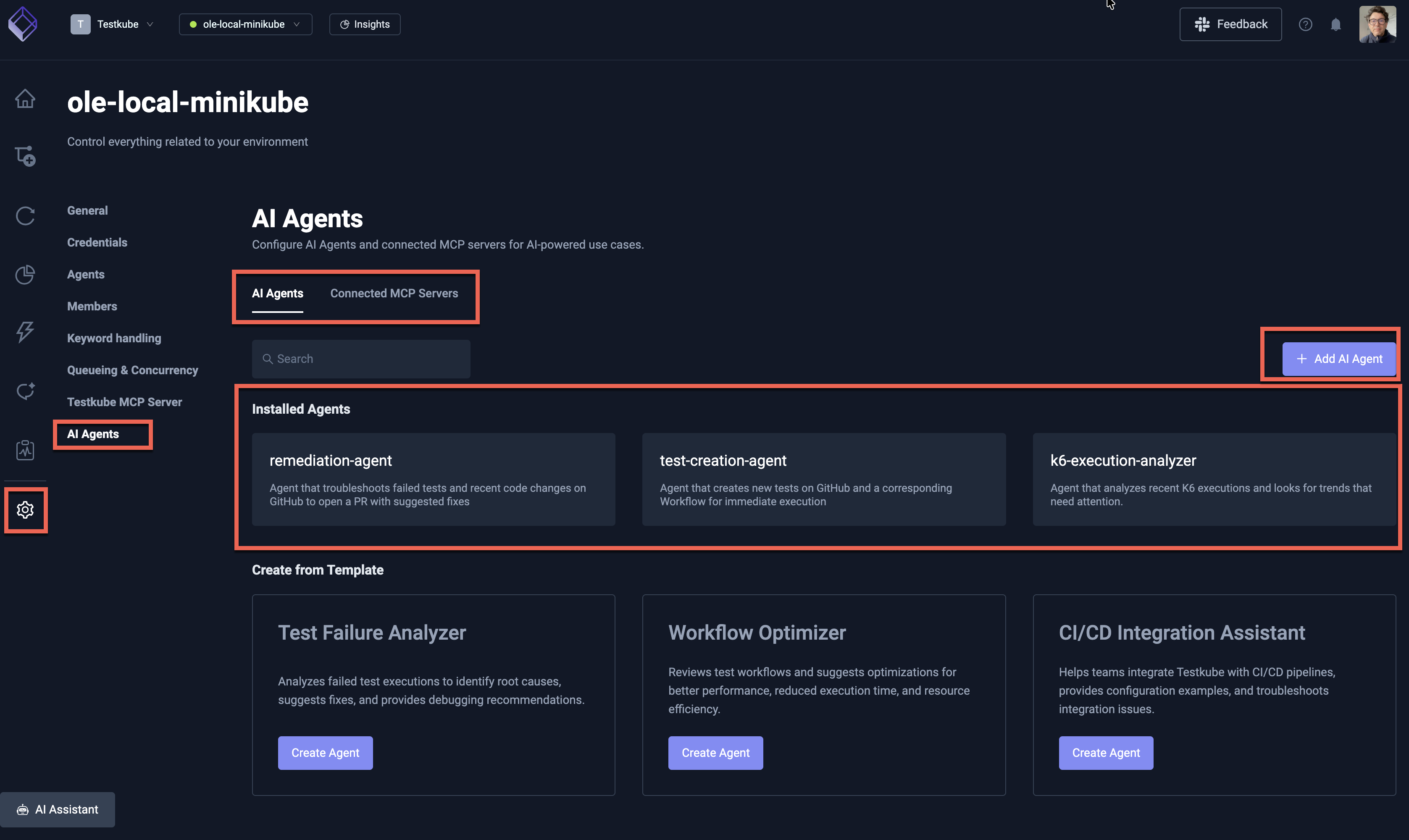
This panel has three tabs:
- AI Agents: allows you to create and manage the AI Agents in your Testkube Environment.
- Connected MCP Servers: allows you to connect to MCP Servers that your AI Agents can use to perform their tasks - Read More.
- Models: allows you to view platform models and add custom models for use in AI Chats - Read More.
Creating a new AI Agent
Selecting the "Add AI Agent" button will open the AI Agent creation panel where you need to specify a name and instructions (prompt) for your agent.
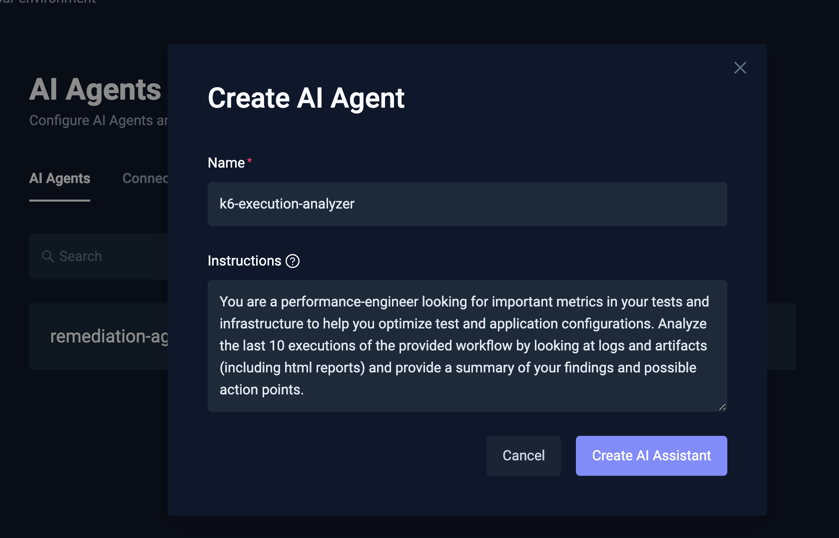
Once created, you are taken to the AI Agent details page where you can edit the agent as described below.
Creating an AI Agent from a Template
As you can see from the screenshot above, you can create an AI Agent from a template by selecting one of the agents in the "Create from Template" section; simply press the "Create Agent" button next to the agent you want to create and that agent will be added to your environment for further configuration.
Editing an AI Agent
Editing an AI Agent is done by selecting it in the AI Agents tab shown above, which opens a panel with the following fields:
- Name - the name of your AI Agent, needs to be unique within the environment and comply with Kubernetes naming conventions.
- Description - a short description of what your AI Agent does.
- Instructions - the prompt that your AI Agent will use to perform its task, read more about [AI Agent Instructions]
- MCP Server Settings - allows you to configure which MCP Server(s)/tool(s) your AI Agent has access to.
- Delete - deletes the AI Agent.
AI Agent Instructions
The AI Agent Instructions are the prompt that your AI Agent will use to perform its task, you can make this as short or as detailed as you want, but keep in mind that the more detailed the instructions, the more likely is that the AI Agent will be able to perform its task correctly.
A couple of general guidelines:
- Keep the instructions short and concise, but detailed enough to perform the task correctly.
- Be clear about what you want the outcome of the task to be, including any specific details or requirements.
- Be clear about the context you want the AI Agent to use to perform its task.
Check out the Types of AI Agents for more details on the different types of AI Agents and their use cases.
Configuring MCP Servers
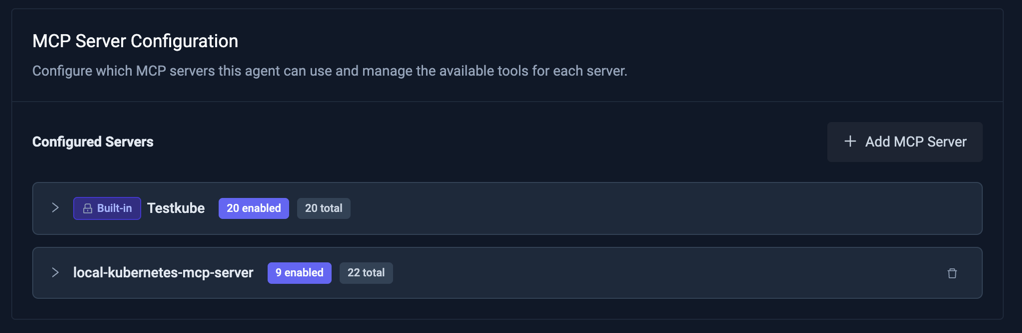
The "MCP Server Configuration" section on this page allows you to configure which MCP Servers and tools your AI Agent has access to, which includes both the default Testkube MCP Server (see below) and any custom MCP Servers you have connected to your Testkube Environment under the "Connected MCP Servers" Tab Read More.
Constraining an AI Agent to a specific set of MCP Servers and tools has several benefits:
- Security: you can make sure your AI Agent does not mistakenly access or modify resources it should not be working with.
- Performance: the fewer MCP tools that add to your AI Agents context, the more tokens the AI Agent will be able to use to perform its tasks.
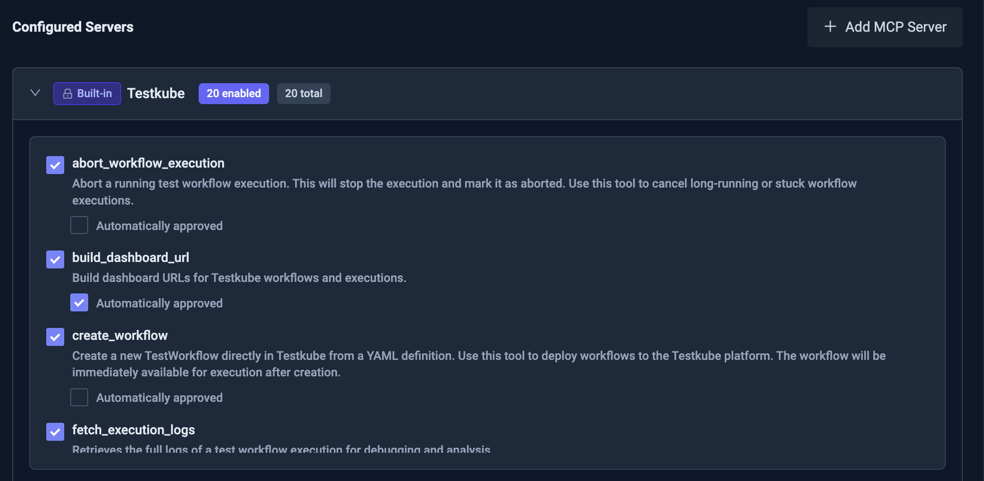
In the screenshot below, the AI Agent has access to both the default Testkube MCP Server and a connected Kubernetes MCP Server.
Configuring MCP Server Tools
Expanding an MCP Server will show you the tools it exposes and if they are enabled for the current AI Agent.
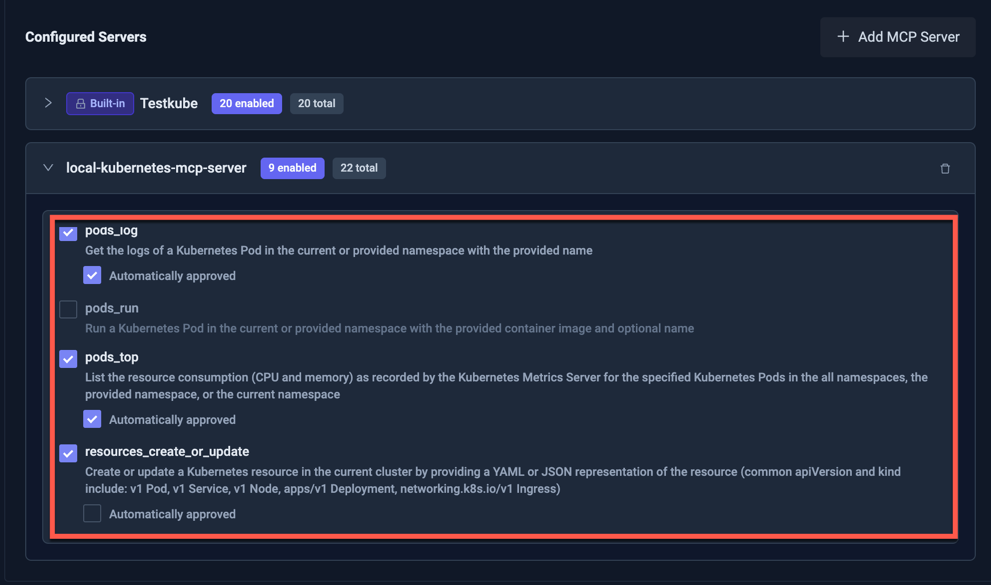
When adding an MCP Server to an AI Agent, all its tools are disabled by default; enable them individually to allow the AI Agent to use them to perform its task(s).
Each MCP Server Tool has an "Automatically approved" setting (disabled by default), enabling this will allow the AI Agent to use the tool without approval. If you do not enable this setting, you will be prompted for approval in the Chat Session panel as the Chat is performed - Read More.
The default Testkube MCP Server
All AI Agents always have access to the Testkube MCP Server for the current Environment, which exposes corresponding MCP Tools for accessing executions, managing Workflows, etc.
This MCP Server can't be removed from an AI Agent, but you can configure which tools it has access to, in line with the descriptions above.
By default an AI Agent has access to all the Testkube MCP Tools and requires approval only for those that can modify the state of your Testkube Environment in any way.
Adding an MCP Server
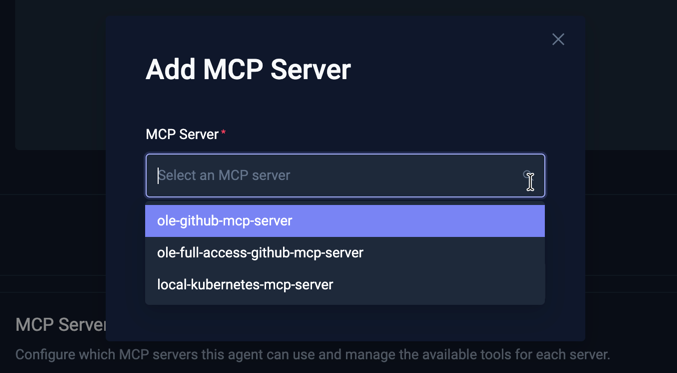
Select the "Add MCP Server" button to give your AI Agent access to a connected MCP Server, the opened modal will allow you to select the MCP Server which will then be added to your AI Agent with all Tools disabled.
If you want your AI Agent to interact with other Testkube Environments than itself, you can add the Testkube MCP Server for that Environment under the "Connected MCP Servers" Tab Read More and configure it like any other MCP Server.