AI Agent Chats
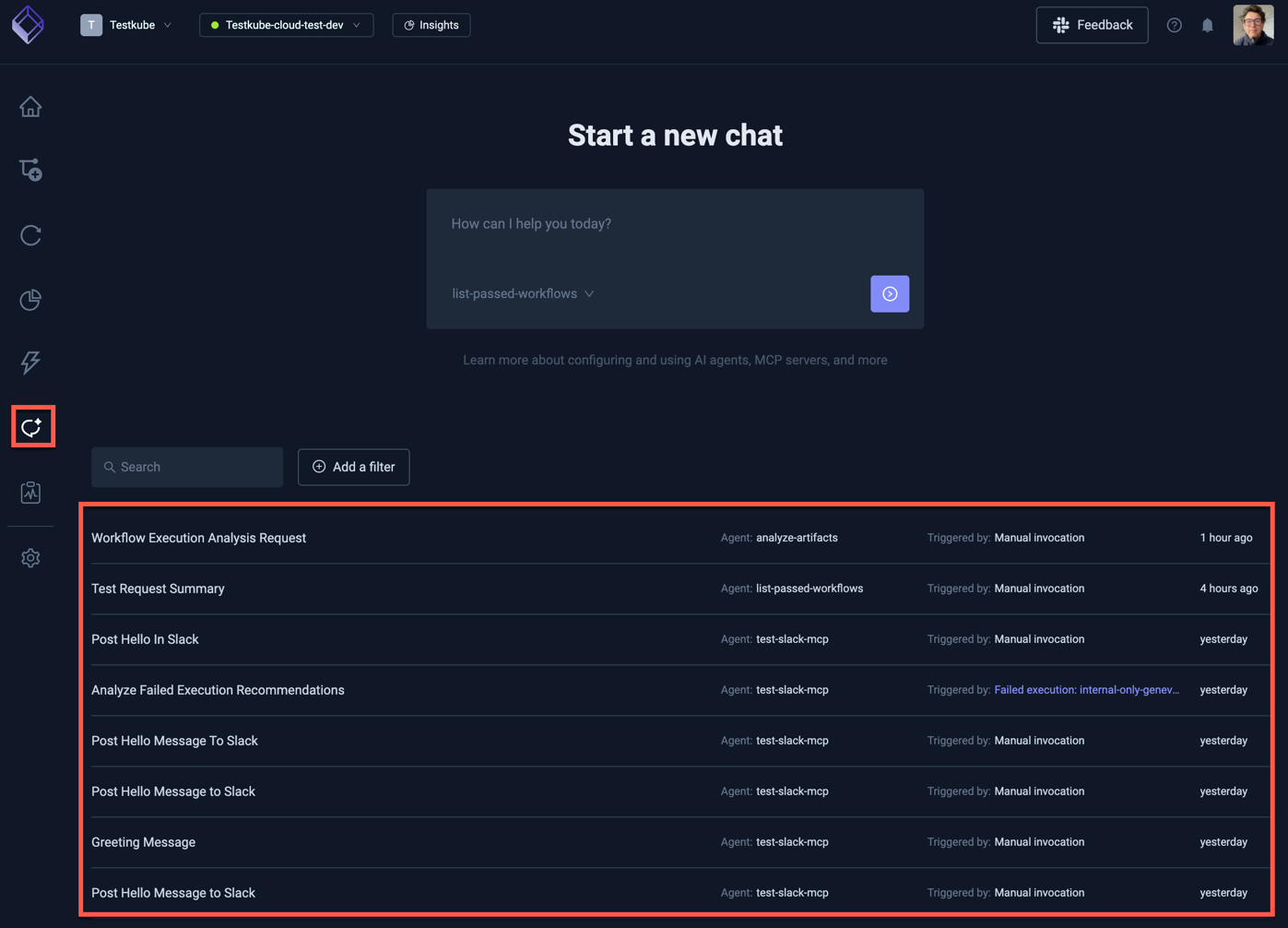
An ongoing interaction with a Testkube AI Agent is called a "Chat". Testkube allows you to have multiple Chats ongoing at the same time, triggered by different mechanisms in the Testkube Dashboard - See below.
Testkube saves all Chats and makes them available in the AI Chats panel accessible from the left-side Dashboard menu, making it easy to review old interactions and follow up on them if needed.
The Chats panel provides a full-featured chat interface — you can create new chats, select existing ones, choose which AI Agent and model to use, and resize or dock the panel to the left side of the screen for a side-by-side workflow.
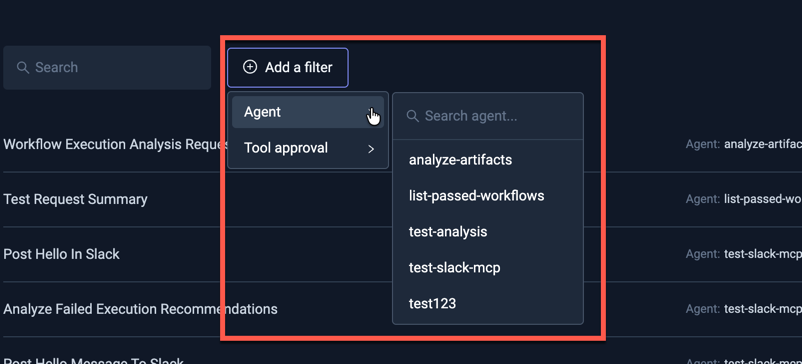
Chats can be filtered by their AI Agent and if they are waiting for tool approval (to help you quickly identify Chats that need your attention):
Chat Details
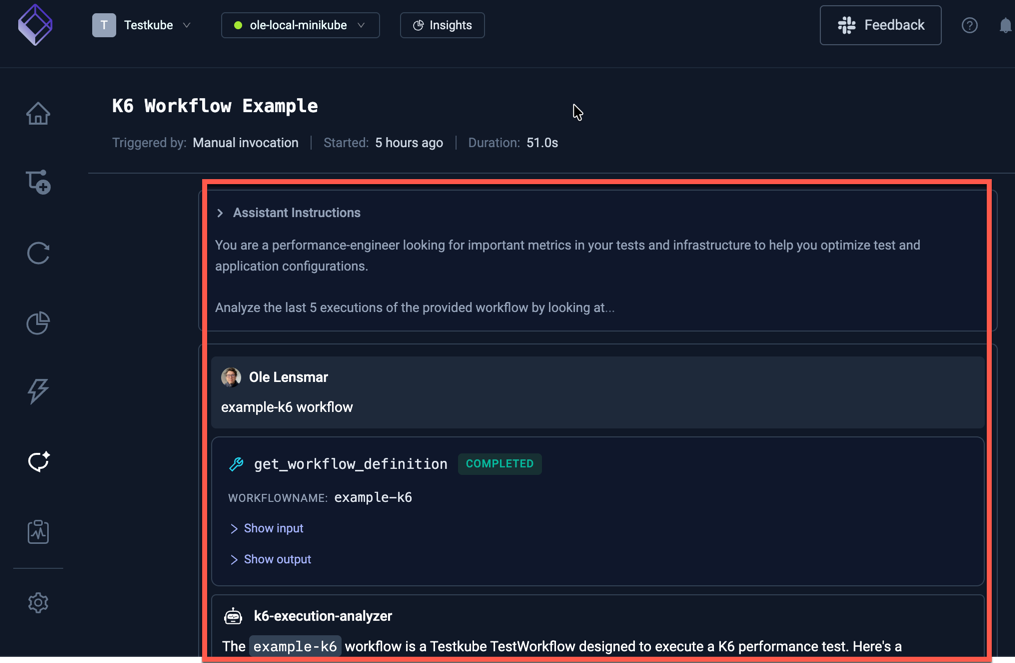
Selecting a Chat will bring up the Chat Details panel to the right. This panel shows the ongoing conversation with the AI Agent, starting with the initial prompt and followed by MCP Tool calls, agent output and interactions that users have had with the Agent via follow-up prompts.
MCP Tool Calls
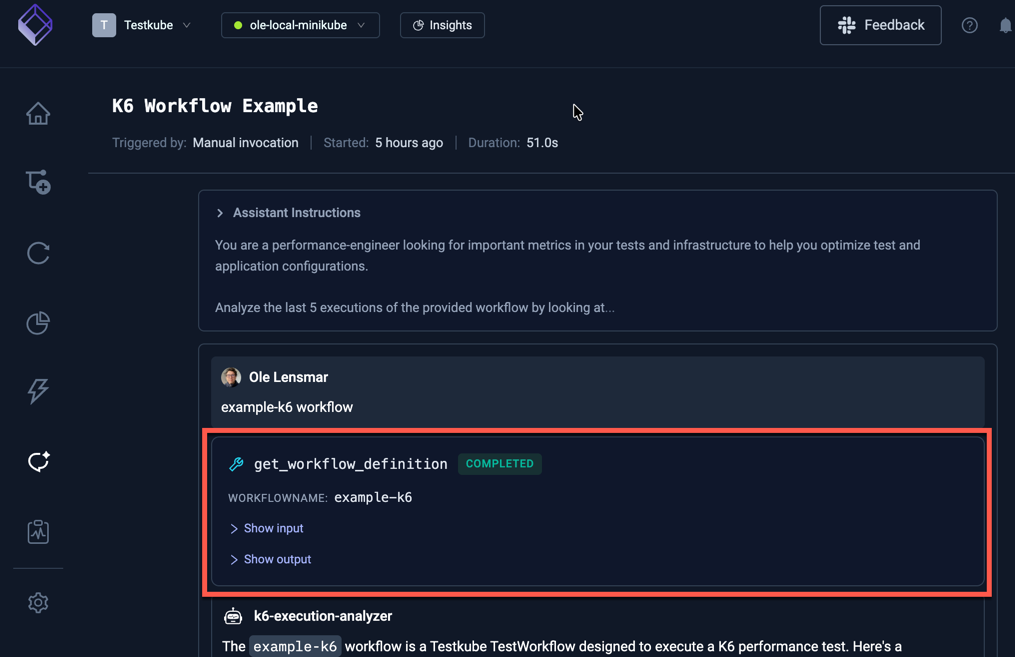
Each MCP Tool call that an Agent performs is shown separately in the Chat details, with the possibility to see the input/output for that particular interaction:
MCP Tool Approval
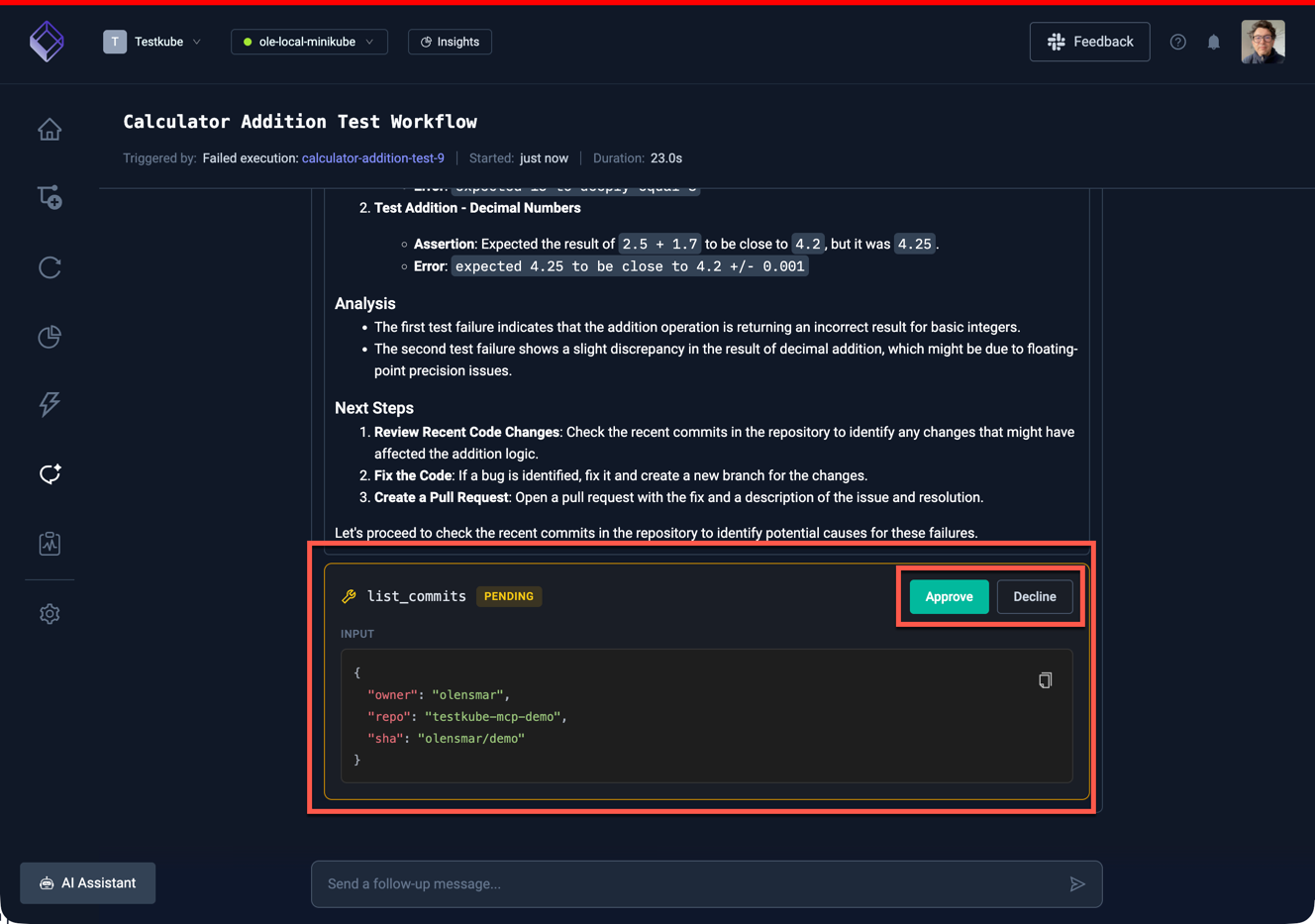
Calls to MCP Tools that require approval in line with the configured approval policy (see Configuring MCP Server Tools ) will suspend the execution of the Chat until approval is either granted or denied.
In the example below, the list_commits tool in the GitHub MCP Server requires approval before it can be executed:
User Input
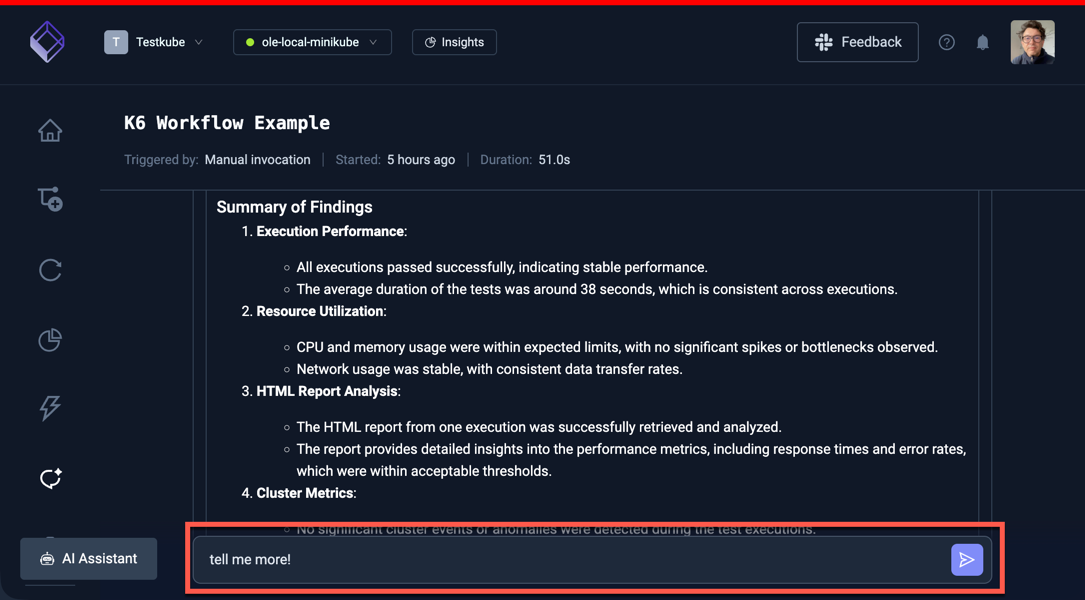
The bottom of this view shows an input prompt that can be used to provide follow-up prompts to the Agent once it has completed its current task.
Initiating a Chat
Chats can be initiated using various methods available in the Dashboard.
From the Chats Panel
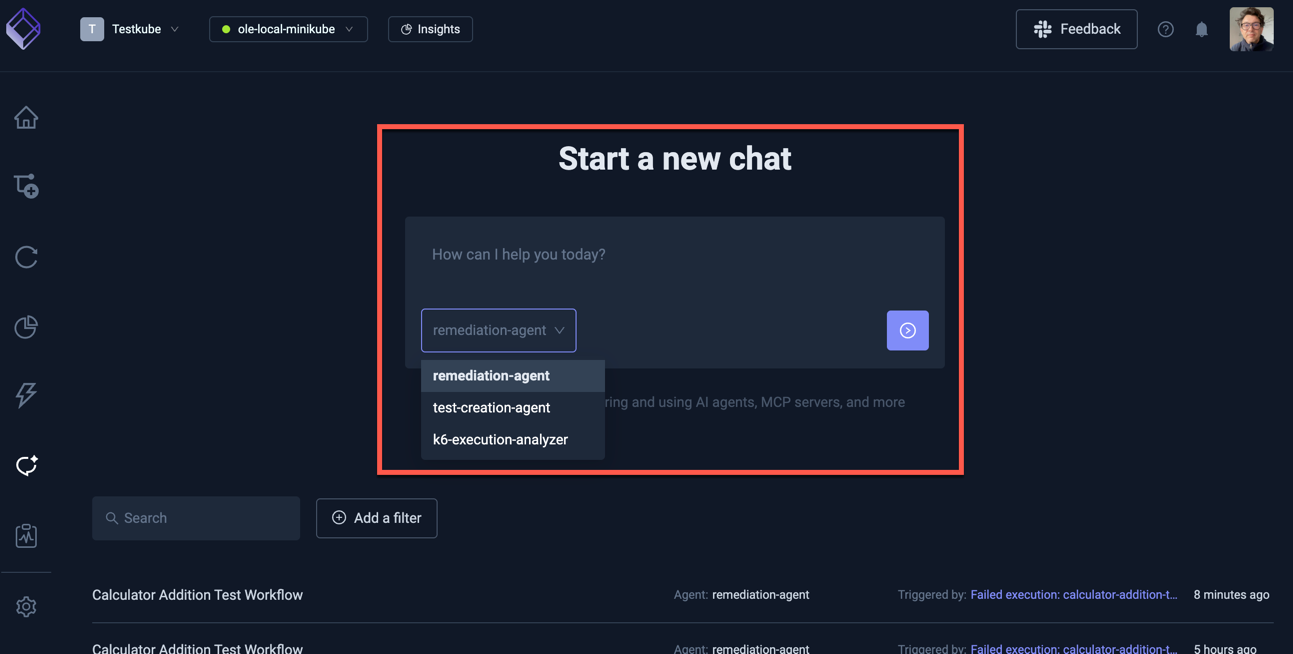
The Chats View has a "Start a new chat" input box for initiating a new Chat with a specified AI Agent. Select the AI Agent you want to use and provide an optional initial prompt (if needed by the agent):
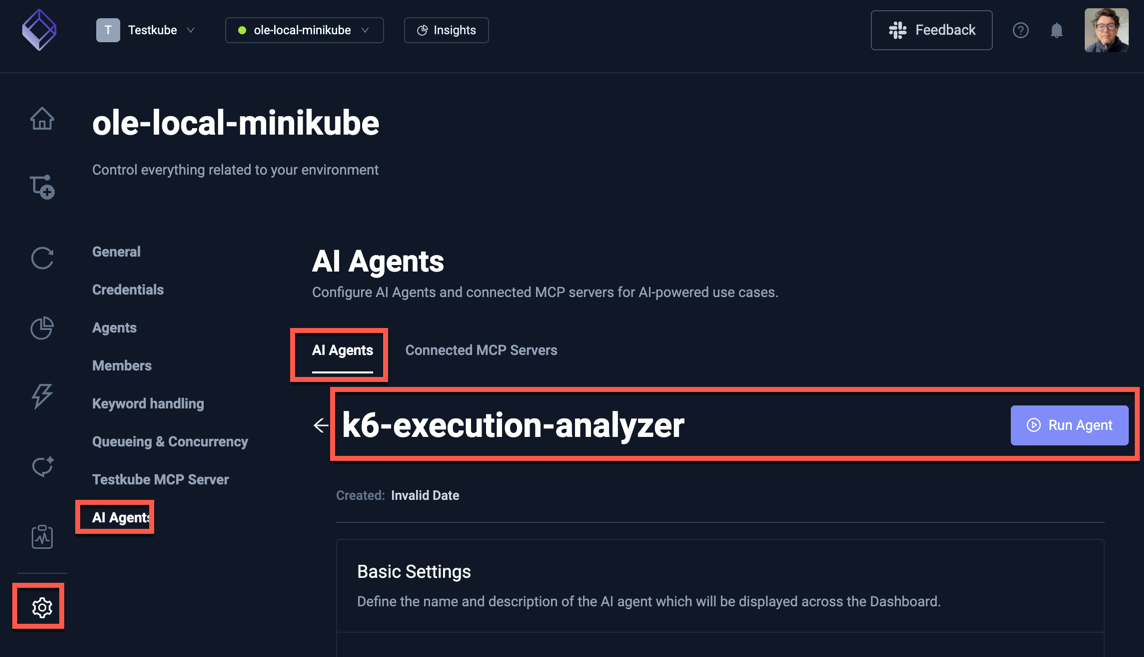
From the AI Agent Configuration Panel
When configuring an AI Agent, the "Run Agent" button on the top right will open a prompt to initiate a new Chat with that AI Agent:
From within a Chat
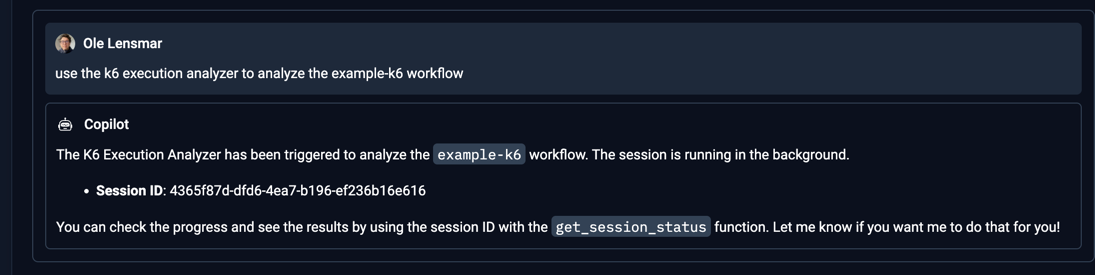
When interacting with the AI Assistant in a chat, you can directly ask it to initiate a new Chat with a specified AI Agent:
Using "AI Analyze"
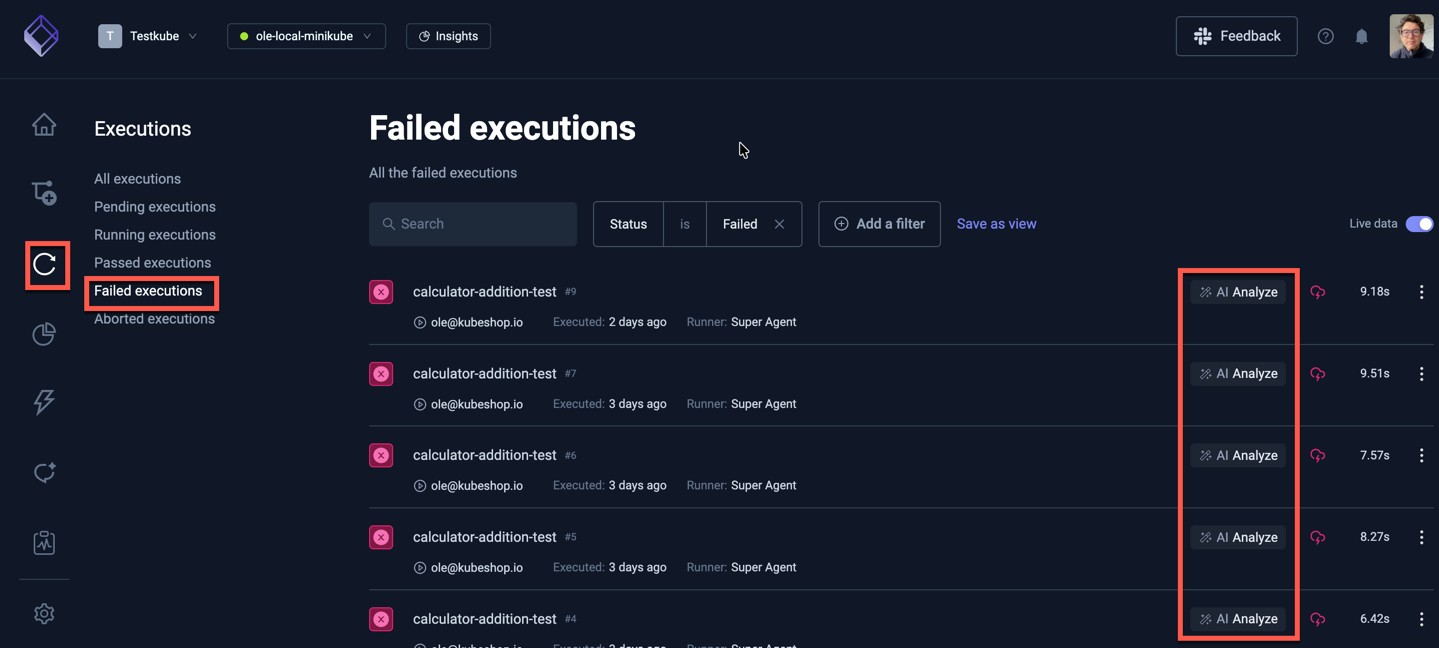
In both the Executions Dashboard and Execution List for a specific Workflow, an "AI Analyze" button is available for failed Executions.
From the Executions Dashboard
From the Executions List
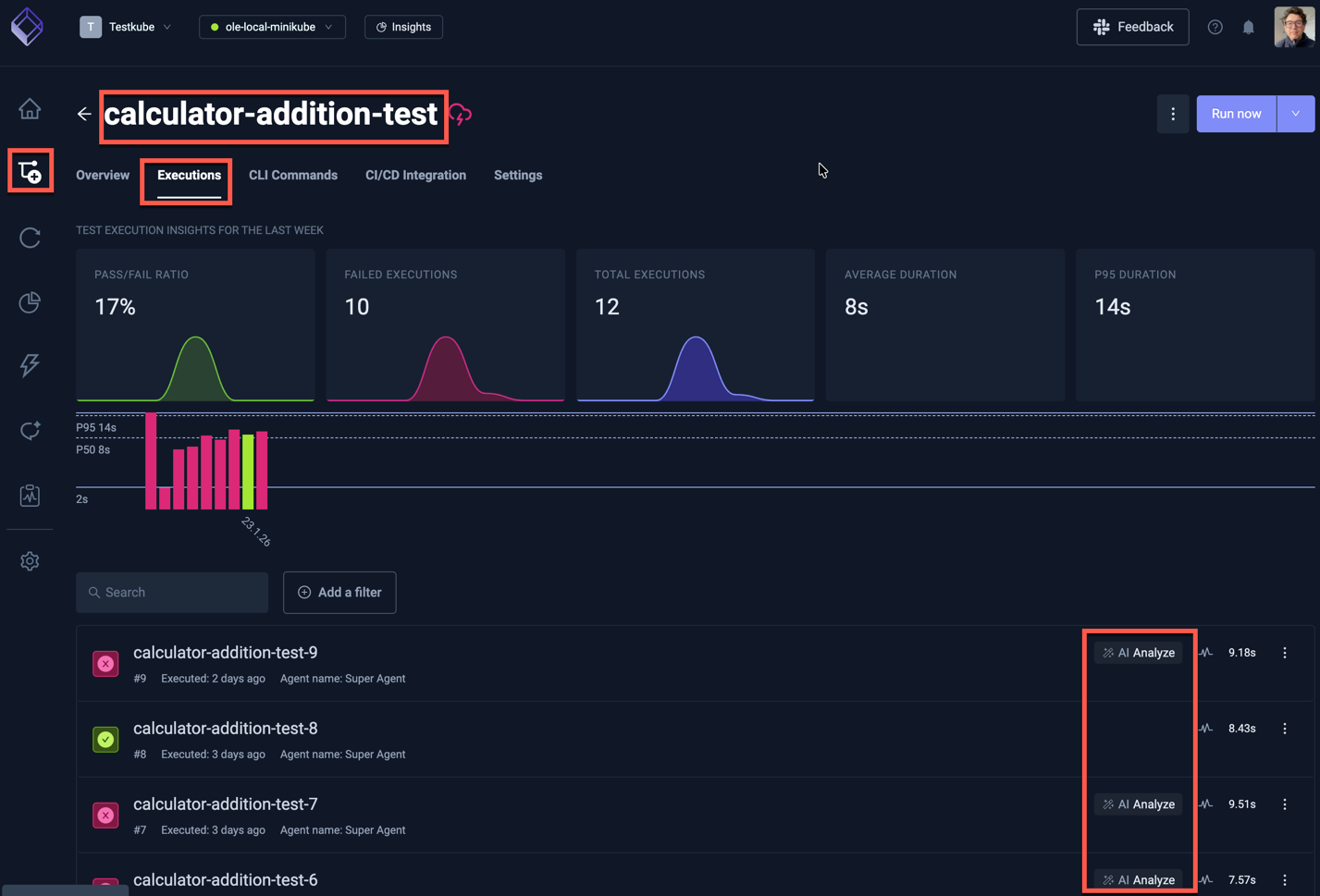
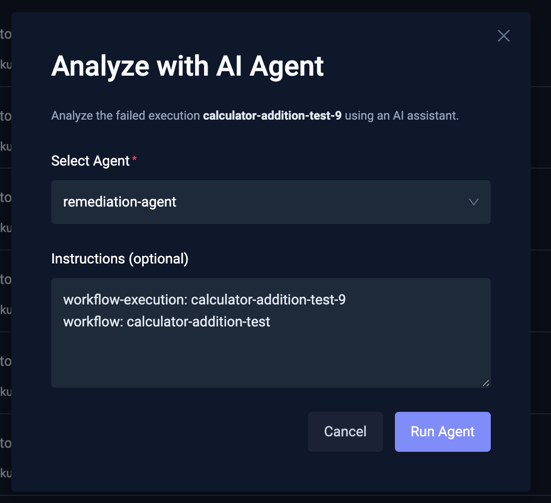
Selecting this button will prompt you to initiate a Chat with a selected AI Agent.
The default prompt will contain the names of the failed Execution and its Workflow, an Agent will automatically discover and use these values if its prompt requires them.