Model access
By default everyone can use every model of an Environment. You can limit a Member, an AI Agent, or both to a list of models. Members then only see and use the models they're allowed.
Model access is part of AI governance and needs RBAC in your license. Without RBAC, everyone can use every model.
On a self-hosted control plane, AI governance needs PostgreSQL.
How model access works
A Member or an AI Agent with no models can use every model. Adding models limits them to those models.
When someone chats with an AI Agent, both lists apply:
| Member's models | AI Agent's models | Models allowed in the chat |
|---|---|---|
| None | None | Every model |
| Some | None | The Member's models |
| None | Some | The AI Agent's models |
| Some | Some | Only the models that are in both lists |
A Member's models apply in every Environment of the Organization. An AI Agent's models apply to that AI Agent only.
Some chats only follow the AI Agent's models:
- Organization admins and owners, and Environment admins, aren't limited by their own Member models.
- Chats started with an API token, including AI Triggers and the quality loop, only follow the AI Agent's models.
What people see in chats
- The model picker in a chat only lists the models the person may use with that AI Agent.
- A model that's no longer allowed. If a chat's model is removed from a list, the chat moves to an allowed model on its next message: Testkube's default model when it's allowed, otherwise another allowed one.
- No model left. If the two lists have no model in common, the chat can't run and shows that no model the person may use is available. Ask an Organization admin to add a model both lists share.
Who can change model access
Only Organization admins and owners can add or remove models for Members and AI Agents. Environment admins can see a model's AI Agents but can't change model access or see its Members.
The Models card of the Environment's default AI Agent can't be changed.
Give models to a Member
- Go to Organization Management → Members and open the Member.
- In the Models card, select Add models and pick the models.
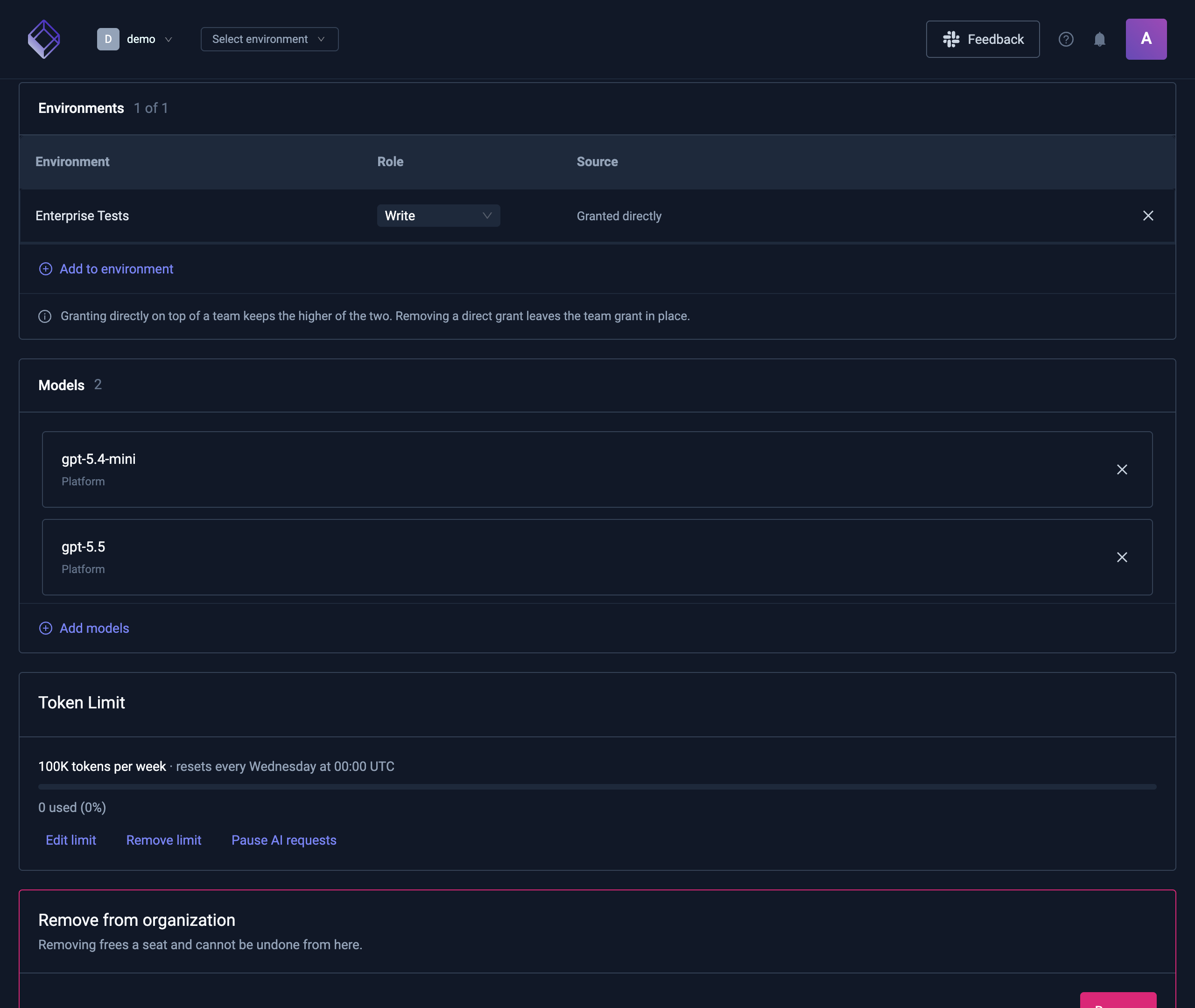
To give the Member every model again, remove all models from the card.
Deleting a model provider removes its models from every list. A Member or AI Agent whose only models came from that provider can then use every model.
Give models to an AI Agent
- Open the Environment, then AI Settings → AI Agents.
- Open the AI Agent.
- In the Models card, choose Selected models, pick at least one model, and select Save.
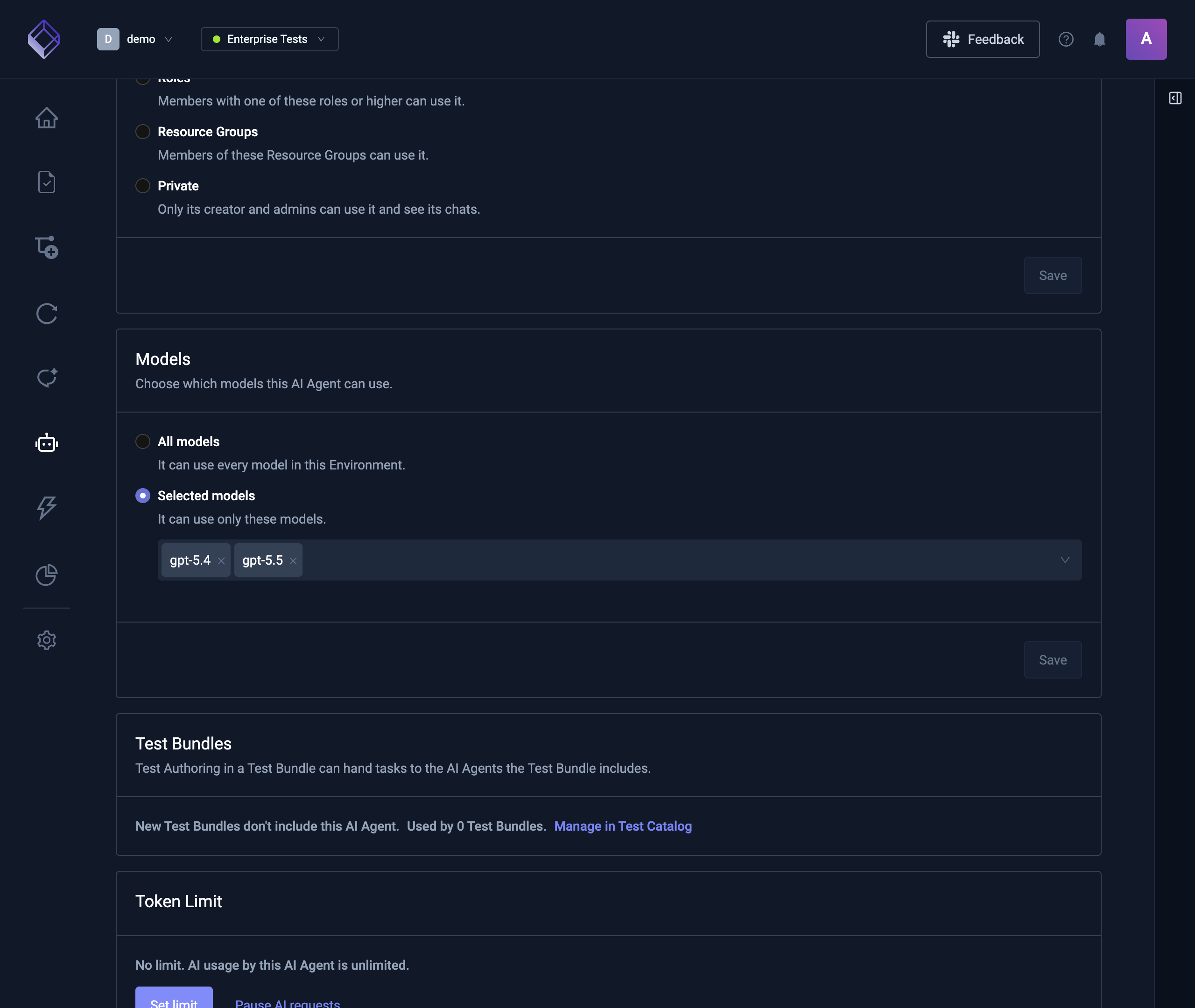
To let the AI Agent use every model again, choose All models.
The AI Agent's default model should be one of its chosen models. If it isn't, the card warns you, and new chats with the AI Agent use another chosen model.
See who is limited to a model
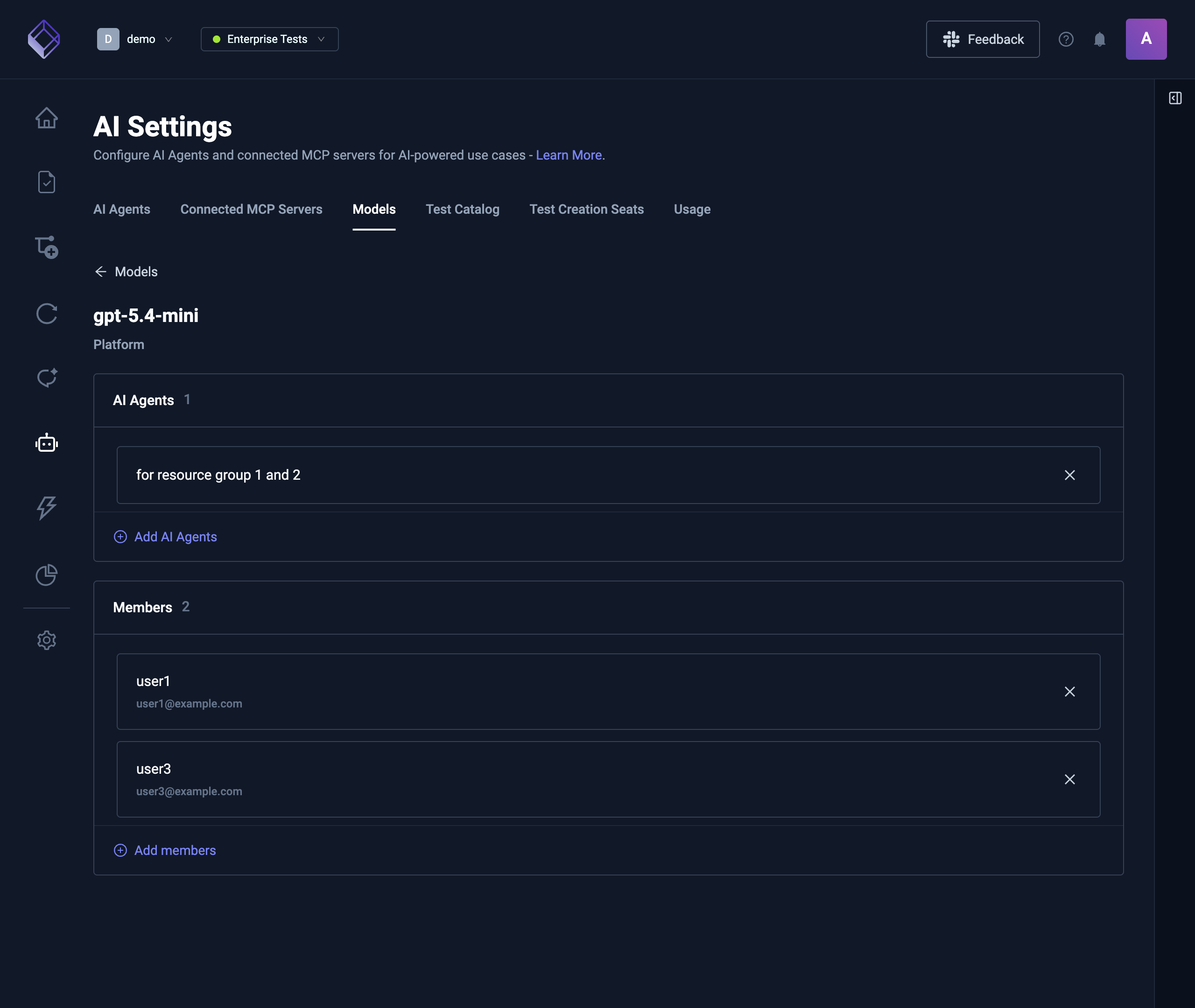
Open a model from the Models tab of AI Settings. Its details page lists:
- AI Agents in this Environment limited to this model.
- Members limited to this model. Only Organization admins and owners see this list.
Use Add AI Agents and Add members to limit more of them to the model, or remove one from a list.
Review models across an Environment
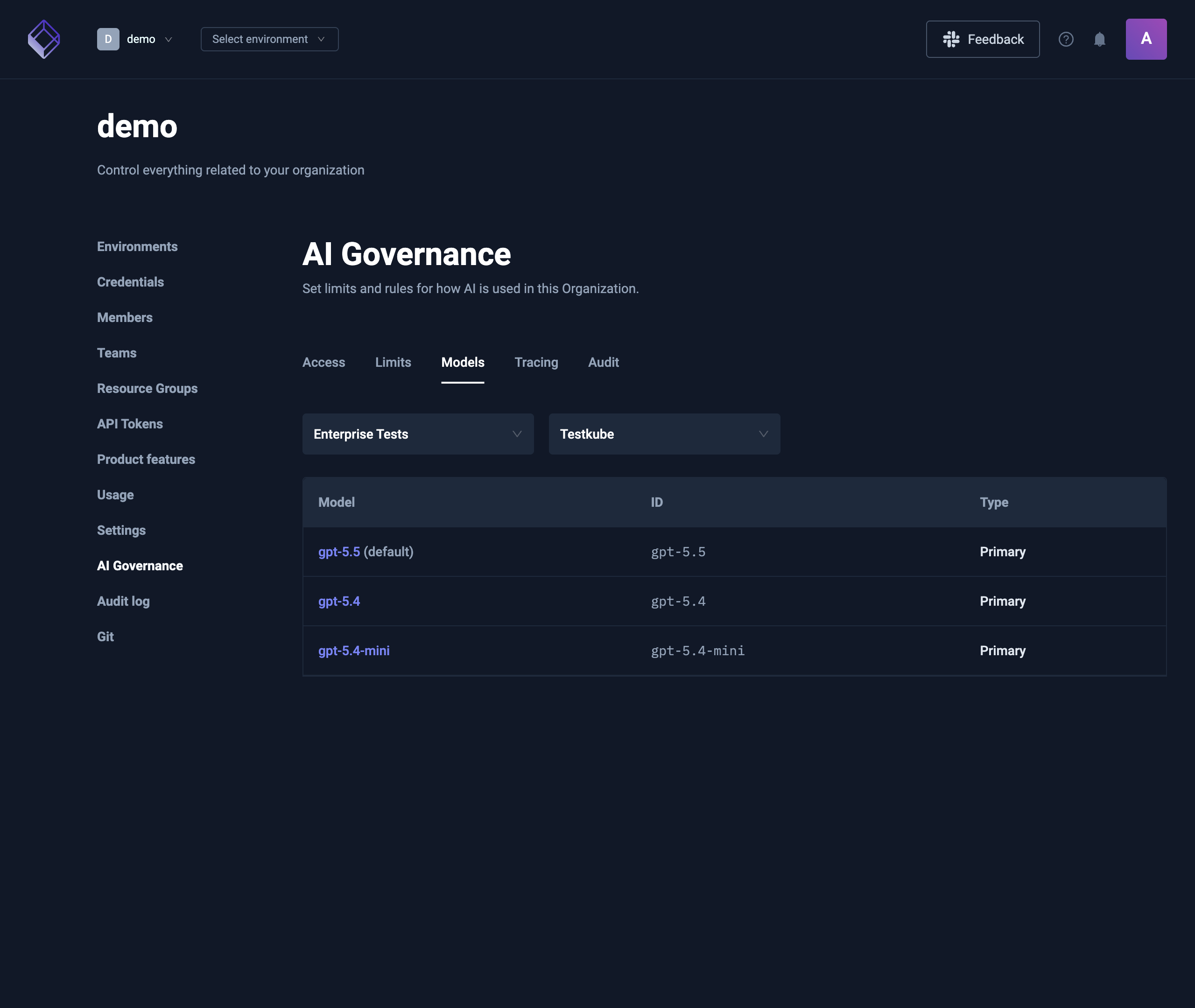
Organization Management → AI Governance → Models lists the models of one Environment. It's for Organization admins and owners.
- Environment picks the Environment.
- Provider picks the model provider, starting with Testkube's own models.
- Each model shows its ID and type, and Testkube's default model is marked.
- With RBAC in your license, select a model to open its details page and see who is limited to it.