Configuring AI Models
Testkube AI uses Large Language Models (LLMs) to power the AI Assistant and AI Agents. The Models tab in the AI Agents settings panel allows you to see which models are available and add your own models for use in AI Chats.
Accessing the Models Tab
Navigate to Environment Settings → AI Agents and select the Models tab.
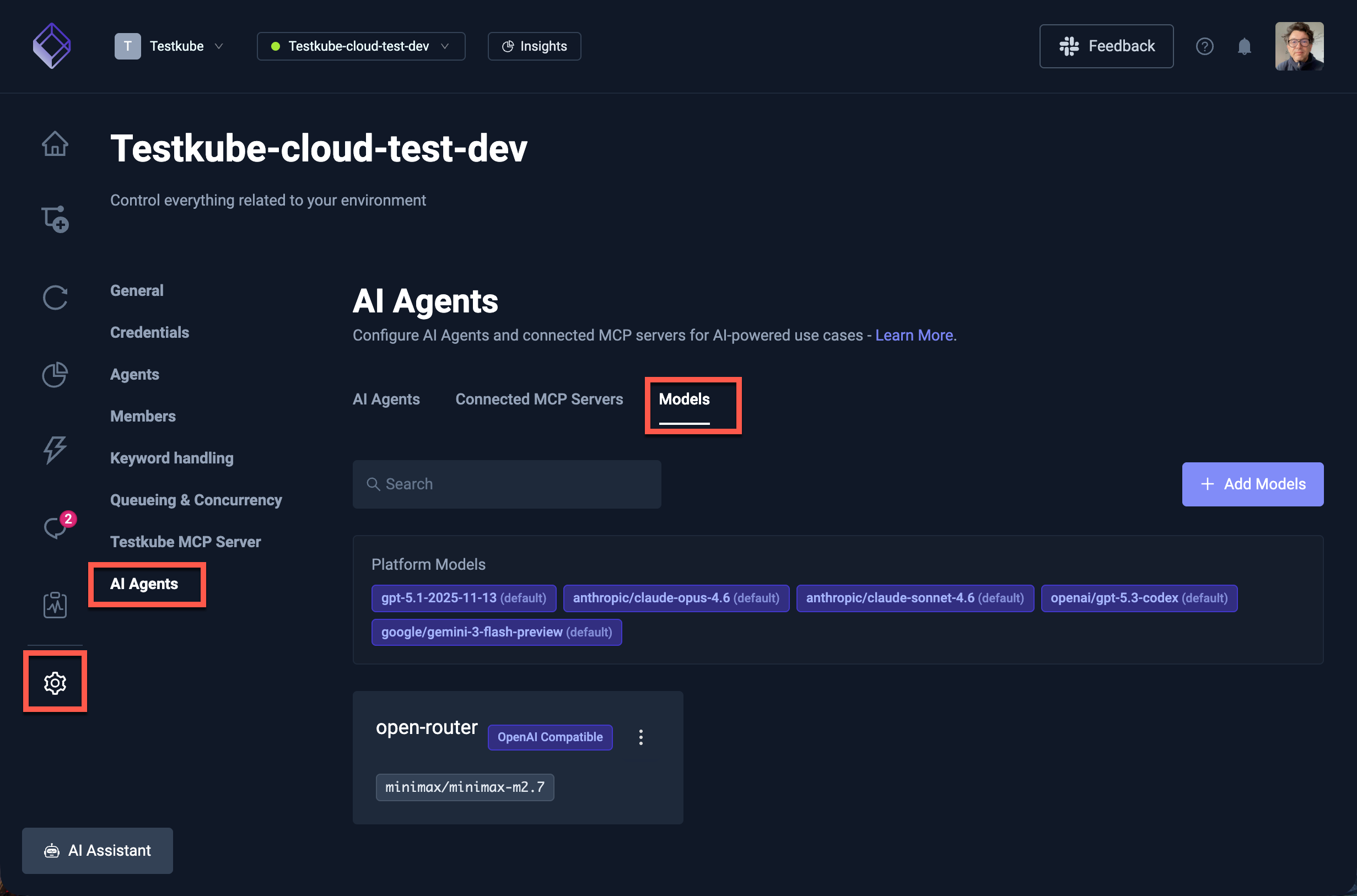
This tab shows two categories of models:
- Platform Models — Models configured at the platform level (via Helm values or by Testkube for Cloud users). These are read-only and available to all users in the environment.
- Custom Models — Additional models that you add directly from the Dashboard, each with their own connection settings.
Platform Models
Platform models are configured by your platform administrator and appear as read-only entries in the Models tab.
For Cloud Control Plane users, these are managed by Testkube and include the default model used for AI functionality.
For On-Prem installations, platform models are configured through Helm values — see the Advanced Model Configuration section of the AI Configuration Reference for details on configuring models via Helm.
Custom Models
You can add your own models to make them available for AI Chats. This is useful when you want to:
- Use a specific model from OpenAI or another provider alongside the platform defaults.
- Connect to a self-hosted or third-party LLM service that implements the OpenAI-compatible API.
- Configure custom headers or query parameters for enterprise API gateways (e.g., Azure OpenAI
api-version). - Give your team access to models tailored for specific tasks.
Adding a Model
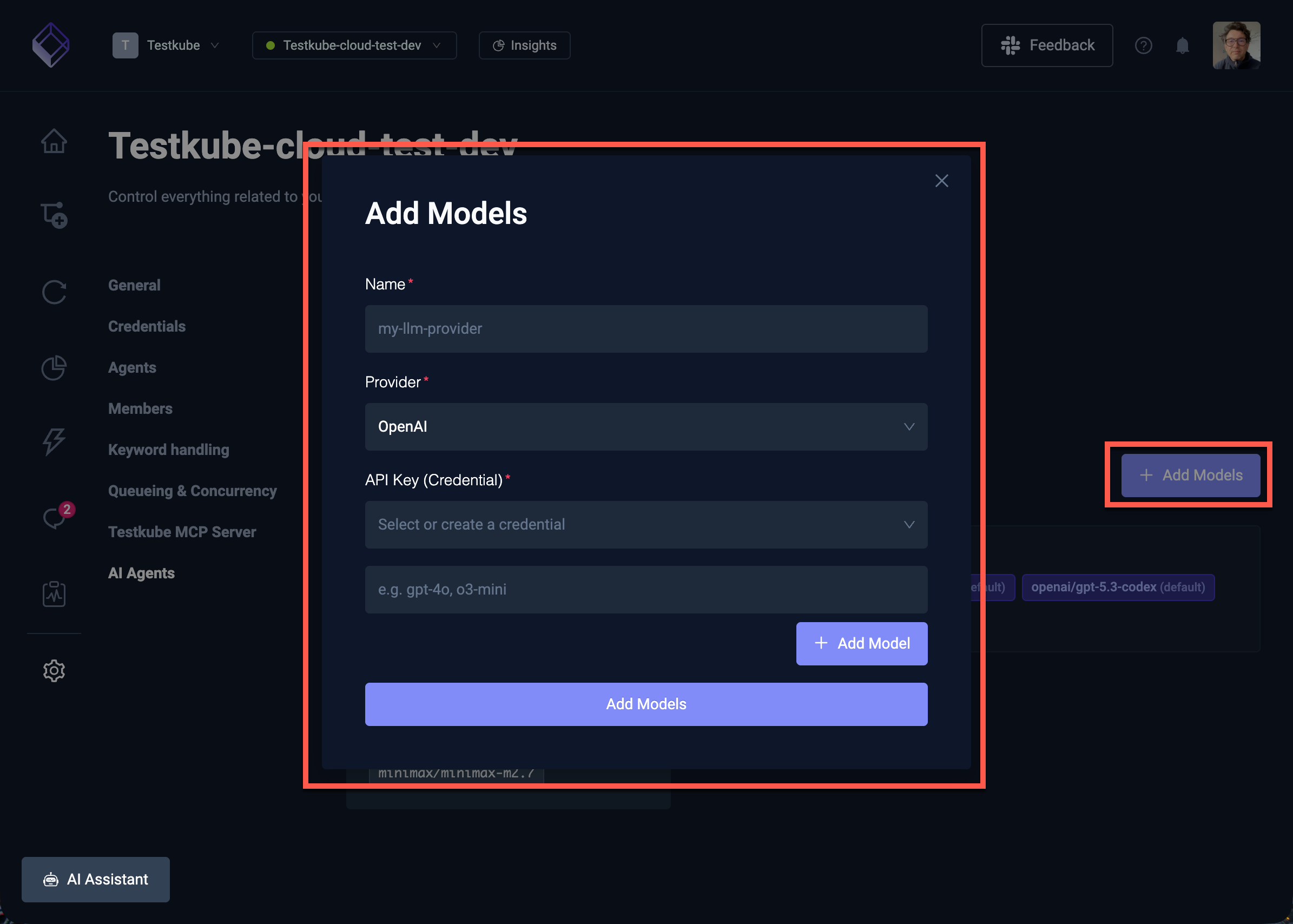
Select the Add Model button to open the model configuration modal with the following fields:
| Field | Description |
|---|---|
| Name | A name for the model provider (must be unique and comply with Kubernetes naming conventions). |
| Provider | The model provider — OpenAI for direct OpenAI API access, or OpenAI Compatible for any service that implements the OpenAI API specification (e.g., Azure OpenAI, LiteLLM, vLLM). |
| Base URL | The API endpoint URL. Required for OpenAI Compatible providers; leave empty for direct OpenAI access. |
| Credentials | Select an existing API key credential or create a new one. The API key is stored securely as a Kubernetes secret. |
| Models | Model identifiers to make available. For OpenAI Compatible providers, each model can optionally have its own custom endpoint URL. |
Configuring Model Names
After adding a model, configure the model names that you want to make available:
- For OpenAI providers, use model names like
gpt-5.2,gpt-5-mini, etc. - For OpenAI Compatible providers, use the model identifiers expected by your service (e.g.,
anthropic/claude-opus-4.6,google/gemini-3-flash). You can also set a custom endpoint URL per model — useful for Azure OpenAI where each model has its own deployment URL.
Extra Headers and Query Parameters
In the model provider detail view, you can configure additional request options:
- Extra Headers — Additional HTTP headers sent with every request to this provider's API. Useful for Azure OpenAI (
api-keyheader) or custom authentication schemes. - Query Parameters — Query parameters appended to every request URL. Useful for Azure OpenAI's required
api-versionparameter or custom API gateway routing.
These settings are configured per-provider and apply to all models under that provider.
Editing and Deleting Models
Select a model from the list to edit its connection settings, model names, extra headers, or query parameters. Use the actions menu to delete a model that is no longer needed.
Using Models in AI Chats
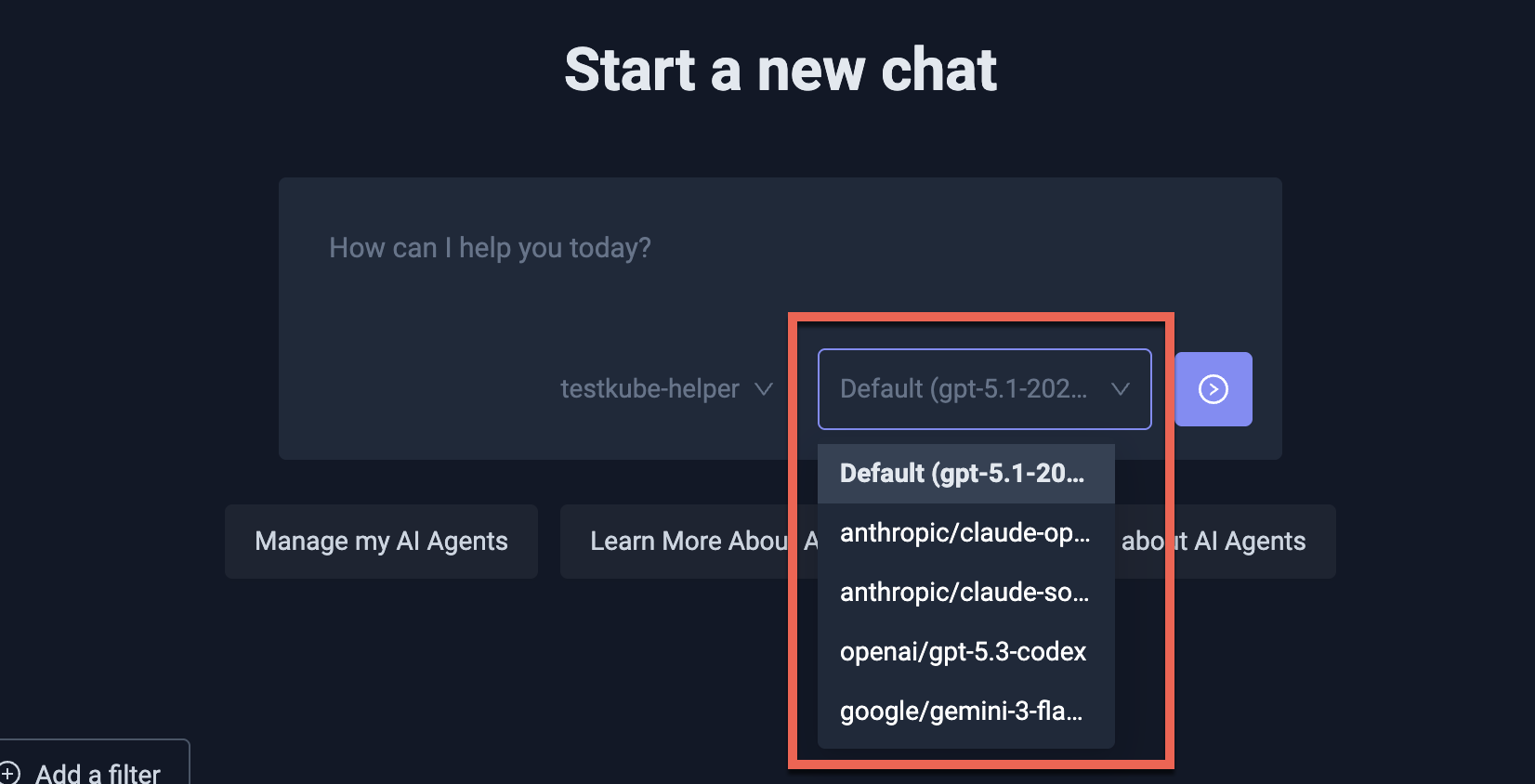
Once configured, all available models (both platform and custom) appear in the model selector when starting or continuing an AI Chat. You can select which model to use for each conversation, making it easy to compare results or use specialized models for different tasks.
Further Reading
-
Alternative Model Providers — Connect Claude through LiteLLM or serve local models with vLLM
-
AI Configuration Reference — Helm-based model configuration for On-Prem installations
-
AI Assistant Overview — Using the AI Assistant in the Dashboard
-
AI Agents Overview — Creating and managing AI Agents