AI Agent access
Every AI Agent has an access setting that decides who can use it and see its shared chats. By default an AI Agent is public: every member who can chat in the Environment can use it. You can narrow that to members with a role, to the members of Resource Groups, or to the AI Agent's creator.
AI Agent access is part of AI governance and needs RBAC in your license. Without RBAC, every member who can chat can use every AI Agent. Access settings that were saved before stay stored and apply again once RBAC is back.
On a self-hosted control plane, AI governance needs PostgreSQL.
Who can use an AI Agent
| Access | Who can use the AI Agent and see its shared chats |
|---|---|
| Public | Every member who can chat in the Environment. This is the default. |
| Roles | Members whose Environment role is one of the chosen roles or higher. |
| Resource Groups | Members of the chosen Resource Groups, including their teams. |
| Private | Only the AI Agent's creator, and whoever made it private. Private AI Agents ignore any roles or Resource Groups. |
Environment roles go from lowest to highest: Read, Run, Write, Admin. An AI Agent open to the Run role is also open to members with Write or Admin.
An AI Agent can have roles and Resource Groups at the same time, when it's open to roles and is then added to a Resource Group from the group's side. Anyone who matches either can use it, and the Access tab shows both, for example Roles: Run · Resource Groups: Payments. The Access card shows it as Roles, and saving the card removes the Resource Groups.
Restrictions fail open: an AI Agent with no roles and no Resource Groups left is public. Deleting a Resource Group removes it from its AI Agents, so an AI Agent that was open only to that group becomes public.
Some people can always use every AI Agent, whatever its access:
- Organization admins and owners.
- Environment admins.
- The AI Agent's creator, for their own AI Agents.
What access changes
- Chats. Members only see the AI Agents they can use when they start a chat, and the AI Agent picker in a chat lists only those.
- Chat history. A chat belongs to its AI Agent, so members don't see chats of an AI Agent they can't use. A private chat stays visible only to its owner, whatever the AI Agent's access.
- AI Triggers. A trigger always reaches the AI Agent it runs, even a private one. Change the trigger if it should stop using that AI Agent.
- API tokens. A token's Environment role and Resource Groups decide which AI Agents it can use, as for a member. A token never counts as an AI Agent's creator.
Who can change access
- Organization admins and owners can set any access.
- The creator of an AI Agent can switch it between Public and Private, as long as it has no roles or Resource Groups. Choosing roles or Resource Groups is for Organization admins and owners.
- Environment admins can use every AI Agent but can't change its access.
- Default AI Agents, the built-in ones every Environment starts with, are public, and their Access card can't be changed. Adding one to a Resource Group from the group's side still limits it to that group.
Set access on an AI Agent
- Open the Environment, then AI Settings → AI Agents.
- Open the AI Agent.
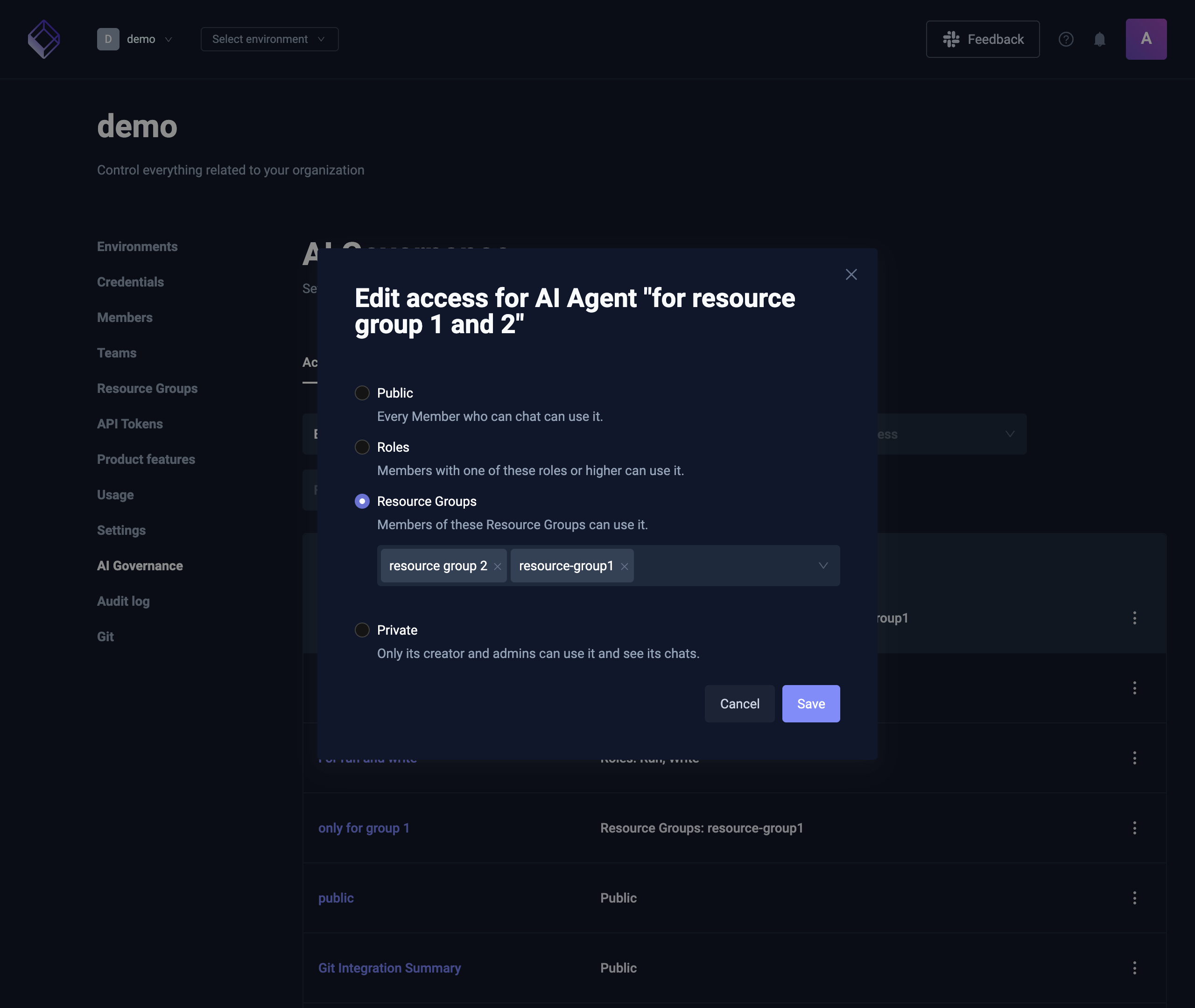
- In the Access card, choose Public, Roles, Resource Groups, or Private.
- For Roles or Resource Groups, pick at least one role or group.
- Select Save.
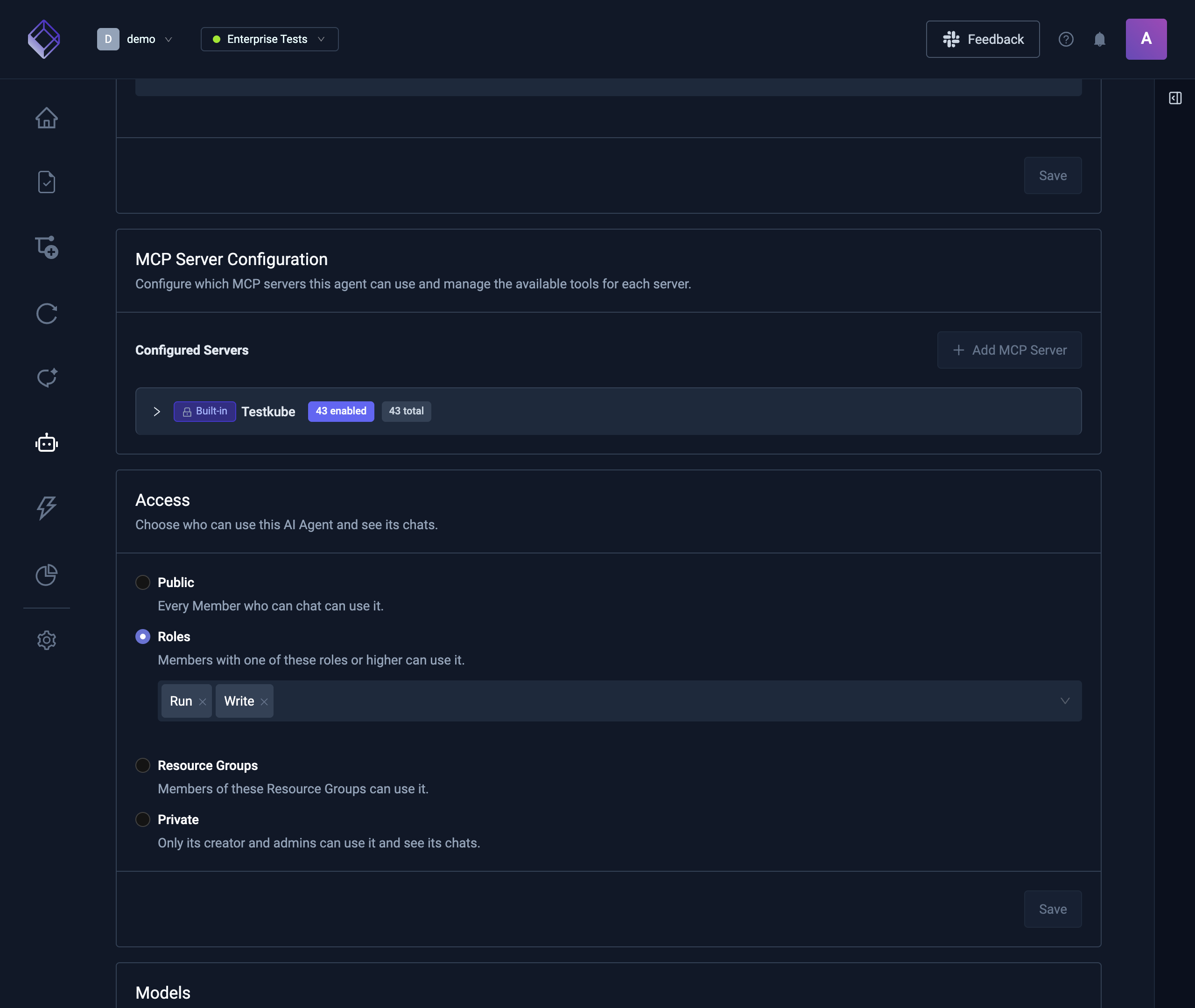
Changing access replaces the AI Agent's previous roles and Resource Groups. The change applies as soon as it's saved: members who lose access no longer see the AI Agent or its chats.
Give a Resource Group its AI Agents
You can also choose AI Agents from the Resource Group's side.
Adding a public AI Agent to a Resource Group limits it to that group. Everyone else loses the AI Agent and its chats.
- Go to Organization Management → Resource Groups and open the group.
- Open the AI Agents tab.
- Select Add AI Agents, choose an Environment, then pick the AI Agents and confirm. They can come from any Environment, but private AI Agents can't be added.
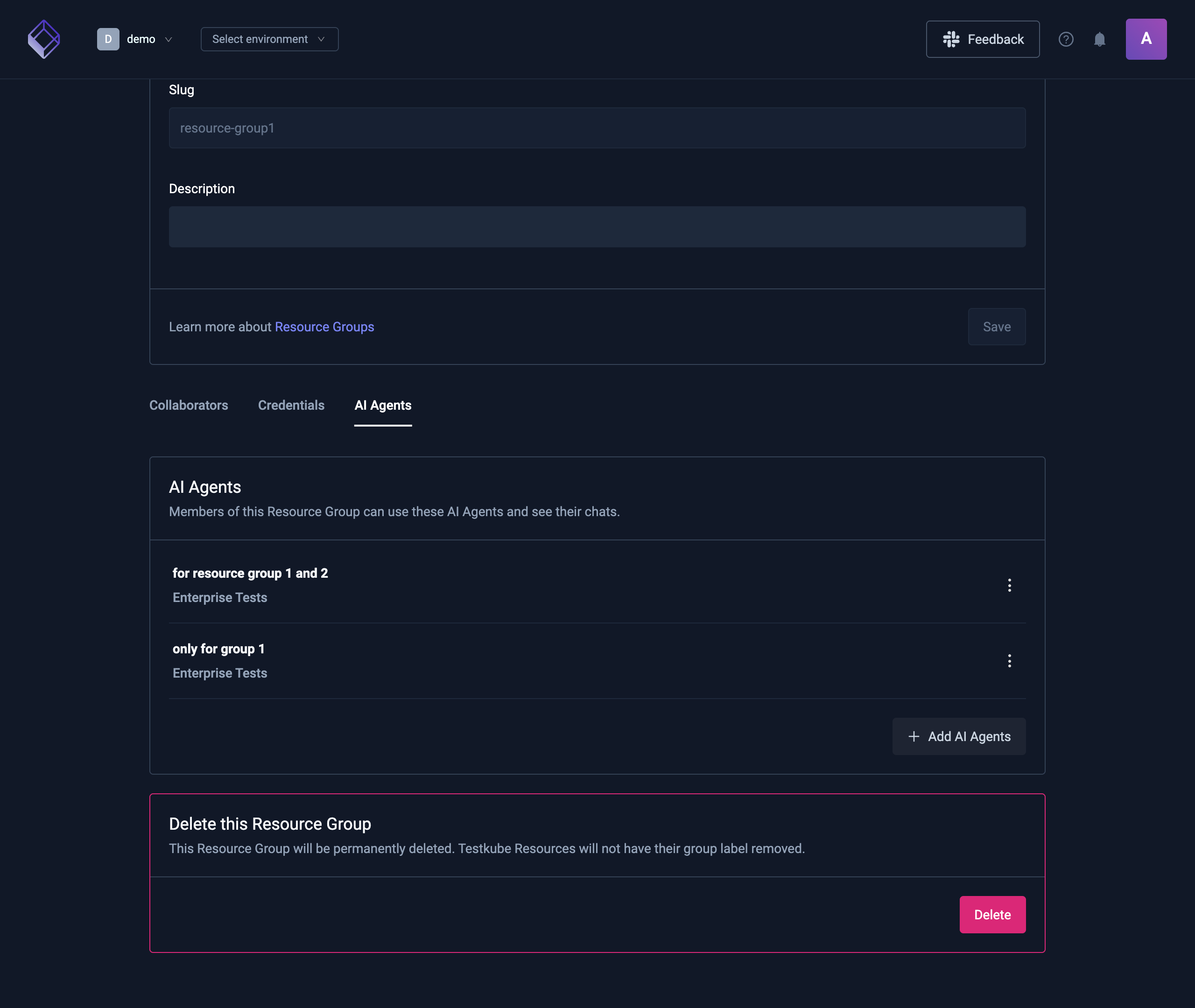
Members of the group can then use those AI Agents and see their shared chats, as long as they also have a role in the AI Agent's Environment: Read to see it, Run to chat with it. To take one away, use the AI Agent's ⋮ menu and choose Remove from Resource Group. Only Organization admins and owners can change this list.
Review access across an Environment
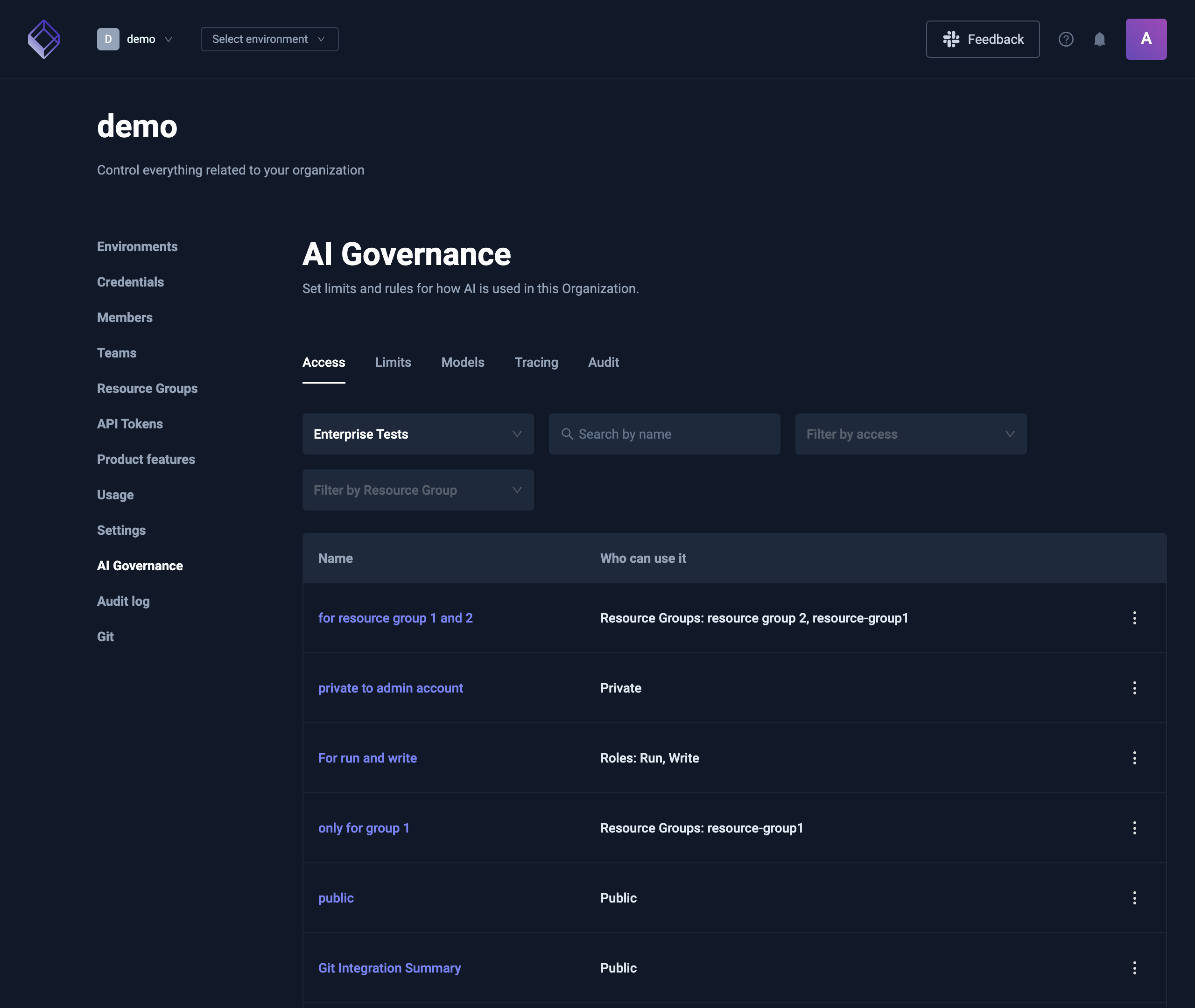
Organization Management → AI Governance → Access lists the AI Agents of one Environment and who can use each one. Only Organization admins and owners can open it.
- Environment picks the Environment. The first one by name is selected when the page opens.
- Search by name, Filter by access, and Filter by Resource Group narrow the list.
- Who can use it shows the access, for example
Roles: Run, WriteorResource Groups: Payments. - The ⋮ menu on each AI Agent has Edit access, which opens the same choices as the Access card, and Open AI Agent.