Custom Views
Custom Views allow you to save reusable sets of search criteria and filters such that you do not need to repeatedly enter the same information. When you enter frequently used search or filter criteria, you can save those settings.
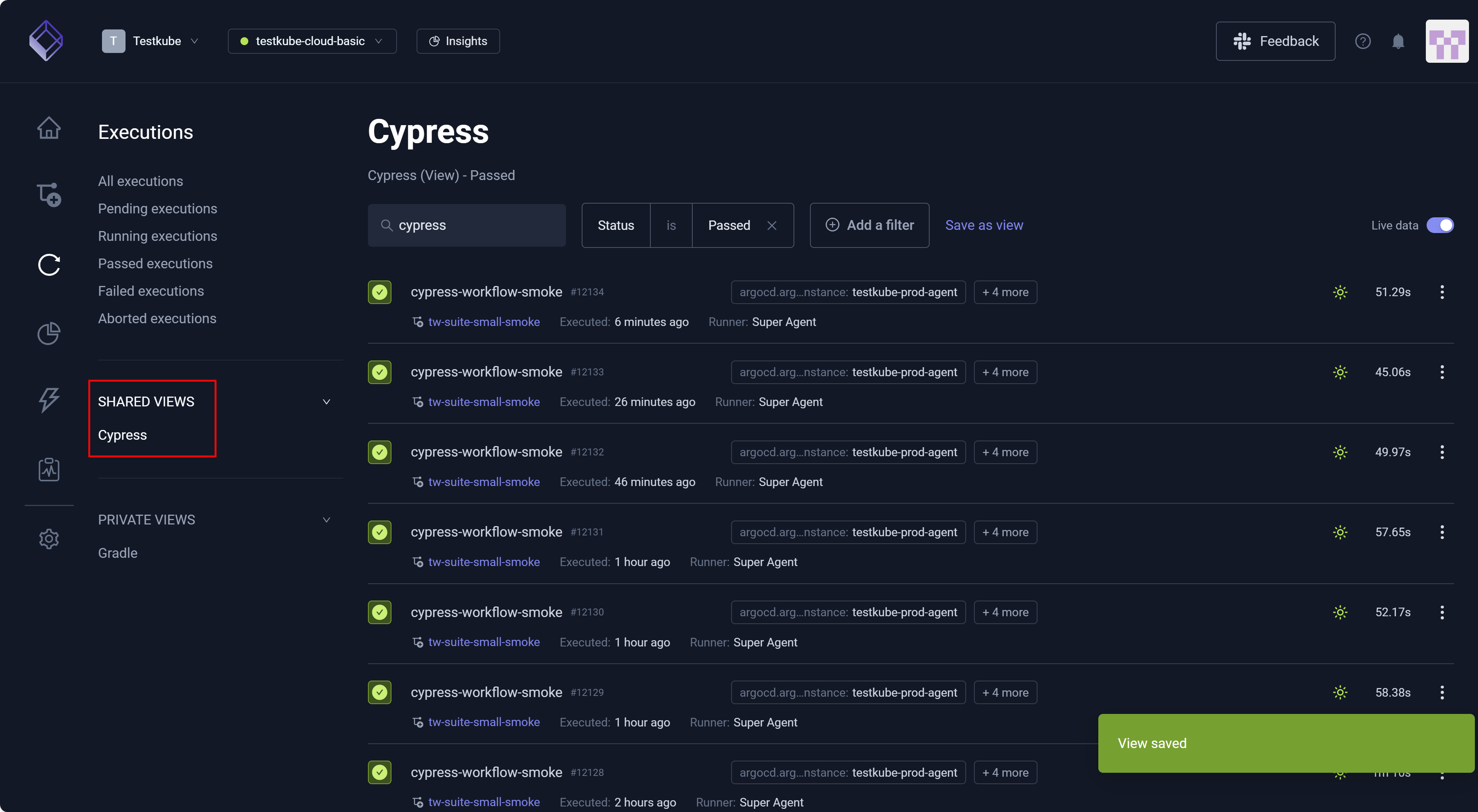
Saved views appear in the left navigation pane under PRIVATE VIEWS (for your use only) or SHARED VIEWS (available to team members). This feature helps you work more efficiently by reducing repetitive steps and allowing you to streamline how you access commonly used search criteria and filters.
Custom Views are available in the Workflow Catalog and the Executions dashboard.
To establish a Custom View:
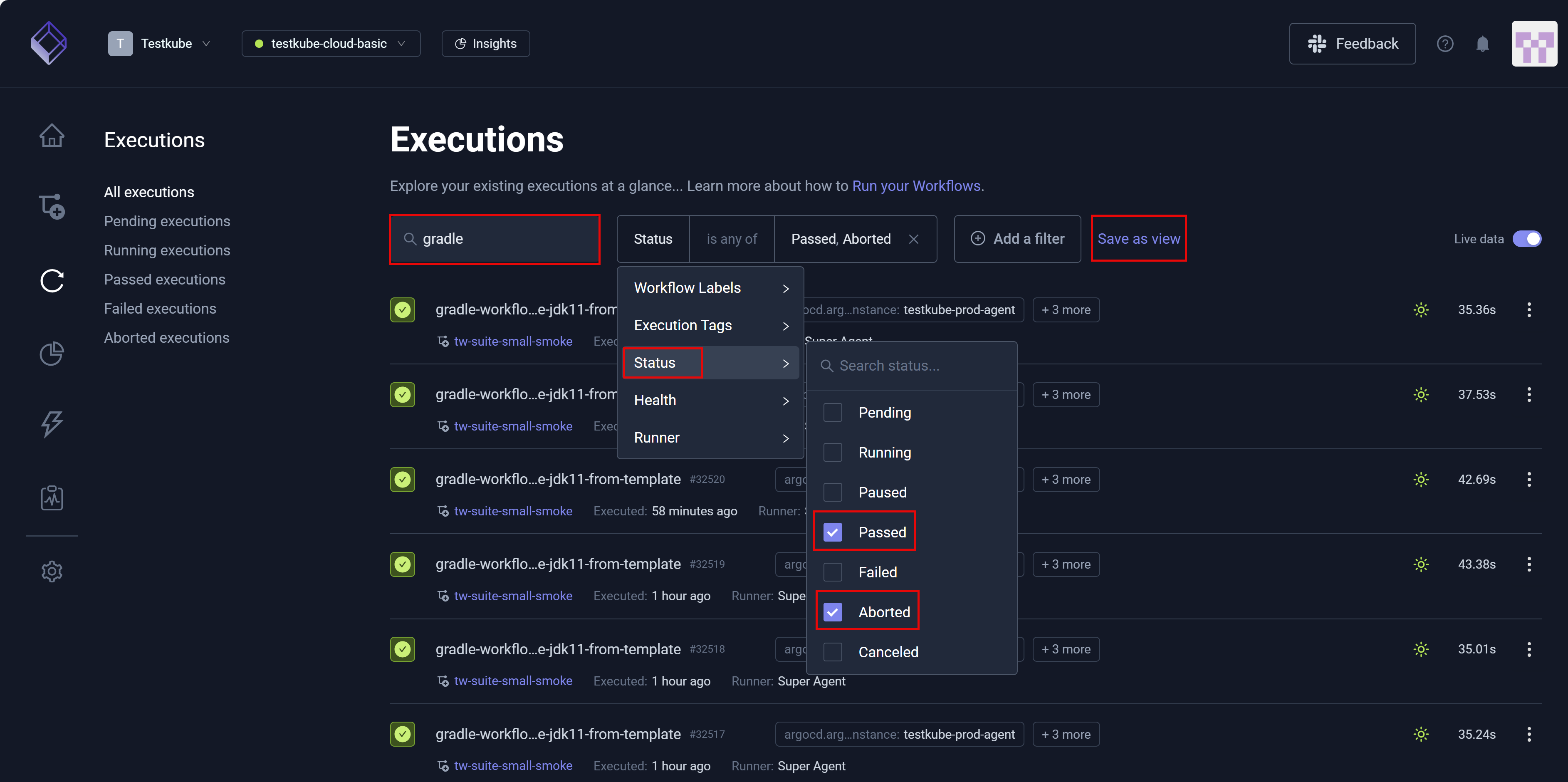
- Enter a Search criterion.
Save as view becomes visible. - Click Add a filter to enter one or more filters.
- Click Save as view.
Save new view opens – allowing you to designate your view parameters.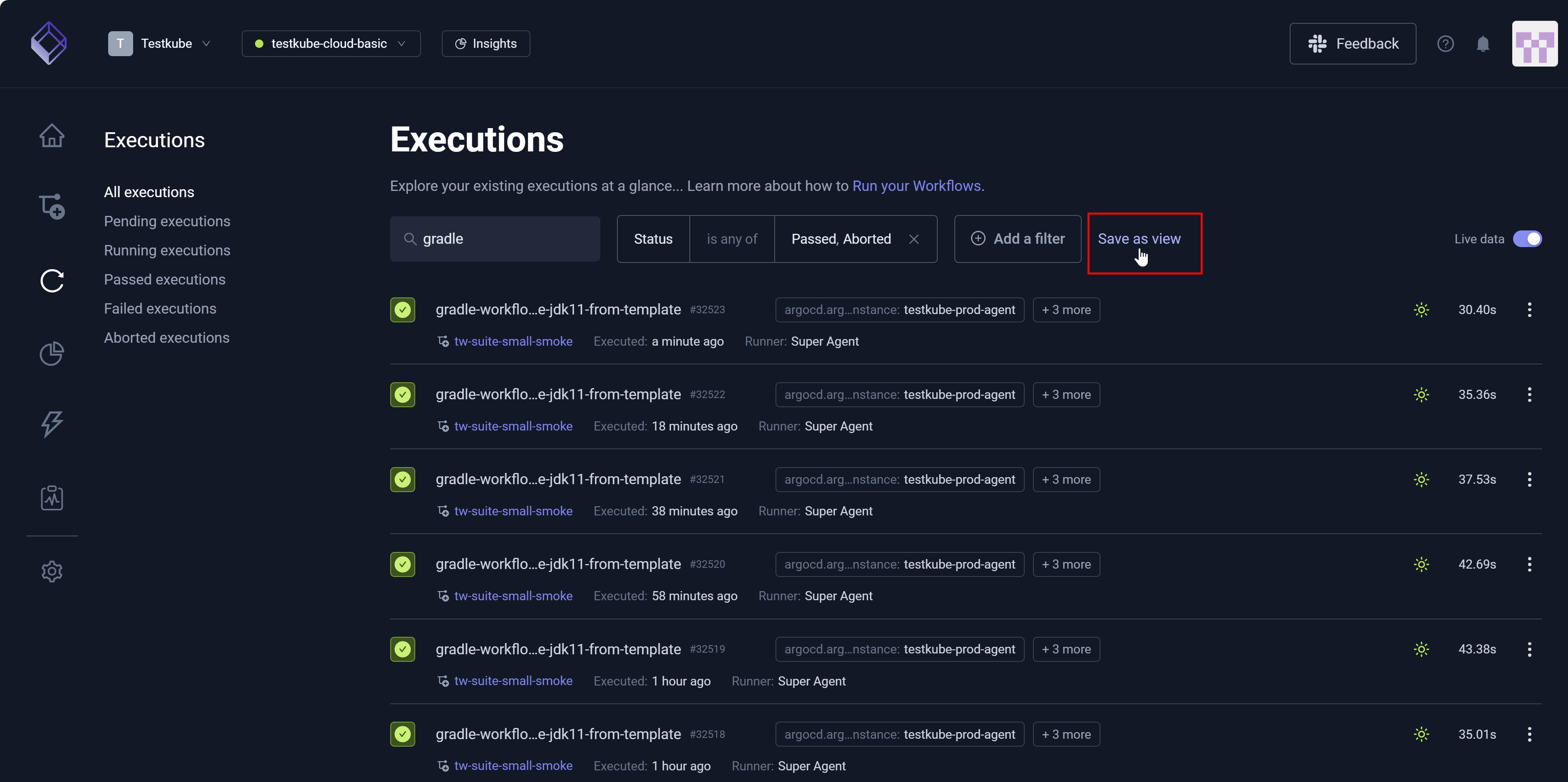
- Enter information in the Name, Description, and Visibility fields.
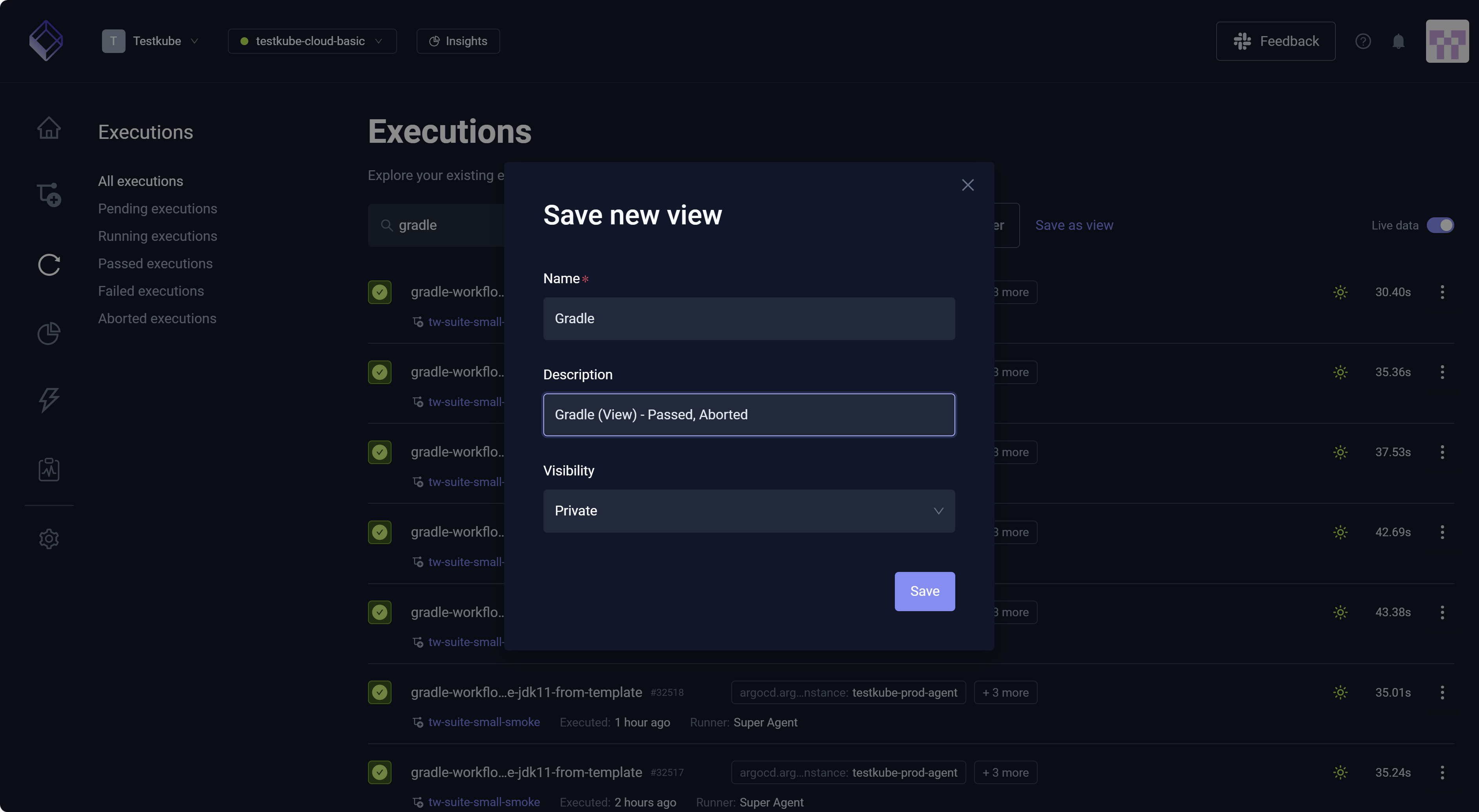
- Click Save.
The view becomes visible in the left navigation pane and associated with the Visibility you designated.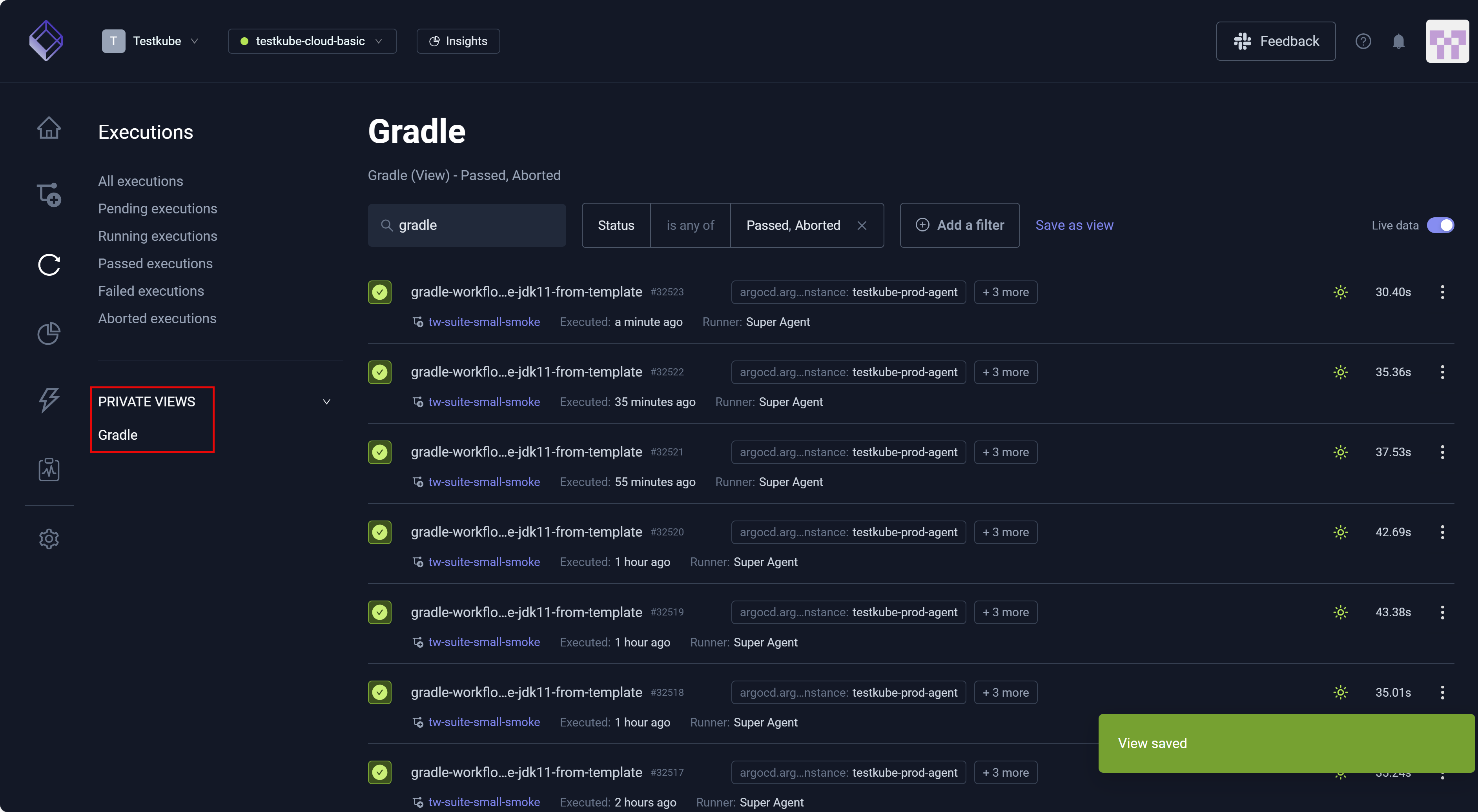
- Perform and save another view, changing Visibility to Shared across environment.
The view becomes visible in the left navigation pane and associated with the Visibility you designated. You can hover over the view in the left pane, select the vertical dots (More Options), and choose Delete to remove.